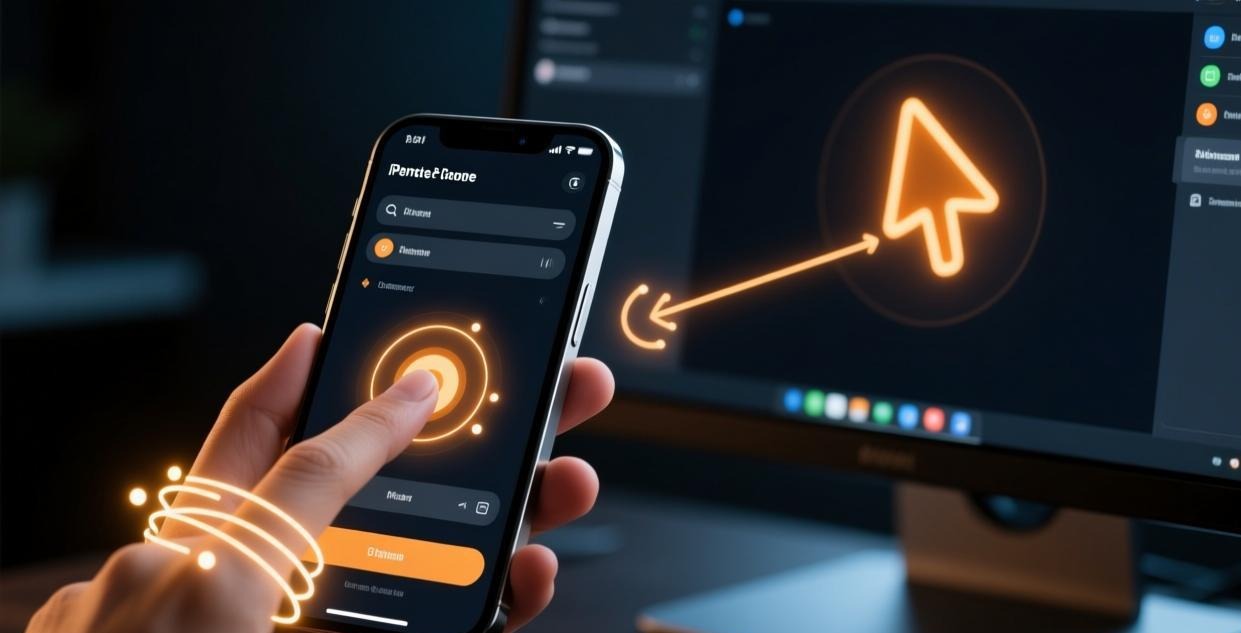
⚠️ This guide covers setting up and using the screen sharing feature in Sunflower Control for presentations, demos, and collaborative work.
Why Screen Sharing Matters
Screen sharing is different from remote control — it’s about showing your screen to others, not letting them control your computer. Whether you’re presenting a project update to your team, walking a client through a software demo, or collaborating on a document in real time, screen sharing is essential for modern remote work.
I use screen sharing daily for standup meetings with my remote team. Before Sunflower Control, we used Zoom for screen sharing, which worked fine but added yet another app to manage and another meeting link to generate. With Sunflower Control, screen sharing is built right into the same tool I use for remote access — one less app to install, one less subscription to pay for, and the connection is always ready without scheduling a meeting.
Screen Sharing vs Remote Control
| Aspect | Screen Sharing | Remote Control |
|---|---|---|
| Purpose | Show your screen to others | Control a remote device |
| Viewer can interact | ❌ View only | ✅ Full control |
| Permission needed | Share your screen | Access remote device |
| Typical use | Presentations, demos | Remote work, IT support |
| Privacy | Can share specific window | Full desktop visible |
| Multiple viewers | ✅ Supported | ❌ One controller at a time |
Setting Up Screen Sharing
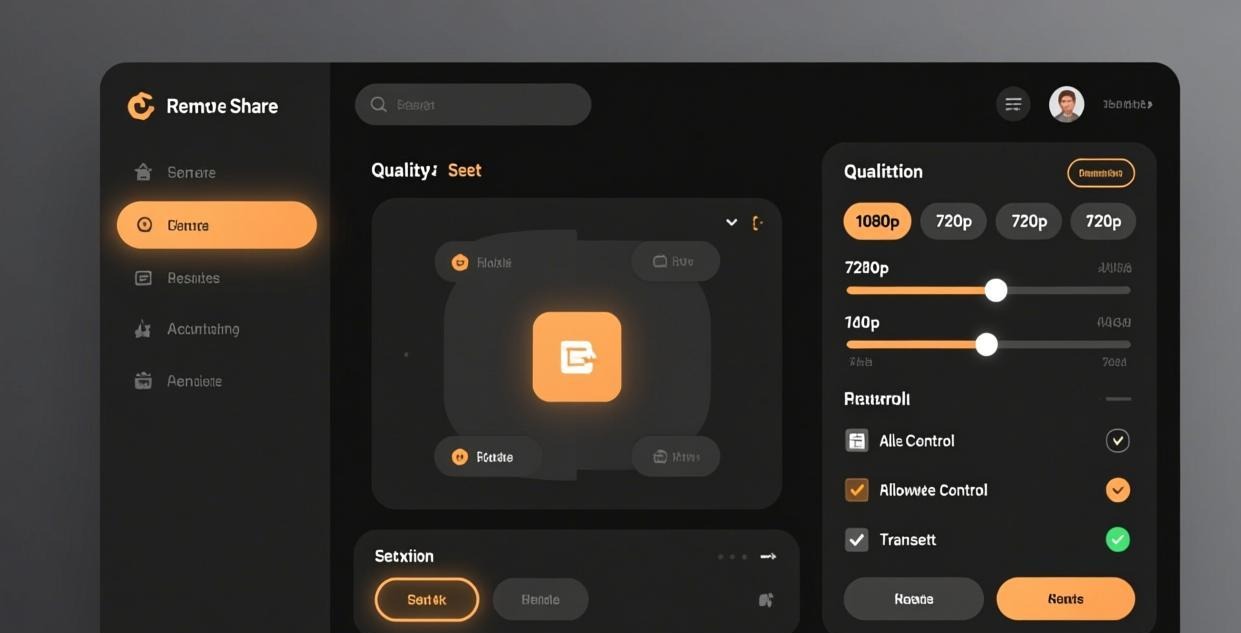
Step 1: Configure Sharing Settings
Before sharing your screen for the first time:
- Open Sunflower Control → Settings → Screen Sharing
- Default sharing mode: Choose “View Only” (recommended — you can grant control later)
- Quality: Set to “Adaptive” for best results across different connection speeds
- Frame rate: 30 fps (good balance of smoothness and bandwidth)
- Share audio: Enable if you need to share video with sound
Step 2: Start Sharing
- Open Sunflower Control
- Click “Share My Screen” in the main window
- Choose what to share:
- Entire screen: All monitors visible to viewers
- Specific window: Only the selected application window
- Specific monitor: Choose one monitor on a multi-monitor setup
- Set the sharing mode:
- View Only: Viewers can see but not interact
- Allow Control: Viewers can control your mouse and keyboard
- Click “Start Sharing”
- Share the session link or invite viewers from your contact list
Step 3: During the Session
Use these controls during a screen sharing session:
| Control | Function |
|---|---|
| Pause sharing | Temporarily freeze the shared view |
| Switch window | Change which window is being shared |
| Grant/revoke control | Allow or prevent a viewer from controlling your screen |
| Chat | Send text messages to viewers |
| Mute audio | Stop sharing system audio |
| End sharing | Stop the screen sharing session |
Window Sharing vs Full Screen Sharing
One of the most useful features in Sunflower Control is selective window sharing. Here’s when to use each:
Full Screen Sharing
Best for:
- Demonstrating workflows that span multiple applications
- Training sessions where you switch between programs
- Showing your desktop layout or system settings
Drawbacks:
- Viewers see everything on your screen, including notifications, emails, and other windows
- Desktop notifications may pop up during the session
- You need to be careful about what’s visible
Specific Window Sharing
Best for:
- Presentations where you only need to show one application (PowerPoint, browser, code editor)
- Keeping your desktop and other windows private
- Professional demos where you want a clean, focused view
How to set up:
- Start “Share My Screen”
- Select “Specific Window”
- Choose the application window from the list
- Only that window is shared — everything else stays private
I always use specific window sharing for client presentations. Honestly, there’s nothing more embarrassing than accidentally exposing a Slack notification with a colleague’s candid feedback or a personal email notification during a professional demo. Selective window sharing gives you peace of mind — you can focus entirely on presenting without worrying about unwanted pop-ups appearing on the shared screen.
Sharing Audio Along with Your Screen
Many people forget about audio when setting up screen sharing. If you’re demonstrating a video, playing a tutorial with narration, or showing a game, your viewers need to hear the audio too.
How to enable audio sharing:
- When starting a screen sharing session, check “Share computer audio”
- On Windows: This captures all system audio
- On macOS: This may require additional audio driver installation
- Viewers will hear your system audio through their speakers or headphones
Audio quality settings:
| Setting | Bandwidth | Best For |
|---|---|---|
| Voice (low) | 32 kbps | Voice narration only |
| Voice (high) | 64 kbps | Clear voice, team calls |
| Music | 128 kbps | Background music, demo audio |
| High fidelity | 256 kbps | Video playback, music production |
For most screen sharing sessions, “Voice (high)” is sufficient. If you’re sharing video content or music demos, switch to “High fidelity” for the best experience. Keep in mind that audio sharing adds to the total bandwidth requirement — plan accordingly if you’re on a slower connection.
Screen Sharing for Specific Use Cases
Software Development Demos
When sharing your code editor during a code review or pair programming session:
- Share only the editor window — Keep your terminal, browser, and other tools private
- Increase font size — Set your editor font to at least 16pt so viewers can read the code
- Use a light theme — Dark code themes are hard to read over compressed screen sharing streams
- Disable minimap — The minimap in editors like VS Code is useless to viewers and wastes bandwidth
- Turn off auto-save notifications — They create unnecessary visual noise
I learned the font size lesson the hard way during a code review — my colleague kept asking me to zoom in because they couldn’t read the 12pt code text on the shared screen through the compression artifacts. Now I always bump the editor font to 16pt or larger before sharing my screen with anyone. It takes two seconds and makes a huge difference for viewers.
Design Review Sessions
When sharing design work (Figma, Photoshop, Sketch):
- Share the design application window — Not the entire desktop
- Set quality to High — Design details matter and compression artifacts can distort colors
- Use “Actual Size” view — Don’t zoom out, let viewers zoom in on their end
- Share color-accurate view — Some design tools have a presentation mode that’s optimized for screen sharing
Training and Onboarding
When using screen sharing for training new team members:
- Enable remote control — Let the trainee practice on your shared screen
- Use a slow, deliberate pace — Describe each step as you perform it
- Pause between steps — Give viewers time to process and ask questions
- Record key sections — If possible, record the training for future reference
- Share reference materials — Use file transfer to send documents and shortcuts lists

Optimizing Screen Sharing Quality
For Presentations (Mostly Static Content)
Presentations (PowerPoint, Keynote, PDF) are mostly static slides with occasional transitions. Optimize for sharpness:
- Quality: Set to “High”
- Frame rate: 15 fps is sufficient for slides
- Resolution: Native resolution for crisp text
- Share audio: Enable if your presentation has embedded video
For Demos and Tutorials (Active Content)
Software demos require smooth motion and quick response. Optimize for fluidity:
- Quality: Set to “Medium” or “Adaptive”
- Frame rate: 30 fps for smooth interaction
- Resolution: 1080p is usually sufficient
- Share audio: Enable if demonstrating software with sound
For Video Playback
Sharing video requires the most bandwidth:
- Quality: Set to “High”
- Frame rate: 30 fps minimum, 60 fps if available
- Resolution: Match the video resolution
- Share audio: ✅ Essential for video content
- Bandwidth: Both you and viewers need at least 10 Mbps
Quality vs Bandwidth Reference
| Quality Setting | Bandwidth Needed | Viewers Need | Best For |
|---|---|---|---|
| Low | 1-2 Mbps | 1 Mbps | Slow connections, basic slides |
| Medium | 3-5 Mbps | 2 Mbps | General screen sharing |
| High | 5-10 Mbps | 5 Mbps | Detailed content, video |
| Adaptive | Varies | Varies | Mixed content, recommended default |
Screen Sharing Best Practices
Before the Session
- Close unnecessary apps — Reduce visual distractions and free up system resources for encoding the screen stream
- Enable Do Not Disturb — Prevent notifications from appearing during your session (Windows: Focus Assist / Mac: Do Not Disturb mode)
- Prepare your content — Have all files and applications open and ready before viewers join
- Test your connection — Ensure your internet is stable and fast enough for the quality level you plan to use
- Choose the right window — If using window sharing, select the correct application before viewers join the session
- Set appropriate quality — Match the quality setting to your content type and connection speed
During the Session
- Speak clearly — Viewers can see your screen but may rely on your narration
- Use cursor highlighting — Some versions offer a cursor highlight effect to help viewers follow your actions
- Pause when switching — Use “Pause sharing” when switching to sensitive content
- Check the chat — Viewers may have questions or need you to slow down
- Grant control carefully — Only allow control when needed, and revoke it promptly
After the Session
- End sharing immediately — Don’t leave the session running after you’re done
- Review shared content — Check if any sensitive information was visible during the session
- Save chat logs — If the discussion was important, export the chat transcript
Screen Sharing on Different Platforms
From Windows
Windows is the most feature-rich platform for screen sharing with Sunflower Control:
- Full screen, window, and monitor selection all supported
- Audio sharing works reliably
- Multi-monitor setups are well-supported
- Performance is generally the best on Windows
From Mac
macOS screen sharing requires Screen Recording permission:
- Grant Screen Recording permission in System Settings → Privacy & Security
- Window sharing may require Accessibility permission for window detection
- macOS notifications appear as banners — use Do Not Disturb to suppress them
- Apple Silicon Macs offer better performance for encoding the screen stream
From Mobile
Screen sharing from mobile devices is more limited:
- Android: Share your entire screen (no window selection)
- iOS: Share your entire screen via Screen Recording permission
- Both platforms share the full screen including notifications
- Audio sharing from mobile may not capture all app audio
For more platform-specific setup, see our Windows download and Mac download guides.
Common Screen Sharing Issues
| Issue | Cause | Solution |
|---|---|---|
| Black screen for viewers | Missing Screen Recording permission | Grant permission in system settings |
| Laggy video | Slow internet connection | Lower quality setting, use Adaptive |
| Viewers can’t hear audio | Audio sharing not enabled | Enable “Share audio” in session settings |
| Notifications appearing | Do Not Disturb not enabled | Turn on Focus Assist / Do Not Disturb |
| Window not in share list | App running as administrator | Run Sunflower Control as admin too |
| Low resolution on viewer end | Quality set too low | Increase quality setting |
| Can’t share specific window | Older version of Sunflower | Update to the latest version |
For connection-related issues, see our connection failed guide.
Screen Sharing vs Dedicated Meeting Software
| Feature | Sunflower Control | Zoom/Teams | Google Meet |
|---|---|---|---|
| Screen sharing | ✅ | ✅ | ✅ |
| View-only mode | ✅ | ✅ | ✅ |
| Window selection | ✅ | ✅ | ✅ |
| Remote control | ✅ | ✅ (limited) | ❌ |
| No time limit (free) | ✅ | ❌ (40 min) | ❌ (60 min) |
| No account needed for viewers | ⚠️ Varies | ❌ | ❌ |
| Built-in file transfer | ✅ | ❌ | ❌ |
| Meeting recording | ❌ | ✅ | ✅ |
| Large meeting support | ❌ | ✅ | ✅ |
Sunflower Control isn’t a replacement for Zoom or Teams if you need large meetings with dozens of participants, virtual backgrounds, or meeting recording features. But for 1-on-1 or small group screen sharing with the option to grant remote control to a viewer, Sunflower Control is simpler, more direct, and has no time limits on the free version. Many people don’t know that Sunflower Control supports view-only screen sharing — it’s not just a remote control tool.
Screen Sharing Security Tips
Since screen sharing exposes your computer screen to others, follow these security practices:
- Use window sharing, not full screen — This prevents accidental exposure of sensitive information in other windows
- Enable Do Not Disturb — Suppress all notifications before starting a session
- Clear your desktop — Remove files, folders, and shortcuts that contain sensitive information
- Close messaging apps — Slack, Teams, and email notifications are the most common sources of embarrassing pop-ups
- Use a separate browser profile — Keep your personal bookmarks and history separate from the browser you use for screen sharing
- Check your taskbar — Windows taskbar icons can reveal which apps you’re running (VPN, password manager, etc.)
- End sharing when done — Don’t leave the session running after the presentation is over
I once saw a colleague accidentally share their password manager notification during a company-wide demo. It didn’t reveal any passwords, but it was still an awkward moment. These precautions take two minutes and can save you from much longer awkward moments.
Frequently Asked Questions About Screen Sharing
Q: Can viewers record my screen sharing session? A: Sunflower Control doesn’t have built-in recording for viewers, but viewers can always use external screen recording tools (OBS, QuickTime, etc.) to record what they see. If you’re sharing sensitive content, be aware that viewers may be recording. Mention at the start of the session if recording is not permitted.
Q: Does screen sharing work on dual monitor setups? A: Yes, you can choose to share one monitor, both monitors, or switch between monitors during the session. When sharing a specific monitor, the other monitor’s content stays private. This is useful when you have reference material on one screen and the presentation on the other.
Q: Can I annotate on the shared screen? A: Sunflower Control’s built-in annotation tools are limited. For advanced annotation (drawing, highlighting, text overlay), consider using your application’s built-in tools (PowerPoint pen, PDF annotation) or a dedicated annotation app alongside Sunflower Control.
Q: How do I share my screen with someone who doesn’t have Sunflower Control? A: The viewer needs to install Sunflower Control to view your shared screen. There’s currently no web-based viewer option. For quick one-time screen sharing with non-users, a tool like Google Meet or Zoom may be more convenient since they work in a browser without installation.
What’s Next?
- Set up unattended access → Unattended access guide
- Learn file transfer → File transfer tutorial
- Control from mobile → Mobile remote control guide
- Manage multiple devices → Multi-device management
- Compare tools → Sunflower vs TeamViewer
This guide was written based on Sunflower Control 2026 latest version. Software features may change with updates. This site is an independent information resource and is not affiliated with Oray or the Sunflower remote control development team.
Disclaimer: This is an independent guide and review site. We are not associated with Oray, Sunflower, or any other remote control software company. All trademarks belong to their respective owners. This site provides links to official sources only for your safety and convenience.