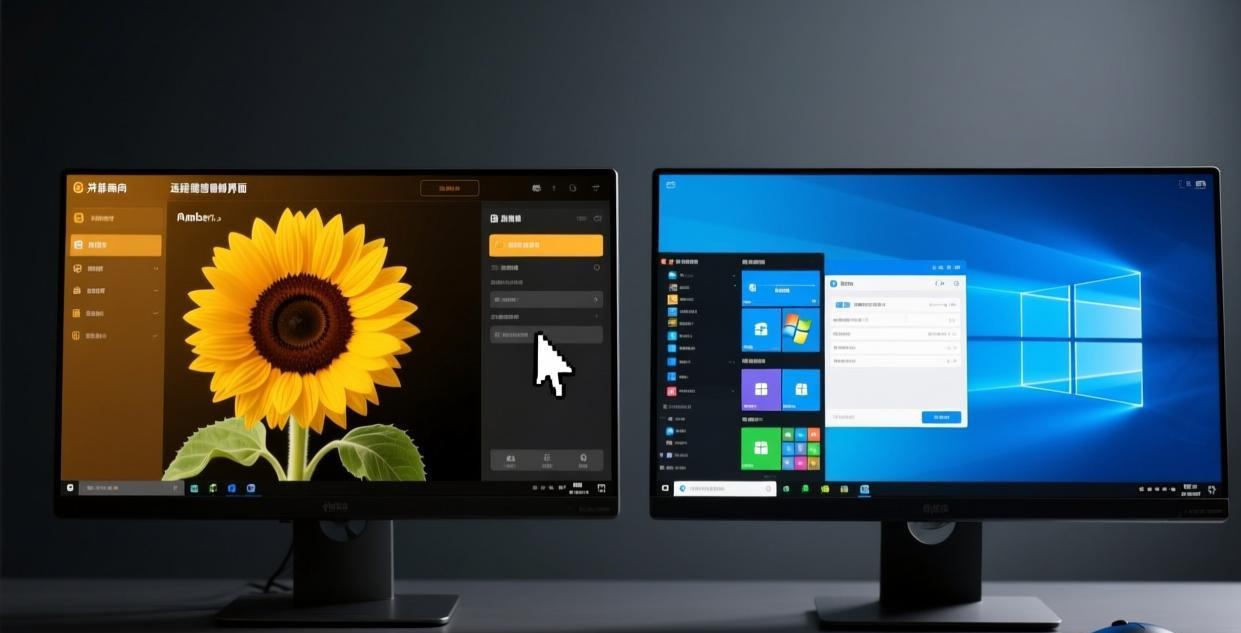
⚠️ This guide covers managing multiple devices with Sunflower Control. Learn how to add, organize, and efficiently access all your computers from a single account.
Why Multi-Device Management Matters
If you only have one computer, remote access is simple — one device, one connection. But most people have multiple devices: a work PC, a home computer, a laptop, a server, maybe a family member’s PC you help maintain. Without good multi-device management, your device list becomes a confusing mess.
I currently have 8 devices on my Sunflower Control account: my office desktop, my home PC, my work laptop, two home servers, my parents’ computer, my partner’s laptop, and my media center PC. Honestly, without device grouping and proper naming conventions, I’d never remember which “DESKTOP-A7X3K9” is the office PC and which is the home server. Organizing your devices from the start saves you from this confusion later — I learned this the hard way after spending 5 minutes trying to figure out which of my identically-named PCs I was connecting to.
Adding Devices to Your Account
Adding a Windows or Mac Computer
- Install Sunflower Control on the computer
- Sign in with your account credentials
- The device automatically appears in your device list
- Name the device something descriptive (not the default “DESKTOP-XXXXX”)
Adding a Mobile Device
- Install the app from App Store or Google Play
- Sign in with the same account
- The mobile device appears in your list and can also be used as a controller
Adding a Server or Headless PC
- Install the host client in service mode
- Sign in during installation
- The server appears in your device list and is accessible 24/7
Naming Your Devices (Important!)
Good device naming is the single most important foundation of multi-device management. When you have more than 3 devices, generic names become a real problem — you’ll waste time connecting to the wrong computer or second-guessing yourself every time you need to access a specific machine.
Bad Device Names
- DESKTOP-A7X3K9
- LAPTOP
- My Computer
- PC-2024
- User-PC
These names tell you nothing about where the device is or what it’s used for.
Good Device Names
- Office-Desktop-Win11
- Home-PC-Gaming
- Laptop-Work-MacBook
- Server-HomeNAS
- Parents-PC-LivingRoom
- Media-Center-TV
Naming Convention Recommendation
Use this format: [Location]-[Type]-[Details]
| Part | Examples |
|---|---|
| Location | Office, Home, Parents, Server-Room |
| Type | Desktop, Laptop, Server, HTPC |
| Details | Win11, Mac-M2, NAS, Gaming |
This convention makes it immediately clear which device you want to connect to, even with a long device list.
Organizing Devices into Groups
Creating Device Groups
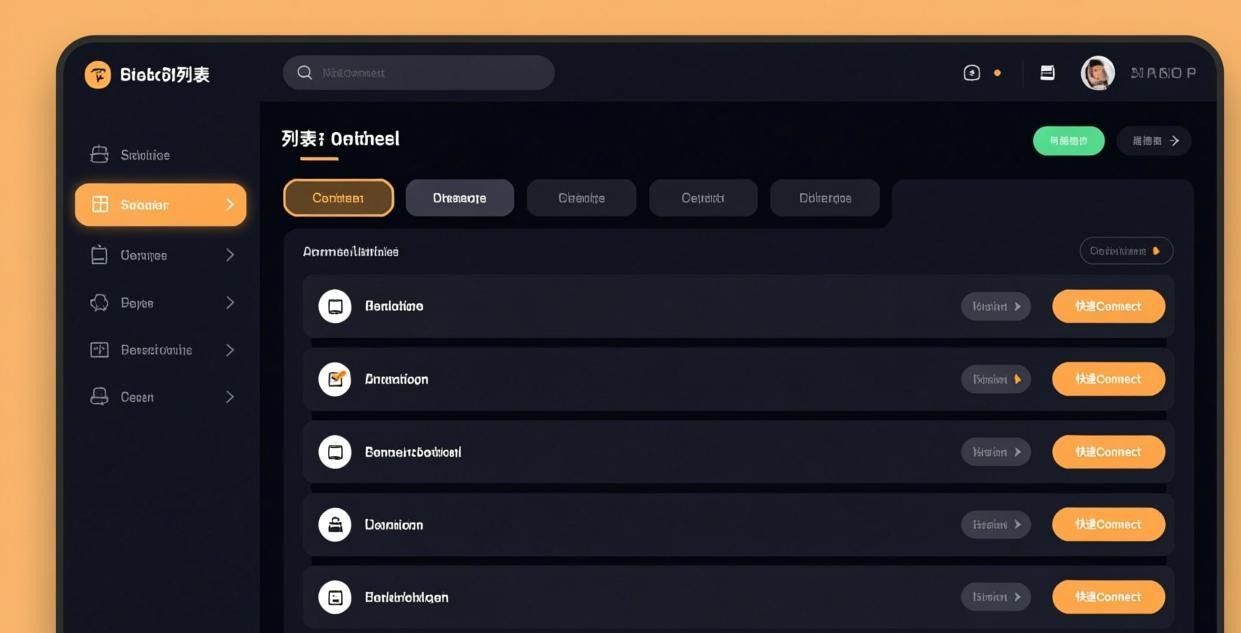
- Open Sunflower Control → Device List
- Click “Manage Groups” or the folder icon
- Click “Create Group”
- Name the group (e.g., “Office PCs”)
- Drag devices into the group
Frankly, I spent 5 minutes once trying to connect to my “DESKTOP-7K3MNP” thinking it was my office PC, only to realize I was looking at my home server. After that embarrassing waste of time, I renamed every single device following this convention and haven’t had the problem since.
Recommended Group Structure
| Group | Devices | Purpose |
|---|---|---|
| Office | Work desktop, work laptop | Daily remote work |
| Home | Home PC, media center | Personal access |
| Servers | Home NAS, VPS, dev server | Infrastructure management |
| Family | Parents’ PC, partner’s laptop | Tech support |
| Mobile | My phone, my tablet | Controllers only |
Group-Based Access
Some versions of Sunflower Control support group-level access permissions:
- Full access: Remote control + file transfer
- View only: Can see the screen but not interact
- No access: Device exists in the list but is blocked
This is useful for managing family devices — you might give yourself full access to your parents’ PC for tech support purposes, but restrict access to your partner’s laptop to view-only mode or block it entirely. Setting appropriate access levels for each device and each user is a critical part of secure multi-device management that many people overlook when they first set up their account.
Switching Between Devices
When you need to access multiple devices in sequence:
Method 1: Device List
- Click the back arrow in the remote session toolbar
- Return to the device list
- Select another device
- Connect
Method 2: Quick Switch
- During a remote session, click the device icon in the toolbar
- A dropdown shows all online devices
- Select a device to switch to
- The current session is paused or ended
Method 3: Multiple Tabs (Desktop App)
On the desktop version, you can open multiple remote sessions in separate tabs:
- Start a session with Device A
- Click “New Tab” or Ctrl+T
- Connect to Device B in the new tab
- Switch between tabs to monitor both devices
Multiple simultaneous tabs is a paid feature on most subscription plans. For the free version, you can only have one active remote connection at a time — connecting to a second device will disconnect you from the first. This is one of the main reasons I upgraded to a paid plan — being able to monitor multiple servers at once without constantly disconnecting and reconnecting is a significant productivity boost.

Managing Device Access Permissions
Per-Device Access Password
Each device should have its own unique access password:
| Device | Password Strategy |
|---|---|
| Your own devices | Strong password you can remember |
| Family devices | Share the password with the device owner |
| Servers | Very strong password, stored in a password manager |
| Shared office devices | Unique password, changed when team members leave |
Access Logging
Enable access logging on important devices to track who connected and when:
- Open host client settings on the device
- Enable “Log all sessions”
- Set log retention period (30-90 days recommended)
- Review logs periodically for unauthorized access
Revoking Access
If you need to revoke remote access to a device:
- Remove the device from your account — Right-click → “Remove”
- Change the access password — In host client settings
- Uninstall the host client — If you want to permanently disable remote access
- Disable the service — Stop the host service without uninstalling
Monitoring Device Status
The device list shows the current status of each device:
| Status Icon | Meaning |
|---|---|
| 🟢 Green | Online and accessible |
| 🟡 Yellow | Online but busy (session in progress) |
| 🔴 Red | Offline or unreachable |
| ⚪ Gray | Host client not installed |
If a device shows as offline when you expect it to be online, work through this troubleshooting sequence:
- Check if the computer is physically on — Someone may have turned it off or it may have crashed
- Verify the host client service is running — On the remote device, check Windows Services or the system tray icon
- Check the network connection — The remote device may have lost its internet connection or Wi-Fi may have dropped
- Try pinging the device — From another computer on the same network, ping the device’s IP address
- Check for Windows Update restarts — Windows may have automatically restarted the PC to install updates
- Verify power settings — The PC may have entered sleep mode despite your configuration
- Check for firewall changes — A recent security update may have modified firewall rules
For detailed troubleshooting steps, see our connection failed guide.
Bulk Device Management Tips
Installing the Host Client on Multiple PCs
If you need to set up Sunflower Control on many computers at once (like in an office environment), consider these efficiency tips:
- Create a standard configuration file — Set up one PC perfectly, then export the host client configuration (config.ini) to use as a template for other installations
- Use a shared installer — Host the installer on a network share so you don’t need to download it on each PC
- Document the setup process — Create a one-page guide for other IT staff to follow when setting up new devices
- Naming convention — Apply your naming standard consistently as you add each device
- Group assignment — Add each device to the appropriate group immediately after installation
Keeping All Devices Updated
Managing updates across many devices can be challenging:
- Enable automatic updates on the host client — This is the easiest approach and ensures all devices stay current
- Schedule update windows — If auto-updates cause disruptions, schedule them during off-hours
- Monitor version numbers — Periodically check your device list for devices running outdated versions
- Test updates first — Before enabling auto-updates across all devices, test the new version on one device to verify compatibility
Removing Decommissioned Devices
When a computer is retired or reassigned:
- Remove from your account — Right-click → Remove in the device list
- Change the access password — If the PC is being given to someone else, change the password before removal
- Uninstall the host client — Remove Sunflower Control from the decommissioned PC
- Update your records — Note the removal date in your device management documentation
I recommend doing a quarterly audit of your device list — schedule it for the first Monday of each quarter. Remove devices you no longer need access to, update names if devices have moved or changed purpose, and verify that all access passwords are still current. A clean, well-organized device list is a manageable device list; a cluttered one is a source of constant confusion and potential security risks.
Advanced Multi-Device Scenarios
Multi-Site Office Management
For businesses with multiple office locations:
- Group by location — “NYC Office,” “London Office,” “Tokyo Office”
- Assign local admins — Each location has a person responsible for on-site issues
- Use consistent naming —
[Location]-[Department]-[Number](e.g., “NYC-Marketing-03”) - Monitor from central dashboard — The IT team can see all devices across all locations
Seasonal Device Management
Some businesses have devices that are only active during certain seasons:
- Tax season PCs — Only used January through April
- Holiday kiosks — Only active during November-December
- Event workstations — Used during conferences and trade shows
For seasonal devices:
- Keep them in a “Seasonal” group
- Disable the host client during off-season to save resources
- Re-enable and update before the season starts
- Test all connections before the busy period begins
Managing Devices Across Time Zones
If your devices span multiple time zones:
Include the time zone in the device name — “NYC-Desktop-EST” or “LON-Server-GMT”
Schedule maintenance windows — Respect working hours in each time zone
Be aware of daylight saving time changes — Time zone offsets change twice a year in many regions
Consider the human element — Don’t connect to someone’s work PC during their overnight hours without giving them advance notice. The black screen feature is helpful here — it prevents the remote user from seeing your session, but ethically, people should know when someone is accessing their computer remotely, even in a corporate environment.
Document timezone-aware maintenance windows — Create a simple spreadsheet or document showing when each location’s PCs are typically in use, so you know the best times for maintenance without disrupting anyone’s work.
Multi-Device Use Cases
IT Administrator Managing Office Computers
An IT administrator managing 20+ office computers:
- Install the host client on all office PCs with unattended access enabled (see our host client guide for installation details)
- Group by department — Marketing PCs, Engineering PCs, Executive PCs, each in their own device group
- Set access permissions per group — IT admin has full access to everything, department heads have view-only access to their team’s PCs
- Monitor device status — Check which PCs are online and which need attention at a glance from the dashboard
- Remote troubleshooting — Connect to any office PC without leaving your desk, fix problems in minutes instead of walking across the building
Remote Worker with Multiple Locations
A worker who splits time between home and office:
- Home PC — Always-on host client for accessing work files from the office
- Office PC — Always-on host client for accessing work resources from home
- Laptop — Controller device used from both locations
- Phone — Emergency access device
Helping Multiple Family Members
Supporting tech-challenged family members:
- Parents’ PC — Host client with unattended access for quick fixes
- Sibling’s laptop — Host client for occasional support
- Group them together — “Family” group for quick access
- Set notifications — Get alerts when they try to connect to you for help
I manage remote access for my parents and my partner’s laptop, all under one Sunflower Control account. When my mom calls with a “my computer is broken” emergency — which happens about once a month — I can connect within seconds without guiding her through any setup steps or asking her to click anything. It’s saved us literally hours of frustrating phone-based troubleshooting over the past few years. My dad used to spend 20 minutes trying to describe what was on his screen; now I just look at it myself and fix the problem.
Multi-Device Management Checklist
Initial setup for each device:
- Install Sunflower Control (full app or host client)
- Sign in with your account
- Rename the device to something descriptive
- Set a unique access password
- Assign to a device group
- Configure power settings (no sleep for always-on devices)
- Enable access logging (for important devices)
- Test the connection from another device
Ongoing management:
- Review device list monthly for stale devices
- Change access passwords quarterly
- Check access logs for unauthorized connections
- Remove devices you no longer need access to
- Update the host client when new versions are available
- Verify online status of critical devices regularly
Common Multi-Device Issues
| Issue | Cause | Solution |
|---|---|---|
| Device shows offline but is on | Host service crashed | Restart the host service remotely (if possible) or locally |
| Can’t find a device in the list | Signed in with wrong account | Check the account email on both devices |
| Two devices with same name | Default naming collision | Rename both devices to something unique |
| Slow switching between devices | Connection not properly closed | End the previous session before starting a new one |
| Access password doesn’t work | Password was changed on the host | Get the new password from whoever changed it |
| Too many devices, hard to find | No organization structure | Create device groups and rename devices |
For connection issues, see our connection failed troubleshooting guide and high latency fix guide.
What’s Next?
- Set up unattended access on all your devices → Unattended access guide
- Learn file transfer between devices → File transfer tutorial
- Screen sharing for collaboration → Screen sharing guide
- Control from phone → Mobile remote control guide
- Download for all platforms → Windows | Mac | Android | iOS

This guide was written based on Sunflower Control 2026 latest version. Software features may change with updates. This site is an independent information resource and is not affiliated with Oray or the Sunflower remote control development team.
Disclaimer: This is an independent guide and review site. We are not associated with Oray, Sunflower, or any other remote control software company. All trademarks belong to their respective owners. This site provides links to official sources only for your safety and convenience.