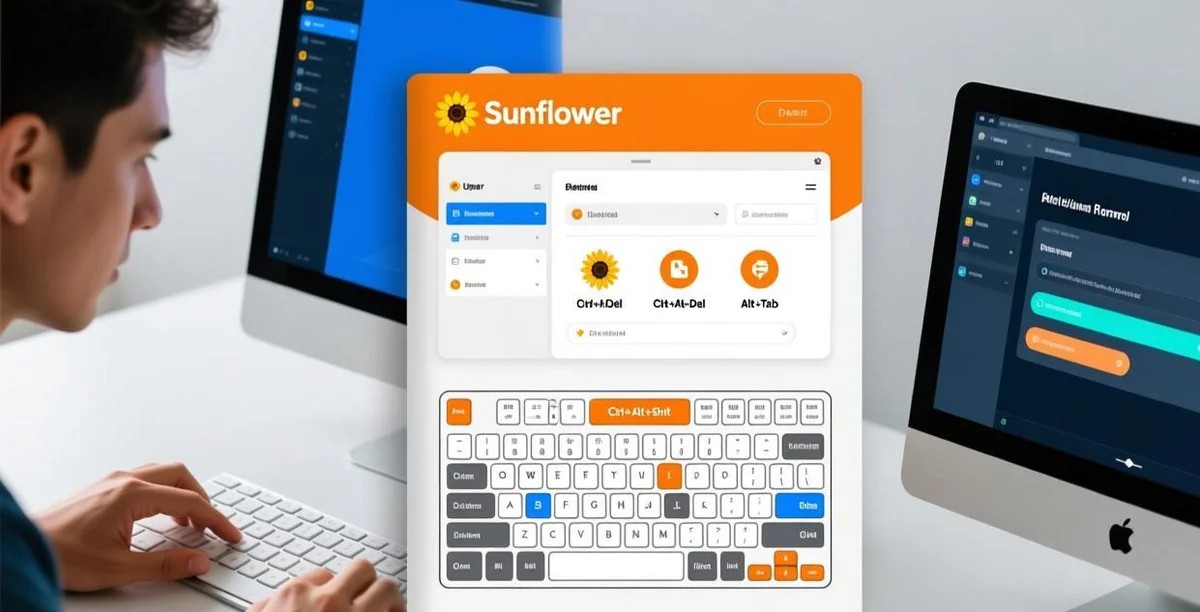
⚠️ This guide shows you how to control your computer from your phone using Sunflower Control. Covers both Android and iPhone setup with tips for the best mobile remote experience.
Why Control Your PC from Your Phone
There are times when you need access to your computer but you only have your phone nearby. Maybe you’re at a restaurant and realize you forgot to send an important file. Or you’re in bed and want to check if a download finished. Or a family member calls with a computer emergency and you need to fix it right away.
I’ve controlled my office PC from my phone in all of these situations and more. Honestly, it’s not ideal for extended work sessions — the screen is small and touch controls take some getting used to — but for quick, urgent tasks when you’re away from your desk, it’s absolutely invaluable. The ability to access your full computer from a device that’s always in your pocket is genuinely transformative. I discovered this when I was at dinner and got a message that a critical server process had crashed — I connected from my phone, restarted the service, and saved the evening without leaving the restaurant.
What You Need
| Requirement | Details |
|---|---|
| Sunflower Control account | Free to create |
| Phone app | Android or iOS |
| Computer app | Windows or Mac |
| Both devices signed in | Same Sunflower Control account |
| Internet on both | Wi-Fi or cellular data |
Setup Steps
Step 1: Install on Your Computer
- Download and install Sunflower Control on your PC or Mac
- Sign in to your account
- Enable “Remote access to this device” in Settings (requires host client for unattended access)
- Note the device name — you’ll need to find it on your phone
Step 2: Install on Your Phone
- Download from the App Store (iPhone/iPad) or Google Play (Android)
- Sign in with the same account
- Grant all requested permissions (network, storage, overlay)
Step 3: Connect
- Open Sunflower Control on your phone
- Your computer appears in the device list
- Tap the computer name to connect
- Enter the access password if prompted
- Your computer’s screen appears on your phone
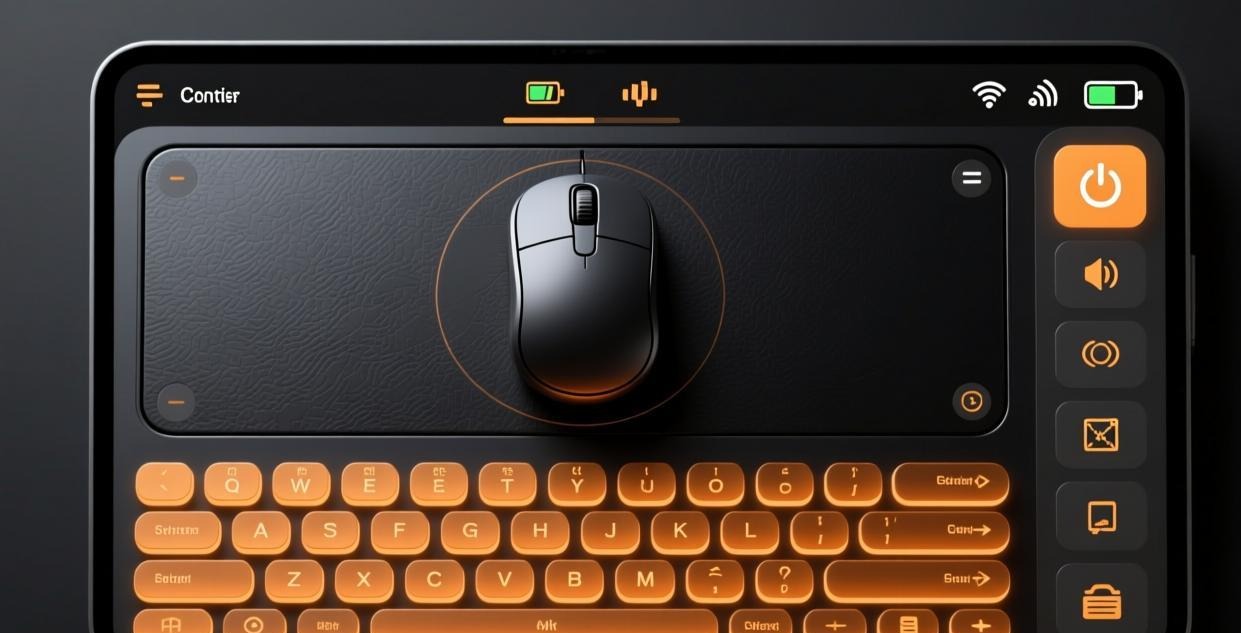
Touch Controls Reference
Understanding touch controls is the key to a good mobile remote experience. Here’s the complete reference:
| Gesture | Action | Tip |
|---|---|---|
| Single tap | Left click | Tap where you want the cursor to click |
| Long press | Right click | Hold for about 1 second |
| Two-finger drag | Scroll | Use for web pages, documents, lists |
| Pinch | Zoom in/out | Useful for reading small text |
| Two-finger tap | Middle click | Opens links in new tabs in browsers |
| Three-finger swipe up | Show keyboard | Access virtual keyboard for typing |
| Three-finger swipe down | Hide keyboard | Dismiss the keyboard |
| Swipe from left edge | Control panel | Access settings and disconnect |
Touch Control Tips
You’re moving a cursor, not touching the screen directly — This is the single most important concept to understand about mobile remote control. When you tap the screen, you’re telling the virtual cursor to click at that position on the remote desktop. You’re not directly pressing a UI button the way you would with a native phone app. This distinction takes a few minutes to internalize, but once you get it, everything else falls into place.
Use the magnifier for precision clicking — When you need to click a small button or a specific menu item, the magnifier mode enlarges the area around your finger so you can see exactly where you’re about to click before you commit the tap. This is essential for navigating dense UIs like Excel ribbons or small toolbar buttons.
Practice for 5 minutes — The controls feel awkward at first but become natural quickly. I was genuinely frustrated during my first mobile remote session and almost gave up, but after about 10 minutes of practice, something clicked and it started feeling intuitive. Now I can navigate a remote desktop from my phone almost as naturally as using a mouse.
Switch to landscape mode — Turn your phone sideways for a wider view of the remote desktop. Most tasks are significantly easier in landscape orientation because you can see more of the desktop at once and the on-screen controls are better positioned.
Use two hands — Hold your phone with one hand and use your other hand’s index finger for tapping. This gives you much better precision than trying to tap with your thumb while holding the phone one-handed.
Optimizing for Mobile
Display Settings
Phone screens are much smaller than computer monitors. Adjust these settings for the best mobile experience:
| Setting | Recommended for Phone | Recommended for Tablet |
|---|---|---|
| Resolution | Scaled 720p | Scaled 1080p |
| Quality (Wi-Fi) | Medium | High |
| Quality (Cellular) | Low | Medium |
| Display mode | Scaled (fit screen) | Full resolution |
Keyboard Tips
Typing on a phone keyboard while looking at a remote desktop can be frustrating. Here are strategies:
- Use voice-to-text — Most phones support voice input. Dictate text instead of typing
- Connect a Bluetooth keyboard — Transforms the experience for typing-heavy tasks
- Use keyboard shortcuts — The app provides on-screen shortcut buttons for common actions (Ctrl+C, Ctrl+V, Alt+Tab)
- Pre-type in a notes app — Write text in your phone’s notes app, then copy-paste it into the remote session
Battery Management
Remote control from your phone drains the battery significantly faster than most other apps because it requires continuous screen display, video decoding, network transmission, and touch input processing all at the same time:
- Reduce quality — Lower quality means less video decoding work for the CPU, which directly reduces battery drain
- Close other apps — Free up memory and reduce background processing that competes for CPU resources
- Stay plugged in — For any remote session longer than 15 minutes, keep your phone connected to a charger
- Enable battery saver after the session — Don’t enable it during the session as it may throttle performance and cause lag
- Dim your screen — Reducing screen brightness saves battery without affecting the remote session quality
Real-World Use Cases
Quick File Check
You’re away from your desk and need to verify a file on your computer:
- Open Sunflower Control on your phone → connect to your PC
- Open File Explorer on the remote desktop
- Navigate to the file and check its details
- If needed, use file transfer to send it to your phone
Time: 2-3 minutes. Versus: Driving back to the office.
Emergency IT Support
A family member calls with a computer problem:
- Connect to their PC from your phone
- Diagnose the issue visually
- Fix it remotely — restart a service, change a setting, update software
- Disconnect when done
I’ve fixed my parents’ printer issues, email configuration problems, and browser hijacks all from my phone while sitting on the couch watching TV. Many people don’t know that you can do full IT support from a phone — it’s surprisingly effective for common problems that would otherwise require a 30-minute phone call of “click the thing next to the other thing.” With remote control, I can just do it myself and be done in two minutes.
Starting a Download Remotely
Starting a Download Remotely
You found a large file you need but can’t download it on your phone:
- Connect to your home PC from your phone
- Open the browser on the remote desktop
- Navigate to the download page and start the download
- Disconnect — the download continues on your PC
By the time you get home, the file is ready and waiting on your PC. This is one of my most frequent use cases for mobile remote control — I start downloads on my home PC from my phone almost daily, whether it’s a software update, a large video file, or a work document that’s too big for my phone to handle comfortably.
Advanced Mobile Remote Control Features
Using Special Key Combinations
On a computer, you often need key combinations that don’t have obvious equivalents on a phone. Sunflower Control provides these through the on-screen toolbar:
| Computer Shortcut | Mobile Equivalent |
|---|---|
| Ctrl+C | Tap “Ctrl” then “C” on toolbar, or use shortcut button |
| Ctrl+V | Tap “Ctrl” then “V” on toolbar |
| Ctrl+Alt+Delete | Special button in toolbar → “Send Ctrl+Alt+Del” |
| Alt+Tab | Special button → “Switch Window” |
| Windows key | Special button → “Start Menu” |
| F5 (Refresh) | Special button → “F5” |
| Print Screen | Special button → “Screenshot” |
The special key toolbar is accessed by tapping the keyboard icon in the floating control bar. It’s essential for tasks that require keyboard shortcuts — you can’t do much on a Windows PC without Ctrl+C/V and Alt+Tab.
Multi-Monitor Switching from Phone
If the remote PC has multiple monitors, switch between them:
- Tap the monitor icon in the toolbar
- Select which monitor to view
- Or choose “All monitors” for an overview
On a phone screen, viewing all monitors simultaneously makes everything tiny. I recommend switching between monitors individually for the best mobile experience.
Using Your Phone as a Drawing Tablet
Some versions of Sunflower Control support a drawing mode that uses your phone’s touch screen as a graphics tablet input for the remote computer. This is useful for:
- Signing documents remotely
- Making quick annotations
- Drawing in design software (limited, but functional)
Enable drawing mode in the toolbar → “Drawing” toggle. Note that phone touch screens don’t have pressure sensitivity like real drawing tablets, so this is best for simple tasks only.
Mobile Remote Control Checklist
Before connecting from your phone:
- Sunflower Control installed on both phone and computer
- Both devices signed in with the same account
- Host client running on the computer (for unattended access)
- Phone connected to Wi-Fi (preferred) or strong cellular signal
- Phone sufficiently charged (30%+ for a session)
- Screen orientation set to landscape for better viewing
During the session:
- Use landscape orientation for wider view
- Set quality to Medium (Wi-Fi) or Low (cellular)
- Set resolution to 720p for readability
- Use the special key toolbar for keyboard shortcuts
- Keep the app in foreground to prevent disconnection
- Plug in charger for sessions longer than 15 minutes
Phone vs Tablet vs Laptop for Remote Access
| Aspect | Phone | Tablet | Laptop |
|---|---|---|---|
| Screen size | Cramped | Comfortable | Ideal |
| Typing | Virtual keyboard only | Bluetooth keyboard option | Built-in keyboard |
| Portability | Bag | Backpack | |
| Battery life | Short (1-2 hrs) | Medium (2-4 hrs) | Long (4-8 hrs) |
| Setup time | Instant | Instant | Boot time |
| Best for | Quick tasks, emergencies | Extended remote sessions | Full work sessions |
Frankly, for anything beyond 10 minutes of remote work, a tablet with a Bluetooth keyboard is the sweet spot between portability and usability. The phone is your always-available emergency remote control device, and the laptop is for when you need to do serious, extended work sessions. But the phone fills a crucial gap — it’s the device you always have with you, which means you always have access to your computer no matter where you are.
Performance Expectations on Mobile
Setting realistic expectations helps you use mobile remote control effectively:
| Task | Phone Feasibility | Time Needed |
|---|---|---|
| Check if a download finished | ✅ Easy | 1 min |
| Send an email from your PC | ✅ Easy | 2-3 min |
| Restart a program/service | ✅ Easy | 2 min |
| Find and transfer a file | ✅ Moderate | 3-5 min |
| Edit a spreadsheet | ⚠️ Difficult | 10+ min |
| Write a long document | ❌ Impractical | Use tablet/laptop |
| Design work (Photoshop, Figma) | ❌ Impractical | Use tablet/laptop |
| Watch remote video | ⚠️ Possible but laggy | N/A |
The key insight is: use mobile remote control for quick actions and emergencies, not for sustained productivity work. It’s a rescue tool, not a daily driver — and that’s perfectly fine.
Alternatives When Sunflower Control Isn’t Available on Mobile
If you can’t install Sunflower Control on your phone (company policy, storage limitations, etc.), consider these alternatives:
- Web-based remote access — Some tools offer browser-based remote desktop that works on mobile without installing an app
- SSH client apps — For server management, SSH terminal apps like Termius work on mobile
- Cloud desktop — Services like AWS WorkSpaces or Shadow PC give you a full desktop accessible from any browser
- Chrome Remote Desktop — Works from the Chrome browser on mobile, no app installation needed
Each alternative has trade-offs in features, performance, and security. Sunflower Control’s dedicated mobile app generally offers the best experience for controlling a specific PC from your phone.
Security Tips for Mobile Remote Access
Controlling your computer from a phone that you carry everywhere creates unique security considerations that don’t apply when using a desktop or laptop for remote access:
- Lock your phone — Fingerprint, Face ID, or strong PIN. Anyone with your unlocked phone could access your computer remotely within seconds. This is the single most important security measure.
- Don’t save passwords in the app — Type your access password each time instead of saving it in the app. It’s a minor inconvenience that prevents unauthorized access if your phone is lost or stolen.
- Sign out after use — Don’t stay signed in to Sunflower Control on your phone when you’re not actively using it. Every minute you’re signed in is a minute someone could access your account if they get your phone.
- Use a VPN on public Wi-Fi — Encrypt your traffic when connecting from coffee shops, airports, or hotel Wi-Fi networks. Public networks are prime targets for man-in-the-middle attacks.
- Enable app lock — Use your phone’s built-in app lock feature (or a third-party app locker) to require fingerprint or PIN authentication before opening Sunflower Control.
- Remote wipe capability — Ensure you have the ability to remotely wipe your phone if it’s lost or stolen (Find My iPhone for iOS, Find My Device for Android).
Common Mobile Remote Issues
| Issue | Cause | Solution |
|---|---|---|
| Can’t see small text | High resolution scaling | Set to 720p, use zoom/pinch |
| Touch not precise | Cursor vs direct touch mode | Use cursor mode for precision |
| Typing is slow | Virtual keyboard limitations | Connect Bluetooth keyboard |
| Connection drops | Wi-Fi/cellular instability | Switch to more stable network |
| Screen goes black | App backgrounded by OS | Keep app in foreground |
| High data usage | High quality streaming | Set quality to Low on cellular |
| Battery drains fast | Screen + CPU + network | Plug in charger, lower quality |
For connection-specific troubleshooting, see our connection failed guide.
What’s Next?
- Set up unattended access on your PC → Unattended access guide
- Learn file transfer from mobile → File transfer tutorial
- Download the apps → Android | iOS
- Fix connection issues → Troubleshooting guide
- Compare with TeamViewer → Sunflower vs TeamViewer
This guide was written based on Sunflower Control 2026 latest version. Software features may change with updates. This site is an independent information resource and is not affiliated with Oray or the Sunflower remote control development team.
Disclaimer: This is an independent guide and review site. We are not associated with Oray, Sunflower, or any other remote control software company. All trademarks belong to their respective owners. This site provides links to official sources only for your safety and convenience.