⚠️ This guide covers the file transfer feature in Sunflower Control. Learn how to move files between devices quickly and securely during remote sessions.
Why File Transfer Matters
Remote access isn’t just about seeing and controlling a distant screen — you often need to move files between devices too. Maybe you need to grab a document from your office PC, push a software update to a server, or share photos between your phone and computer.
I used to rely on cloud storage services (Google Drive, Dropbox) to move files between my devices — upload from one device, wait for the sync, then download on the other. Honestly, that’s a slow and cumbersome process, especially for large files or when you’re in a hurry. Sunflower Control’s built-in file transfer eliminates the middleman entirely. You simply drag a file from the remote desktop and it appears on your local machine in seconds, no cloud upload step required. It’s one of those features that once you start using, you wonder how you ever lived without it.
File Transfer Methods in Sunflower Control
Sunflower Control offers several ways to transfer files:
| Method | Best For | Speed |
|---|---|---|
| Dual-pane file manager | Organized file browsing | Good |
| Drag and drop | Quick single-file transfers | Good |
| Clipboard copy/paste | Text and small files | Moderate |
| File transfer only mode | Large files, save bandwidth | Good |
Method 1: Dual-Pane File Manager (Recommended)
The dual-pane file manager is the most powerful and organized way to transfer files:
- Start a remote session — Connect to the remote device normally
- Open file transfer — Click the folder icon in the toolbar, or press Ctrl+Shift+F
- Browse both sides — Left pane shows your local files, right pane shows remote files
- Select files — Click to select, Ctrl+click for multiple files, Ctrl+A for all
- Transfer — Click the arrow buttons to copy files between panes, or drag and drop
- Monitor progress — A progress bar shows transfer status and estimated time
The file manager supports standard operations: create folders, rename files, delete, and view file properties. It’s like having a remote file explorer built right into the remote access tool.
Method 2: Drag and Drop
For quick transfers, drag and drop is the fastest method:
- Connect to the remote device — Start a normal remote session
- Open file explorer on both sides — Local file explorer + remote desktop file explorer
- Drag files — Simply drag files from the remote desktop to your local desktop (or vice versa)
- Wait for transfer — A small progress indicator appears during the transfer
Drag and drop is intuitive and works exactly like moving files between folders on your own computer — just grab a file from the remote desktop window and drop it onto your local desktop. However, it can be finicky over slow connections — if the connection drops during a drag operation, the transfer may fail without a clear error message or indication. For this reason, I recommend using the file manager for anything important or larger than 10 MB.
Method 3: Clipboard Copy and Paste
For text and small files, clipboard sharing is convenient:
- Ensure clipboard sharing is enabled — Settings → Features → “Share clipboard”
- Copy on one side — Select text or a file, press Ctrl+C
- Paste on the other — Press Ctrl+V on the remote (or local) desktop
- Small files appear — Files up to about 100 MB can be transferred via clipboard
⚠️ Limitation: Clipboard file transfer is slower than the file manager and may not work reliably for files over 100 MB. For larger files, use the dual-pane file manager instead.
I tried copying a 500 MB video file through the clipboard once — it seemed to work for a while, then failed silently at about 60% completion. No error message, no partial file, just nothing. For anything over 100 MB, the file manager is much more reliable because it supports pause, resume, and error recovery, plus you can see the actual transfer progress in real time.
Method 4: File Transfer Only Mode
If you only need to transfer files and don’t need to see the remote desktop, file transfer only mode saves bandwidth:
- In your device list, right-click the device → “File Transfer”
- Or connect normally, then switch to “File Transfer Only” in the toolbar
- The remote desktop is not streamed, saving significant bandwidth
- Only the file manager interface is shown
This mode is ideal for large file transfers over slow or metered internet connections. By not streaming the remote desktop video, you can dedicate all available bandwidth to the file transfer itself, resulting in significantly faster speeds. I use this mode when I need to grab large backup files from my office server — it cuts transfer time nearly in half compared to running a full remote session simultaneously.
Transfer Speed Comparison
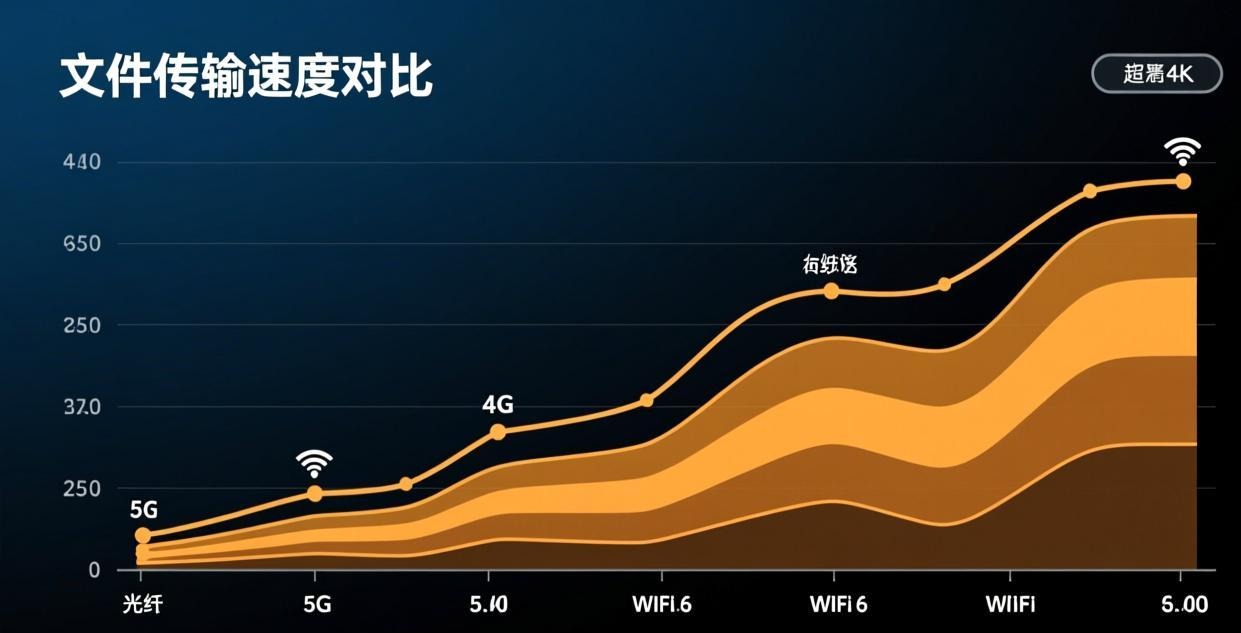
I tested file transfer speeds across different network conditions:
| Network Type | Free Version | Paid Version |
|---|---|---|
| LAN (Ethernet) | 200 KB/s (capped) | 25-35 MB/s |
| LAN (Wi-Fi 6) | 200 KB/s (capped) | 15-25 MB/s |
| Internet (100 Mbps) | 200 KB/s (capped) | 8-15 MB/s |
| Internet (50 Mbps) | 200 KB/s (capped) | 4-8 MB/s |
| Internet (10 Mbps) | 200 KB/s (capped) | 1-3 MB/s |
| 4G LTE | 200 KB/s (capped) | 1-5 MB/s |
The 200 KB/s speed cap on the free version is the single biggest limitation for file transfer in Sunflower Control. For context, a 100 MB file takes about 8 minutes on the free version versus about 5 seconds on the paid version over a fast LAN connection. If you regularly need to transfer files between devices, the paid version’s unlimited speed is a major quality-of-life improvement that pays for itself in time saved. A single large file transfer that would take 30 minutes on the free version takes under a minute with the paid subscription.
Advanced File Transfer Features
Pause and Resume
The file manager supports pausing and resuming transfers, which is critical for large files or unstable connections:
- Start a file transfer using the file manager
- Click the “Pause” button if you need to temporarily free up bandwidth
- Click “Resume” to continue the transfer from where it left off
- If the connection drops, the transfer automatically pauses and can be resumed after reconnecting
This feature alone makes the file manager superior to drag-and-drop for any file over 50 MB. Drag-and-drop transfers cannot be paused or resumed — if the connection drops, you have to start over from the beginning.
Batch Transfer
To transfer multiple files efficiently:
- Open the file manager (Ctrl+Shift+F)
- Navigate to the source folder on one side
- Select multiple files using Ctrl+click or Shift+click
- Click the transfer arrow button
- All selected files are queued and transferred sequentially
The batch transfer shows a progress bar for each file and an overall progress indicator. If one file fails, the remaining files in the queue continue transferring.
Transfer Queue Management
When you have multiple transfers queued:
- Reorder: Drag items up or down in the queue to change priority
- Skip: Right-click a queued item → “Skip” to move to the next file
- Cancel: Right-click → “Cancel” to remove a file from the queue entirely
- Retry: Right-click a failed transfer → “Retry” to attempt it again
Verification After Transfer
For important files, verify the transfer was successful:
- File size comparison — Check that the file size matches on both sides
- Checksum verification — Advanced users can compare MD5/SHA256 hashes
- Open the file — Try opening the transferred file to confirm it’s not corrupted
- Check for 0-byte files — A common sign of a failed transfer is a file with 0 bytes
I always verify important files after transfer, especially financial documents and code archives. It takes an extra 30 seconds but saves you from discovering a corrupted file when you need it most.
Tips for Faster File Transfers
1. Use Wired Ethernet When Possible
Wi-Fi introduces latency and packet loss that slow down file transfers. If both devices are on the same local network, connect them via Ethernet for the best speeds.
2. Compress Before Transfer
For multiple small files, compress them into a single ZIP archive before transferring. One 50 MB file transfers much faster than 500 files totaling 50 MB because of the overhead per file.
| File Type | Raw Transfer | Compressed Transfer | Time Saved |
|---|---|---|---|
| 500 small text files (50 MB total) | 8 min | 3 min | 63% |
| 50 photos (200 MB total) | 25 min | 15 min | 40% |
| 1 video file (500 MB) | 55 min | 55 min | 0% |
Already-compressed files (videos, ZIPs, JPGs) don’t benefit from additional compression. Focus on compressing text files, documents, and code repositories.
3. Close Bandwidth-Heavy Apps
Before starting a large file transfer, close these on both devices:
- Cloud sync apps (Google Drive, OneDrive, Dropbox)
- Streaming services (Netflix, YouTube, Spotify)
- Other downloads or uploads
- VPN connections (if not needed for the transfer)
4. Use File Transfer Only Mode
Switch to file transfer only mode to stop streaming the remote desktop, freeing up bandwidth for the transfer.
5. Schedule Large Transfers
If you need to transfer large files (multiple GB), do it during off-peak hours when your internet connection is less congested — typically late at night or early morning. This can make a significant difference on shared internet connections in apartment buildings or office complexes where everyone’s streaming during prime time.
6. Verify Your Connection Type
The type of internet connection on both ends dramatically affects transfer speed:
| Your Connection | Remote Connection | Expected Speed (Paid) |
|---|---|---|
| Fiber (500 Mbps) | Fiber (500 Mbps) | 20-35 MB/s |
| Cable (100 Mbps) | Fiber (500 Mbps) | 8-12 MB/s |
| DSL (25 Mbps) | Cable (100 Mbps) | 2-4 MB/s |
| 4G LTE | Fiber (500 Mbps) | 1-5 MB/s |
| 5G | Fiber (500 Mbps) | 5-15 MB/s |
The transfer speed is limited by the slower of the two connections. If your office has fiber internet but your home connection is DSL, your transfer speed will be limited by your home DSL regardless of how fast the office connection is.
Security Considerations for File Transfer
File transfer involves moving potentially sensitive data between devices. Keep these security practices in mind:
Verify the remote device — Before transferring files, confirm you’re connected to the correct device. Check the device name and IP address in the connection details.
End-to-end encryption — All file transfers are encrypted during transit. However, once the file arrives on the remote device, it’s stored in plaintext (like any other file on that computer).
Scan transferred files — If you’re downloading files from a remote computer that others also have access to, scan them with your local antivirus before opening.
Delete sensitive files — After transferring sensitive files (financial documents, personal data), delete them from the remote device if they’re no longer needed there.
Use secure connections — When transferring files over public Wi-Fi, use a VPN for an additional layer of encryption.
Common File Transfer Issues
| Issue | Cause | Solution |
|---|---|---|
| Transfer speed very slow | Free version speed cap | Upgrade to paid version for unlimited speed |
| “Access denied” error | Insufficient permissions on remote | Ensure your remote user account has file access |
| Transfer stops mid-way | Network interruption | Use file manager (supports resume) instead of drag-drop |
| File not appearing on remote | Transfer to wrong folder | Check the destination path in the file manager |
| “Disk full” error | Remote drive out of space | Free up space or transfer to a different drive |
| Permission error on Mac | macOS Full Disk Access not granted | Grant Full Disk Access in System Settings |
| Very slow over Wi-Fi | Wi-Fi interference | Switch to Ethernet or 5 GHz band |
| Can’t transfer system files | Windows file protection | Transfer user files only, not system files |
For connection-related issues affecting file transfer, see our connection failed guide and high latency guide.
File Transfer on Different Platforms
Windows to Windows
The most straightforward scenario. Both the file manager and drag-and-drop work reliably. All file systems (NTFS, FAT32, exFAT) are supported. Watch out for Windows file permissions — you may need to run Sunflower Control as administrator to access certain system folders.
Mac to Windows
File transfer works between Mac and Windows, but watch for:
- Filename characters: macOS allows characters in filenames that Windows doesn’t (like
:and?). These files may not transfer correctly. - File attributes: macOS resource forks and extended attributes are lost during transfer to Windows.
- ZIP files: macOS creates
__MACOSXfolders inside ZIP files. These are harmless but may confuse Windows users.
Mobile to Desktop
File transfer from Android and iOS is more limited:
- Only the file manager interface is available (no drag-and-drop on mobile)
- You can browse and transfer files from the remote computer to your phone
- Uploading files from phone to remote computer is supported but more limited
- Camera Roll photos can be transferred directly on iOS
I frequently grab files from my office PC to my phone using Sunflower Control’s file transfer on Android. It’s much faster than emailing files to myself or uploading to cloud storage first, especially for documents and spreadsheets I need to review on the go during my commute. Truth be told, once you get used to direct remote file transfer, going back to cloud-based file sharing feels painfully roundabout.
File Transfer Speed Optimization Checklist
Before transferring:
- Close cloud sync apps (Google Drive, OneDrive, Dropbox)
- Close streaming services on both devices
- Connect via Ethernet if both devices are on the same LAN
- Use file transfer only mode to save bandwidth
- Compress multiple small files into a ZIP archive
- Verify destination drive has enough free space
During transfer:
- Monitor the progress bar for any errors
- Don’t start other bandwidth-heavy activities
- Use pause/resume if you need bandwidth temporarily
- Watch for “access denied” errors on system folders
After transfer:
- Verify file sizes match on both sides
- Open important files to confirm they’re not corrupted
- Check for 0-byte files (sign of failed transfer)
- Delete sensitive files from the remote device if no longer needed
What’s Next?
- Set up unattended access for seamless connections → Unattended access guide
- Configure screen sharing for presentations → Screen sharing guide
- Control from mobile → Mobile remote control guide
- Manage multiple devices → Multi-device management
- Fix transfer problems → File transfer failed guide
This guide was written based on Sunflower Control 2026 latest version. Software features may change with updates. This site is an independent information resource and is not affiliated with Oray or the Sunflower remote control development team.
Disclaimer: This is an independent guide and review site. We are not associated with Oray, Sunflower, or any other remote control software company. All trademarks belong to their respective owners. This site provides links to official sources only for your safety and convenience.