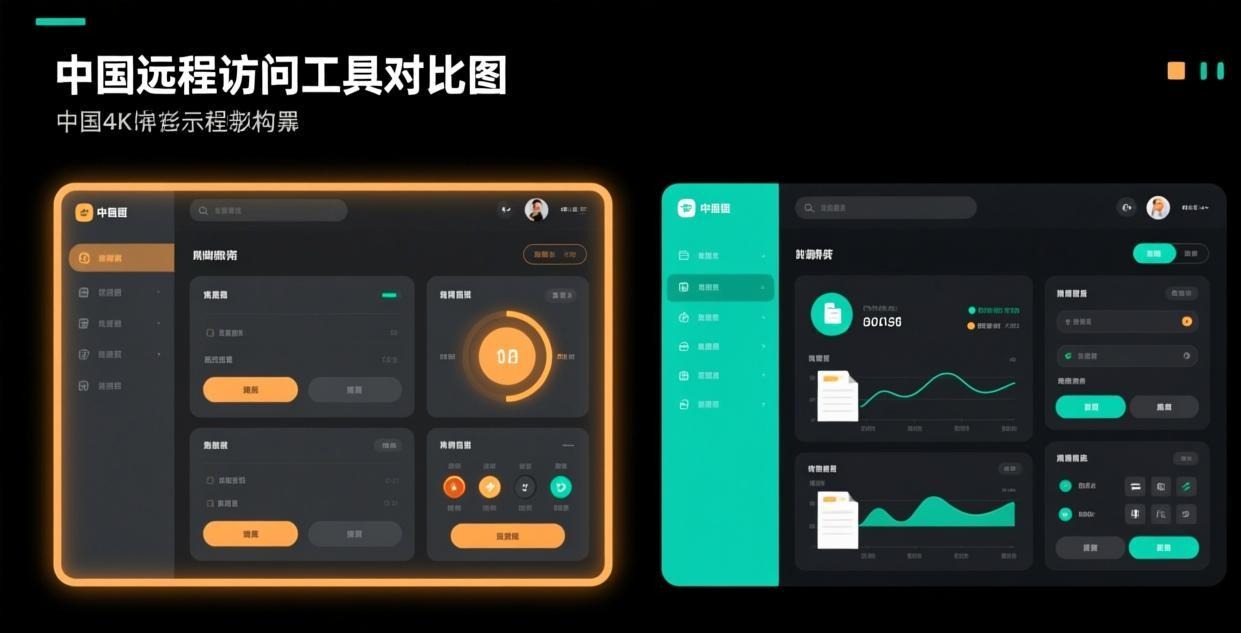
⚠️ This guide walks you through setting up unattended access in Sunflower Control step by step. Unattended access lets you connect to your devices remotely without anyone clicking “accept” on the other end.
What Is Unattended Access
Unattended access is the ability to remotely connect to a device at any time without requiring someone physically present at the remote end to accept the connection. This is essential for:
- Remote work — Access your office PC from home at any hour
- Server management — Manage headless servers and NAS devices
- IT support — Help family or clients without them needing to do anything
- Digital signage — Maintain kiosk PCs and display devices remotely
I discovered how critical unattended access is when my office implemented a new security policy requiring all work to be done on office computers only — no more taking laptops home with work files. Without unattended access, I would have been stuck driving to the office every time I needed a file or wanted to check something after hours. With it set up, I can connect to my office PC from home whenever I need to, as if I were sitting right at my desk. That single feature alone justified the subscription cost for me within the first week.
Prerequisites
Before setting up unattended access, make sure you have:
| Requirement | Details |
|---|---|
| Sunflower Control account | Free to create |
| Paid subscription | Required for unattended access feature |
| Host client installed | On the device you want to access remotely |
| Stable internet | On both the local and remote device |
| Admin access | Needed to install host client on the remote device |
| Access password | A strong, unique password for device access |
If you haven’t installed the host client yet on the device you want to access remotely, see our detailed host client download and setup guide first — it covers installation, configuration, and security hardening for the host client component.
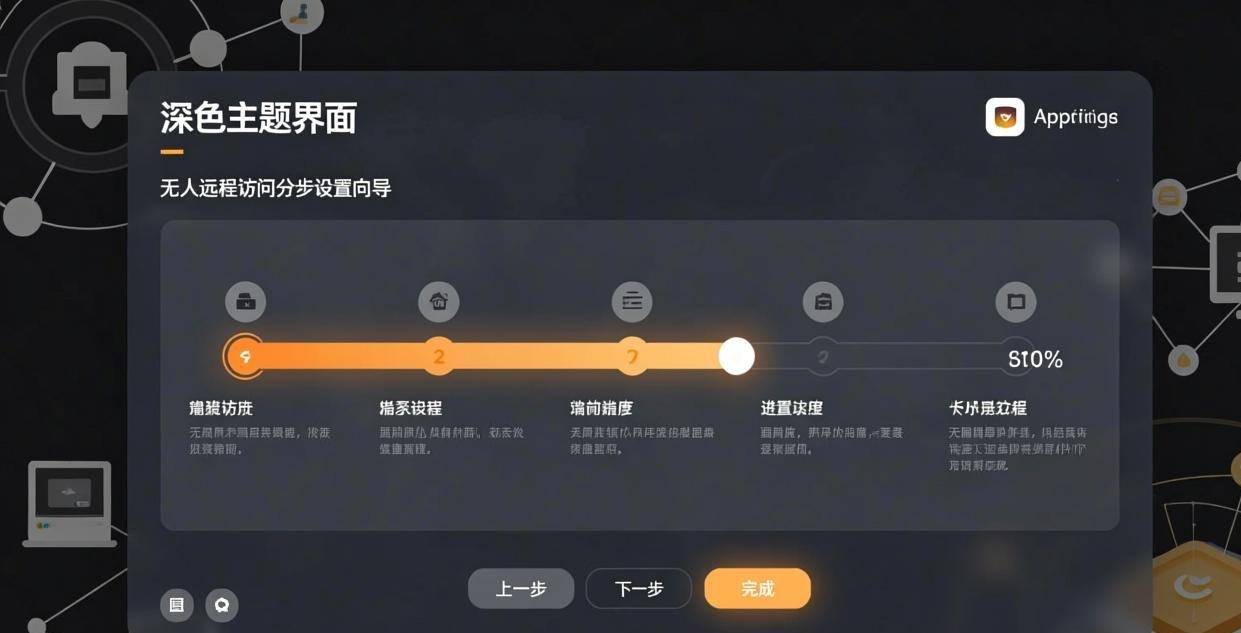
Step-by-Step Setup Guide
Step 1: Install the Host Client
On the device you want to access remotely:
- Download the host client from the official website
- Run the installer with administrator privileges
- Choose “Install as Windows Service” (critical for boot-time access)
- Complete the installation
Step 2: Sign In to Your Account
- Launch the host client configuration
- Sign in with your Sunflower Control account
- If you don’t have a paid subscription, you’ll be prompted to upgrade
- Complete the subscription process if needed
Step 3: Set Your Access Password
- In host client settings, navigate to “Access Password”
- Enter a strong password (12+ characters recommended)
- Confirm the password
- This password is required every time someone connects to this device
⚠️ Important: Your access password should be different from your account password. If someone gets your account password, they still can’t connect without the access password.
Step 4: Configure Auto-Start
- Open host client settings → “Startup”
- Enable “Start automatically with Windows”
- Select “Run as system service” (not user application)
- This ensures the host client starts even before any user logs in
Step 5: Configure Power Settings
On the remote device, prevent it from sleeping:
Windows:
- Settings → System → Power & Sleep
- Set “Sleep” to “Never” when plugged in
- Set “Screen” to a short timeout (screen can turn off, but PC must stay awake)
macOS:
- System Settings → Displays → set “Turn display off” to “Never”
- System Settings → Energy → enable “Prevent sleeping when display is off”
Step 6: Test the Connection
From another device:
- Open Sunflower Control main application
- Sign in with your account
- Find the remote device in your device list
- Click “Connect”
- Enter the access password
- Verify you can control the remote device
If the connection works without anyone at the remote end having to click “accept” — congratulations, unattended access is properly configured and working! You now have 24/7 access to this device from anywhere in the world.
Advanced Configuration
Multi-Monitor Support
If the remote device has multiple monitors:
- Connect to the device remotely
- In the remote session toolbar, click the monitor icon
- Select which monitor to view, or choose “All monitors”
- Switch between monitors using keyboard shortcuts
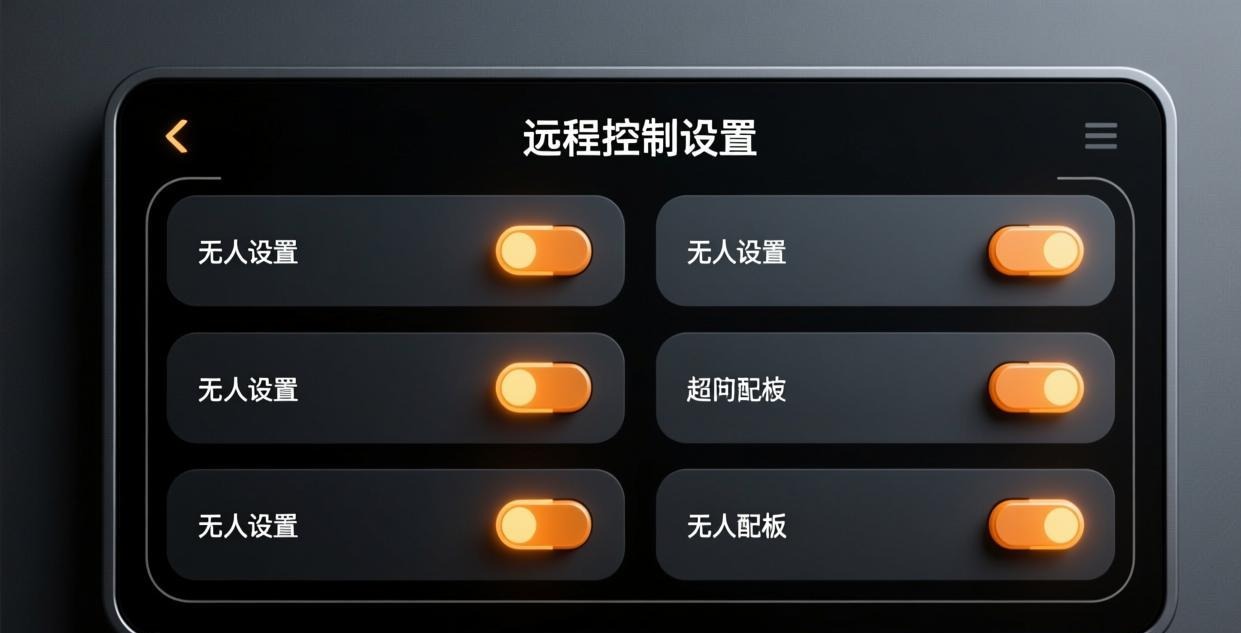
Session Permissions
Control what actions are allowed during remote sessions:
| Permission | Personal Use | IT Support | Server Management |
|---|---|---|---|
| Remote control | ✅ | ✅ | ✅ |
| File transfer | ✅ | ✅ | ✅ |
| Clipboard sharing | ✅ | ✅ | ⚠️ Optional |
| Remote restart | ⚠️ Optional | ✅ | ✅ |
| Command prompt | ❌ | ✅ | ✅ |
| Software installation | ❌ | ✅ | ❌ |
Honestly, I keep permissions minimal on my personal devices — just remote control and file transfer is all I need for daily work. The fewer permissions you enable, the less potential damage is possible if something goes wrong or if your account is ever compromised. For IT support scenarios where you’re fixing other people’s computers, you may need more permissions like command prompt access, but enable them only when specifically needed and disable them immediately afterward.
Black Screen Feature
When you’re connected remotely, the remote display can optionally show a black screen to prevent people nearby from seeing your session:
- During a remote session, click the toolbar → “Black Screen”
- The remote monitor turns black while you continue to see and control the desktop
- The black screen automatically disables when you disconnect
This is useful in open office environments where you don’t want colleagues to see what you’re working on during a remote session. I use it regularly when accessing my office PC from a coffee shop — nobody in the office can see what I’m doing remotely, and I can work with confidential documents without worrying about prying eyes.
Setting Up Unattended Access for Different Scenarios
Remote Work Setup
For accessing your office PC from home:
- Install the host client on your office PC
- Configure the office PC to never sleep
- Ensure the office PC is connected to a UPS
- Set a strong access password
- Install the main app on your home PC (or Mac, phone)
- Connect from home whenever you need to access work files
Server Management Setup
For managing a home or office server:
- Install the standalone host client on the server (no GUI needed)
- Configure the server’s BIOS to “Restore on AC Power Loss” (auto-restart after power outage)
- Set a static IP on the server for reliable network access
- Enable unattended access with minimal permissions
- Configure logging for audit purposes
Family Tech Support Setup
For helping family members remotely:
- Install the host client on your family member’s PC
- Set a simple but secure access password
- Enable notifications so they know when you’re connected
- Limit permissions to remote control and file transfer only
- Test the connection before they actually need help
I set this up for my parents three years ago, and it’s saved us countless hours of frustrating phone-based troubleshooting. When my mom’s printer stops working or my dad can’t figure out how to attach a file to an email, I just connect remotely and fix it in five minutes instead of spending 30 minutes explaining where to click over the phone. Honestly, it’s one of the best things I’ve ever done for our relationship — no more tech support arguments.
Troubleshooting Unattended Access
| Problem | Likely Cause | Solution |
|---|---|---|
| Can’t connect after PC restarts | Host service not set to auto-start | Set Sunflower Host to “Automatic” in Windows Services |
| “Requires acceptance” prompt | Subscription expired | Check your subscription status and renew |
| Connection drops after idle | PC went to sleep | Disable sleep in Power Settings |
| Host client not in system tray | Service crashed | Restart the service from Windows Services |
| Access password not accepted | Password mismatch | Reset the access password in host settings |
| Can’t connect before login | Host running as user app, not service | Reinstall as system service |
| Very slow connection | Network issue | See high latency fix guide |
For more connection troubleshooting, see our detailed connection failed guide and high latency fix guide.
Unattended Access on Different Operating Systems
The setup process varies slightly depending on the remote device’s operating system:
Windows Setup
Windows is the most common platform for unattended access hosts. Key Windows-specific steps:
- Install the host client as a Windows Service (not a user application) — this ensures it starts before any user logs in
- Disable Windows Fast Startup if it causes issues with the host service starting correctly (Power Settings → Choose what the power buttons do → uncheck “Turn on fast startup”)
- Add the host client to Windows Defender exclusions if real-time scanning slows down connections
- Configure Windows Update to not automatically restart the PC during work hours (Settings → Windows Update → Active hours)
macOS Setup
macOS requires additional permissions for the host client:
- Grant Screen Recording permission in System Settings → Privacy & Security
- Grant Accessibility permission for keyboard and mouse input forwarding
- Disable automatic login screen timeout (System Settings → Lock Screen → set “Require password” to “Never” for remote access scenarios)
- Disable App Nap for the host client to prevent macOS from suspending it (Terminal:
defaults write com.sunflower.host NSAppSleepDisabled -bool YES)
Linux Setup (Limited Support)
Sunflower Control has limited Linux support. If available:
- Install the host client via the command-line installer
- Configure the service to start with systemd
- Set up X11 forwarding if you need graphical remote access
- VNC may be a more reliable option for Linux remote access
For platform-specific downloads, see Windows download and Mac download.
Security Best Practices
Unattended access means your device is always reachable remotely. Follow these practices:
- Strong access password — Use a unique 12+ character password that’s different from your account password
- Two-factor authentication — Enable 2FA on your Sunflower Control account for an extra layer of protection
- Session logging — Enable logging to track all remote access sessions
- Session timeout — Set an automatic disconnect after a period of inactivity (30 minutes recommended)
- Black screen — Use the black screen feature in public or shared spaces
- Regular password changes — Change your access password every 3-6 months
- Review connected devices — Periodically check your device list and remove unknown devices
Truth be told, the biggest security risk with unattended access isn’t the software itself — it’s weak passwords and credential reuse by users. If your Sunflower Control password is the same as a password that was leaked in a data breach (check haveibeenpwned.com to find out), attackers could potentially access your devices remotely. Use a unique, strong password for your Sunflower Control account and enable two-factor authentication for maximum protection.
Unattended Access vs Manual Acceptance
| Aspect | Unattended Access | Manual Acceptance |
|---|---|---|
| Requires someone at remote end | ❌ No | ✅ Yes |
| Available 24/7 | ✅ Yes | ❌ Depends on someone being there |
| Requires subscription | ✅ Paid | ❌ Free |
| Security risk | Slightly higher (always accessible) | Lower (requires human approval) |
| Best for | Remote work, servers, tech support | Occasional screen sharing, presentations |
| Setup complexity | Moderate | Simple |
For most users who need regular remote access to their devices, unattended access is well worth the subscription cost. The free version with manual acceptance is fine for occasional use — like showing a colleague your screen during a meeting or helping someone for a few minutes — but completely impractical for daily remote work where you need to connect multiple times throughout the day without coordinating with someone at the other end.
Unattended Access Setup Checklist
Use this checklist to ensure you’ve configured everything correctly:
On the remote device (the one you want to access):
- Host client installed as Windows service (not user application)
- Signed in to your Sunflower Control account
- Paid subscription active (check in Account settings)
- Strong access password set (12+ characters, different from account password)
- Auto-start with Windows enabled
- Power settings: Sleep set to “Never” when plugged in
- UPS connected (for desktop PCs)
- Firewall allows Sunflower Control traffic
- Session logging enabled
On your local device (the one you connect from):
- Sunflower Control main app installed (Windows / Mac / Android / iOS)
- Signed in with the same account
- Test connection successful (no manual acceptance needed)
- Display quality adjusted for your connection speed
- File transfer working in both directions
Frequently Asked Questions
Q: Can I use unattended access on a laptop that goes to sleep when the lid is closed? A: Not if the laptop enters sleep mode — the network adapter is disabled during sleep, so the host client cannot maintain or receive connections. You have two options: (1) Change Windows power settings to “Do nothing” when the lid is closed (Settings → System → Power → Additional power settings → Choose what closing the lid does), or (2) Use an external monitor and keep the laptop plugged in with the lid open. For laptops used as remote access hosts, I strongly recommend option 1 with the laptop connected to a docking station and external display. This way, you can close the laptop to tuck it away while keeping it fully powered and network-connected.
Q: Does unattended access work over cellular data from my phone? A: Yes, absolutely. The host client on the remote device uses its own wired or Wi-Fi internet connection to stay reachable. You can connect to it from any network on your end, including cellular data on your phone or tablet. The connection is established through Sunflower’s relay servers, so no special network configuration or port forwarding is needed on either end. This means you can access your office PC from your phone while sitting in a park on 4G, as easily as from your home Wi-Fi.
Q: How many devices can I set up with unattended access? A: There’s no hard limit on how many devices you can install the host client on and enable unattended access for. Each device with the host client installed appears in your device list and can be accessed remotely at any time. However, the number of simultaneous connections you can maintain may be limited by your subscription plan — check your specific plan details for connection limits.
Q: What happens if I forget my access password? A: You can reset the access password from the host client settings on the remote device itself. Open the host client configuration on the device you want to access, navigate to Access Password settings, and set a new password. If you can’t physically access the remote device, you may need someone there to help you reset it — there’s no way to remotely reset the access password for security reasons.
This guide was written based on Sunflower Control 2026 latest version. Software features may change with updates. This site is an independent information resource and is not affiliated with Oray or the Sunflower remote control development team.
Disclaimer: This is an independent guide and review site. We are not associated with Oray, Sunflower, or any other remote control software company. All trademarks belong to their respective owners. This site provides links to official sources only for your safety and convenience.