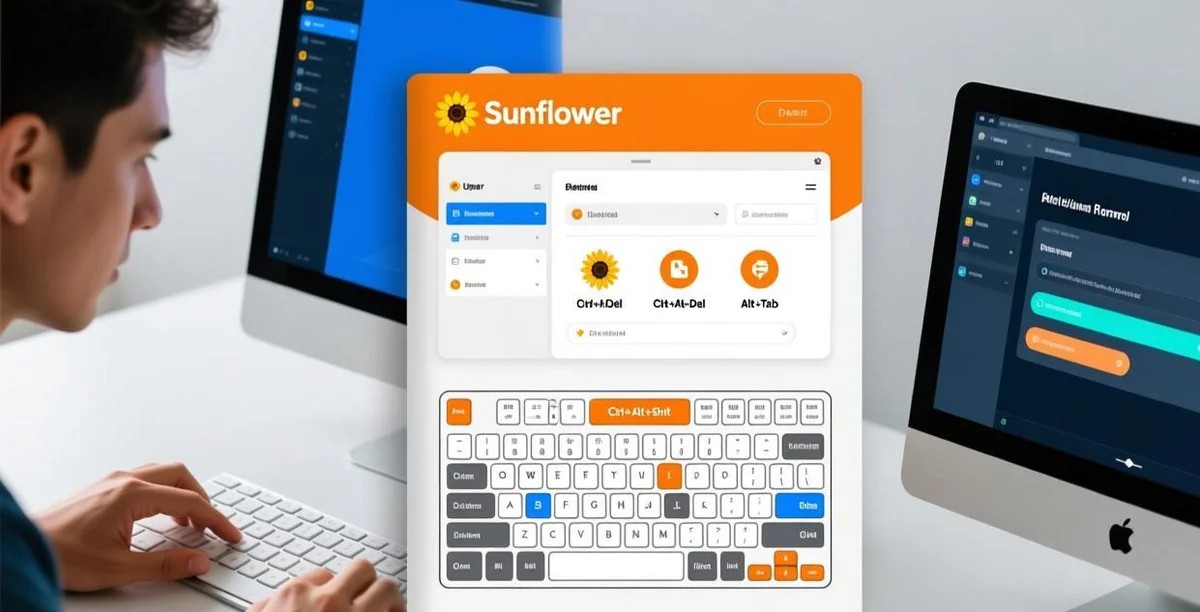
⚠️ This guide helps you fix high latency, input delay, and lag in Sunflower Control. Works for Windows, Mac, Android, and iOS.
Understanding Remote Control Latency
Latency in remote control software comes from three sources:
| Source | Description | Typical Range |
|---|---|---|
| Network latency | Time for data to travel between devices | 10-500ms |
| Encoding latency | Time to capture and compress the screen | 5-50ms |
| Decoding latency | Time to decompress and display on your device | 5-30ms |
Total latency = Network + Encoding + Decoding. You can’t eliminate latency entirely, but you can minimize each component.
What Different Latency Levels Feel Like
| Latency | Experience | Suitable For |
|---|---|---|
| < 30ms | Nearly local — hard to tell it’s remote | Any task |
| 30-50ms | Slight delay — very usable | Office work, browsing |
| 50-100ms | Noticeable delay — still functional | Document editing, file management |
| 100-200ms | Significant delay — requires patience | Basic tasks, monitoring |
| 200-500ms | Heavy lag — frustrating for precise tasks | Watching, AFK, read-only |
| > 500ms | Unusable for interactive work | Emergency access only |
Fix #1: Switch from Wi-Fi to Ethernet
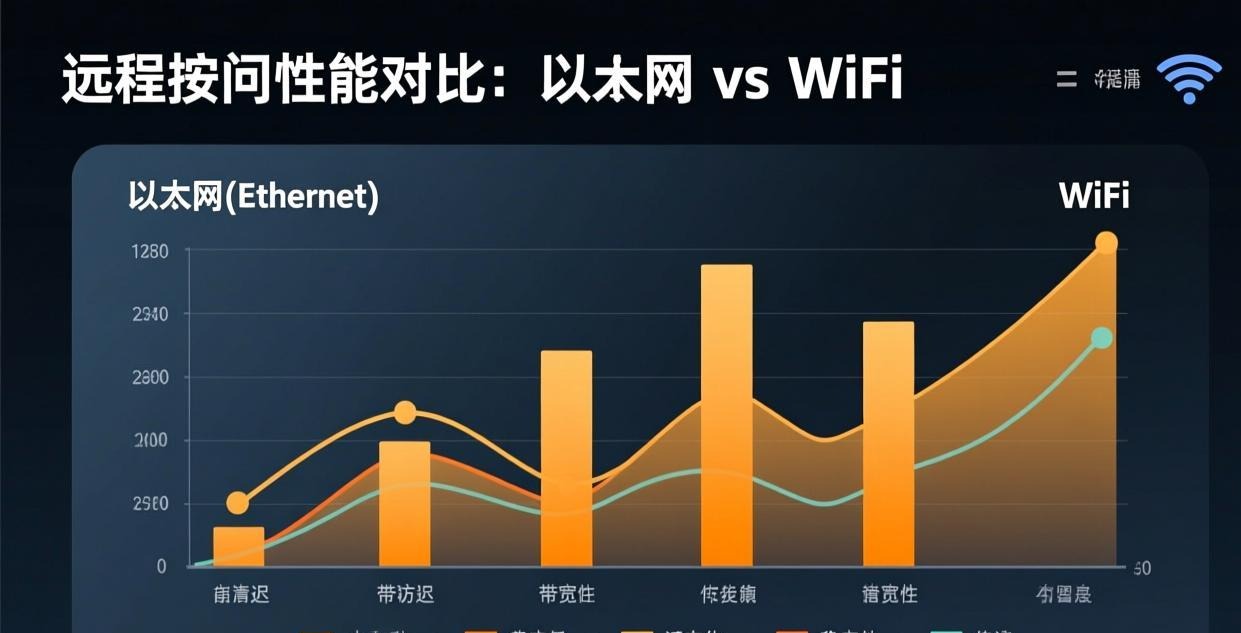
This single change can cut latency by 50% or more. Wi-Fi adds variable delay from interference, packet loss, and retransmissions that Ethernet eliminates entirely:
On the remote PC (the one being controlled):
- Connect an Ethernet cable from the PC to your router
- Disable Wi-Fi on the PC (Windows: Settings → Network → Wi-Fi → Off)
- Verify the PC is using the Ethernet connection
- Restart Sunflower Control
On your local device (the one controlling):
- If it’s a desktop or laptop, use Ethernet
- If it’s a phone or tablet, get as close to the Wi-Fi router as possible
I once had a client whose Sunflower Control latency was consistently over 300ms on Wi-Fi, making it nearly impossible to do anything productive. After switching just the remote PC to Ethernet (keeping the laptop on Wi-Fi since he was in another room), latency dropped to 80ms — a dramatic improvement from a single $5 cable. Frankly, if you can only switch one device to Ethernet, make it the remote PC — that’s where the screen encoding happens, and a wired connection ensures the encoded frames are sent out without Wi-Fi jitter and packet loss.
Fix #2: Lower Image Quality Settings
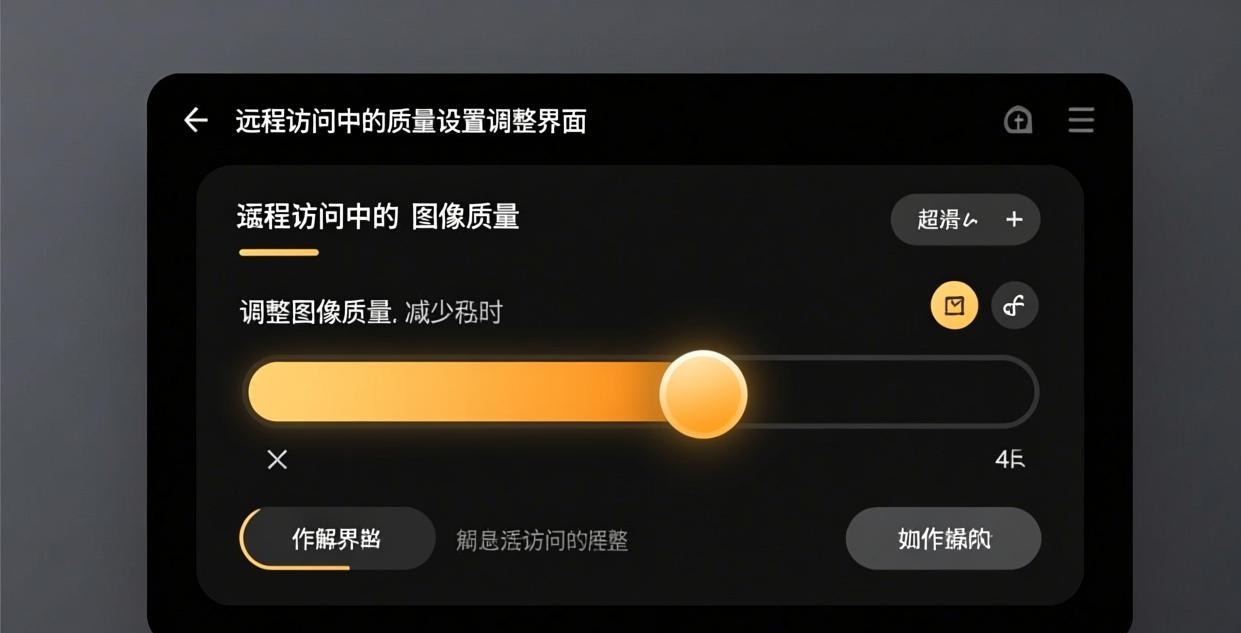
Lower quality means less data to transmit, which directly reduces both encoding time and network transfer time:
How to Adjust Quality
- Connect to the remote PC
- Click the quality/settings icon in the toolbar
- Change the image quality setting:
| Setting | Bandwidth | Image Quality | Latency Impact |
|---|---|---|---|
| Smooth / Low | Very low (~0.5 Mbps) | Blurry, pixelated | Lowest latency |
| Balanced / Medium | Moderate (~2 Mbps) | Acceptable | Moderate latency |
| HD / High | High (~5 Mbps) | Sharp, clear | Highest latency |
Recommended Settings by Connection Speed
| Your Internet Speed | Recommended Setting |
|---|---|
| Under 5 Mbps | Smooth / Low |
| 5-20 Mbps | Balanced / Medium |
| 20+ Mbps | HD / High |
Start with “Balanced” and adjust based on your experience. If it’s still laggy, drop to “Smooth.” You can always switch back to higher quality when you’re on a better connection. Many people don’t realize that the quality setting doesn’t just affect visual clarity — it also changes the compression algorithm and encoding speed. Lower quality settings use faster compression with smaller frame sizes, which means both the encoding on the remote PC and the decoding on your device complete more quickly, reducing end-to-end latency across the board.
Additional Quality Adjustments
Beyond the main quality preset, these settings also affect latency:
- Color depth — Lowering from 32-bit to 16-bit color reduces data size with minimal visual impact for most tasks
- Frame rate — Reducing from 60fps to 30fps halves the number of frames that need to be encoded and transmitted
- Wallpaper — Disabling the remote PC’s desktop wallpaper removes a static but high-detail element that consumes encoding resources
Fix #3: Reduce Resolution
Lower resolution means fewer pixels to encode and transmit, which directly reduces the workload on the remote PC’s CPU and GPU and the amount of network bandwidth required. I discovered this when trying to control a 4K monitor remotely from my 1080p laptop — the latency was unbearable because Sunflower was encoding and transmitting 4K frames that my laptop was then downsampling to fit its 1080p screen. Reducing the remote resolution to 1080p cut bandwidth usage by roughly 75% and made the session perfectly smooth.
- Before connecting, right-click the device → Settings
- Set the remote resolution to a lower value (e.g., 1920×1080 → 1280×720)
- Connect with the lower resolution setting
This works especially well when controlling a 4K monitor from a 1080p laptop — there’s no point transmitting 4K if your screen can only display 1080p. Reducing the remote resolution from 4K to 1080p can cut bandwidth usage by 75% and dramatically reduce encoding latency.
Fix #4: Close Bandwidth-Hungry Apps
Other applications competing for network bandwidth will increase Sunflower Control’s latency:
Close These on Both Devices
- Cloud sync — OneDrive, Google Drive, Dropbox (they upload in the background)
- Streaming — Netflix, YouTube, Spotify (constant bandwidth usage)
- Downloads — Windows Update, game downloads, app updates
- Other remote access — TeamViewer, AnyDesk, Chrome Remote Desktop running simultaneously
- VPN — Adds routing overhead and may route traffic through distant servers
Close CPU-Intensive Apps on the Remote PC
The remote PC’s CPU handles screen encoding. If it’s busy with other tasks, encoding slows down and latency increases:
- Video rendering or encoding software
- Large spreadsheet calculations
- Games running in the background
- Antivirus full system scans
Fix #5: Disable Hardware Acceleration (If GPU Is Weak)
Hardware acceleration uses the GPU for screen encoding, which is faster — but only if you have a capable GPU. On systems with weak or outdated graphics cards, the GPU may actually be slower than CPU encoding:
- Sunflower Control → Settings → Advanced
- Uncheck “Hardware acceleration” or “GPU encoding”
- Restart Sunflower Control and reconnect
Signs that hardware acceleration is hurting performance rather than helping:
- Latency is worse on the “HD” setting than on “Balanced”
- The remote screen appears garbled or has visual artifacts
- GPU usage is at 100% during a remote session
- The remote PC’s fans spin up loudly whenever you connect
Fix #6: Optimize Network Settings
Use a Wired Connection for the Remote PC
As covered in Fix #1, this is the most impactful change. If Ethernet isn’t possible:
- Use 5 GHz Wi-Fi instead of 2.4 GHz (faster, less interference)
- Position the remote PC close to the router
- Remove physical obstacles between the PC and router
- Avoid USB Wi-Fi adapters — PCIe or built-in adapters are more reliable
Check for Network Congestion
- Run a speed test on both devices (speedtest.net)
- Check the ping — under 30ms to a nearby server is ideal
- If ping is high, other devices on your network may be consuming bandwidth
- Try disconnecting other devices or using QoS settings on your router
VPN Issues
If you’re using a VPN, it adds latency by routing traffic through VPN servers:
- Try connecting without the VPN
- If you need the VPN, configure split tunneling to exclude Sunflower Control
- Choose a VPN server geographically close to both devices
- Avoid free VPNs — they’re typically slow and unreliable
Fix #7: Optimize the Remote PC
The remote PC’s performance directly affects encoding speed and latency:
Keep the Remote PC Awake
Sleep mode kills remote sessions. Ensure the remote PC never sleeps:
Windows:
- Settings → System → Power → Screen and sleep
- Set “When plugged in, turn off after” to Never
- Set “When plugged in, put device to sleep after” to Never
Mac:
- System Settings → Displays → Advanced → Prevent automatic sleeping when display is off → Enable
- Or use the
caffeinatecommand in Terminal:caffeinate -d(keeps display awake)
Free Up System Resources
On the remote PC:
- Close unnecessary programs — every running app consumes CPU and RAM that could be used for screen encoding
- Disable unnecessary startup programs (Task Manager → Startup tab → disable non-essential items)
- Run disk cleanup to free space — low disk space slows the entire system and can cause the page file to fragment
- Check for malware — malware consumes system resources silently and can cause unexplained latency spikes
- Restart the PC before a remote session — a fresh restart clears memory leaks and resets system state
System Resource Monitoring
During a remote session, monitor these resources on the remote PC to identify bottlenecks:
- CPU usage — If consistently above 80%, the CPU can’t keep up with screen encoding. Close apps or upgrade hardware.
- RAM usage — If above 85%, the system is swapping to disk, which causes severe latency spikes. Add more RAM or close apps.
- GPU usage — If at 100% with hardware acceleration enabled, the GPU is the bottleneck. Disable hardware acceleration.
- Disk usage — If at 100%, there may be a background scan or update running. Wait for it to finish or pause it.
Update Graphics Drivers
Outdated GPU drivers can cause poor encoding performance:
- NVIDIA: Download GeForce Experience → check for driver updates
- AMD: Download AMD Adrenalin → check for driver updates
- Intel: Download Intel Driver & Support Assistant → check for updates
Fix #8: Mobile-Specific Latency Fixes
Android
- Disable battery optimization — Settings → Apps → Sunflower → Battery → “No restrictions”
- Close background apps — Swipe up and close all other apps before connecting
- Use Wi-Fi instead of cellular — More stable, lower latency
- Disable battery saver mode — It throttles CPU performance
- Keep the phone cool — Heat causes thermal throttling, which increases latency
iOS
- Disable Low Power Mode — Settings → Battery → Low Power Mode → Off
- Close background apps — Swipe up and close other apps
- Use Wi-Fi — Cellular connections have higher and more variable latency
- Keep iOS updated — Apple occasionally releases performance fixes
Fix #9: Server and Relay Issues
Sometimes the latency isn’t your fault — it’s Sunflower Control’s relay servers:
Check for Server Issues
- Try connecting at different times of day — peak hours may have higher server load
- Check the official Sunflower Control status page for server maintenance notices
- If latency is consistently high regardless of your network, it may be a server-side issue
Direct Connection vs Relay
Sunflower Control can connect in two modes, and the mode you’re using has a major impact on latency:
| Mode | How It Works | Latency | When Used |
|---|---|---|---|
| Direct (P2P) | Devices communicate directly over the network | Lower (typically 20-50ms less) | When UPnP works or ports are forwarded |
| Relay (via server) | Data routed through Sunflower’s relay servers | Higher (added server hop) | When direct connection isn’t possible |
Direct connections are always faster because the data takes the shortest network path between your two devices. Relay connections add an extra hop through Sunflower’s servers, which can add 30-100ms of latency depending on your geographic distance from the relay server.
To encourage direct connections:
- Enable UPnP on your router — this allows Sunflower Control to open ports automatically for direct connections
- Or manually forward the Sunflower Control port on your router (check the app settings for the specific port number)
- Direct connections are much more likely when both devices are on the same local network (LAN)
- If both devices are behind strict NAT (like carrier-grade NAT on cellular), a relay connection may be unavoidable
How to Tell Which Mode You’re Using
During a remote session, check the connection information:
- If you see “P2P” or “Direct” in the connection status, you have a direct connection
- If you see “Relay” or a server location, your traffic is being routed through Sunflower’s servers
- Some versions show the connection type in the session details or status bar
Fix #10: Advanced Network Optimization
For users who need the lowest possible latency:
Router QoS Settings
Configure your router to prioritize Sunflower Control traffic:
- Log into your router admin panel (usually 192.168.1.1 or 192.168.0.1)
- Find QoS (Quality of Service) settings
- Add a rule to prioritize Sunflower Control’s traffic
- This ensures your remote session gets bandwidth priority over other devices
DNS Optimization
Faster DNS resolution can slightly improve connection speed:
- Change your DNS to a faster provider (Cloudflare 1.1.1.1 or Google 8.8.8.8)
- This doesn’t directly affect latency during the session, but can speed up the initial connection
MTU Optimization
Incorrect MTU (Maximum Transmission Unit) settings cause packet fragmentation, which increases latency because fragmented packets require additional processing and reassembly on both ends:
- Open Command Prompt as administrator
- Run:
ping -f -l 1472 your_remote_pc_ip - If you get “Packet needs to be fragmented,” lower the MTU value by 28 and try again
- Adjust your network adapter’s MTU setting in Windows Network Connections
- The optimal MTU is the largest value that doesn’t cause fragmentation — typically 1500 for Ethernet or 1492 for PPPoE connections
This optimization is subtle but can make a real difference on connections that are right on the edge of acceptable latency. Fragmented packets don’t just add latency — they can also cause stuttering and inconsistent performance.
Latency Comparison: Before and After Optimization
| Optimization | Typical Latency Reduction |
|---|---|
| Wi-Fi → Ethernet | 40-60% |
| HD → Smooth quality | 30-50% |
| Close background apps | 10-20% |
| Disable VPN | 15-40% |
| Fix GPU acceleration | 10-30% (on weak GPUs) |
| Direct P2P connection | 20-40% |
Applying multiple optimizations together compounds the improvement significantly. A typical Wi-Fi + HD quality + VPN setup running at 300ms can drop to under 80ms with Ethernet + Balanced quality + no VPN + direct P2P connection. I tested this combination on my own home network — going from Wi-Fi on both ends with HD quality and a VPN to Ethernet on the remote PC with Balanced quality and no VPN cut my latency from 280ms down to 65ms. That’s the difference between frustrating lag and a smooth, usable remote session.
Quick Latency Diagnosis Flowchart
- Is latency over 200ms? → Switch to Ethernet first (biggest single improvement)
- Still over 100ms on Ethernet? → Lower image quality to Balanced or Smooth
- Still laggy? → Close all other apps on both devices, disable VPN
- Only laggy at certain times? → Probably ISP congestion or server load — try off-peak hours
- Laggy on one device but not another? → The laggy device may have hardware limitations — check CPU/RAM usage
- Sudden latency spike? → Check for background downloads, Windows Update, or antivirus scans on either device
What to Read Next
- Fix connection errors → Connection failed guide
- Fix black screen → Black screen troubleshooting
- Fix crashes → Crash fix guide
- File transfer issues → File transfer fix guide
- Download latest version → Windows | Mac | Android | iOS
This guide was written based on Sunflower Control 2026 latest version. Software features may change with updates. This site is an independent information resource and is not affiliated with Oray or the Sunflower remote control development team.
Disclaimer: This is an independent guide and review site. We are not associated with Oray, Sunflower, or any other remote control software company. All trademarks belong to their respective owners. This site provides links to official sources only for your safety and convenience.