⚠️ This guide helps you fix file transfer issues in Sunflower Control. Covers slow transfers, permission errors, failed uploads/downloads, and platform-specific problems.
Common File Transfer Errors
| Error Message | Likely Cause | Fix Difficulty |
|---|---|---|
| “Access denied” | No write permission on remote | Easy |
| “Disk full” | Remote drive out of space | Easy |
| “Transfer failed” | Connection interrupted | Moderate |
| “File in use” | File locked by another program | Easy |
| “Permission denied” | Missing OS-level permission | Easy |
| Transfer appears stuck | Free version speed cap (200 KB/s) | N/A (expected) |
| “Path not found” | Destination folder doesn’t exist | Easy |
| “File too large” | Usually a network issue, not a size limit | Moderate |
Quick Fixes (Try These First)
- Use the file manager (Ctrl+Shift+F) instead of drag-and-drop — it supports pause/resume
- Try a different destination folder — Desktop or Documents usually have write access
- Close the file on the remote PC — If another program has the file open, transfer will fail
- Check disk space — Make sure the destination drive has enough free space
- Restart the session — Disconnect and reconnect, then try the transfer again
Fix #1: Free Version Speed Cap
The most common “problem” isn’t actually a bug — the free version limits file transfer to 200 KB/s:
| File Size | Transfer Time (Free) | Transfer Time (Paid) |
|---|---|---|
| 1 MB | 5 seconds | < 1 second |
| 10 MB | 50 seconds | 1-2 seconds |
| 100 MB | 8 minutes | 5-10 seconds |
| 500 MB | 42 minutes | 25-50 seconds |
| 1 GB | 83 minutes | 50-100 seconds |
If your transfer seems “stuck,” it may actually be progressing — just very slowly at 200 KB/s. Check the progress bar and wait. Honestly, the first time I encountered this, I thought the transfer had frozen and kept cancelling and retrying, not realizing it was just crawling along at the speed cap. Watch the progress percentage — if it’s moving (even slowly), the transfer is working.
Workarounds for the speed cap:
- Compress files before transferring (reduces size)
- Use file transfer only mode to save bandwidth
- Transfer during off-peak hours when your connection is faster
- For large files, consider cloud storage as an alternative (upload from one device, download on the other)
Fix #2: Permission Errors on macOS
macOS has strict file system permissions that can block Sunflower Control from accessing most directories:
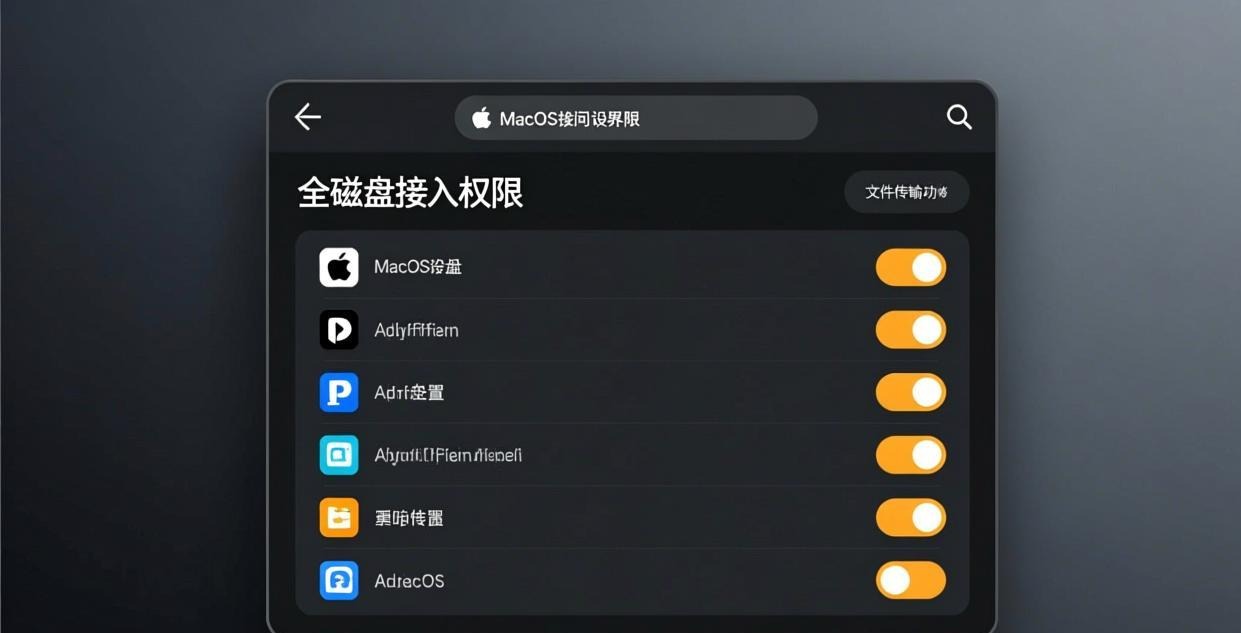
Grant Full Disk Access
- Open System Settings → Privacy & Security → Full Disk Access
- Find Sunflower Control in the list
- Toggle it ON
- Restart Sunflower Control completely
- Try the file transfer again
Without Full Disk Access, Sunflower Control can only transfer files to and from a limited set of directories on macOS. I discovered this the hard way when trying to transfer a file to my Mac’s Documents folder and getting “Permission denied” errors — after granting Full Disk Access in System Settings, the transfer worked immediately. Frankly, macOS file permissions are the #1 cause of file transfer failures on Mac, and many users don’t know about the Full Disk Access requirement.
Common macOS Permission Issues
| Folder | Without Full Disk Access | With Full Disk Access |
|---|---|---|
| Desktop | ✅ Usually works | ✅ Works |
| Downloads | ✅ Usually works | ✅ Works |
| Documents | ⚠️ May fail | ✅ Works |
| Pictures | ❌ Often blocked | ✅ Works |
| System folders | ❌ Blocked | ⚠️ Some still blocked |
| External drives | ⚠️ Depends on format | ✅ Usually works |
Fix #3: Permission Errors on Windows
Windows file permissions can block transfers to certain locations:
Run as Administrator
- Close Sunflower Control
- Right-click the Sunflower Control shortcut → Run as administrator
- Connect and try the file transfer again
- Administrator privileges give Sunflower Control access to all folders
Common Windows Permission Issues
| Location | Normal User | Administrator |
|---|---|---|
| Desktop | ✅ | ✅ |
| Documents | ✅ | ✅ |
| C:\Program Files\ | ❌ | ✅ |
| C:\Windows\ | ❌ | ✅ |
| Other user’s folders | ❌ | ✅ |
| Network drives | ⚠️ Depends | ⚠️ Depends |
NTFS Permission Errors
If you get permission errors on specific folders, you need to adjust the Windows file permissions:
- Right-click the folder → Properties → Security tab
- Check if your user account has “Write” permission listed
- If not, click “Edit” → Add your user → Grant “Full control” or at least “Write” permission
- Click “Apply” and then “OK” to save the changes
- Try the file transfer again
This is particularly common when trying to transfer files to folders created by other user accounts on the same PC. Each Windows user account has its own set of file permissions, and you may not have write access to another user’s folders even if you’re both administrators on the same machine.
Fix #4: “File in Use” Errors
If a file is open in another program on the remote PC, Sunflower Control can’t transfer it:
- Close the program — Save and close the application that has the file open
- Check Task Manager — The program may still be running in the background even after closing the window
- Use “Read-only” transfer — Some versions support copying a file even while it’s open, but you’ll get the last saved version, not unsaved changes
For files that are constantly in use (like database files, server log files, or application data files that never close):
- Stop the service that’s using the file — For database files, stop the database service. For log files, stop the application generating them
- Transfer the file while the service is stopped
- Restart the service after the transfer completes
If you can’t stop the service, an alternative approach is to copy the file locally on the remote PC first (most operating systems allow copying locked files using volume shadow copies on Windows or the cp command on macOS/Linux), then transfer the local copy through Sunflower Control. The copied file won’t be locked since the original is what the other program has open.
Fix #5: Transfer Fails Mid-Way
Large file transfers can fail if the connection is interrupted:
Use the File Manager (Not Drag-and-Drop)
The dual-pane file manager supports pause and resume:
- Open file manager (Ctrl+Shift+F)
- Start the transfer
- If it fails, the paused transfer appears in the queue
- Reconnect if the session was lost
- Click “Resume” on the failed transfer
Drag-and-drop transfers cannot be resumed — if they fail midway, you must start over from the very beginning, which is incredibly frustrating for large files. For any file over 50 MB, always use the file manager to ensure you can resume if the connection drops. Truth be told, I never use drag-and-drop for transfers anymore after losing too many large transfers to minor network hiccups.
Common Causes of Mid-Transfer Failures
| Cause | Prevention |
|---|---|
| Network disconnection | Use Ethernet instead of Wi-Fi |
| Remote PC went to sleep | Disable sleep mode |
| Session timeout | Increase session timeout in settings |
| Antivirus scanning the file | Add exception for the transfer directory |
| VPN reconnection | Use VPN split tunneling or disable VPN |
| ISP throttling | Transfer during off-peak hours |
I once had a 2 GB backup file transfer fail at 80% completion three times in a row because my VPN client kept reconnecting every 15 minutes, briefly dropping the connection each time. After excluding Sunflower Control from the VPN tunnel using split tunneling, the transfer completed without interruption on the first try. Network stability is far more important than raw speed for large file transfers — a slow but stable connection will always beat a fast but flaky one.
Fix #6: Android File Transfer Issues
Android has specific file system restrictions:
- Grant storage permission — Settings → Apps → Sunflower → Permissions → Storage → Allow
- Check Android version — Android 11+ has scoped storage restrictions that limit which folders apps can access
- Use the in-app file manager — Don’t try to access files through Android’s file picker
- Transfer to accessible directories — Use Download or Documents folders instead of app-specific directories
Scoped Storage (Android 11+)
Android 11 introduced scoped storage, which restricts which folders apps can access:
| Directory | Access |
|---|---|
| Download | ✅ |
| Documents | ✅ |
| Pictures | ✅ |
| App-specific directories | ✅ |
| Other app’s data | ❌ |
| System directories | ❌ |
If you need to transfer a file from a restricted directory on Android, first move it to the Download or Documents folder using a file manager app, then transfer it through Sunflower Control. This two-step process is necessary because of Android’s security model — Sunflower Control can only access directories that Android explicitly allows.
Fix #7: iOS File Transfer Issues
iOS has the most restrictive file system of all platforms:
- Grant storage permission — Settings → Sunflower → ensure file access is allowed
- Use the Files app integration — Sunflower Control can save files to the Files app
- Transfer to/from camera roll — Photos and videos can be transferred directly
- Limited directory access — iOS only allows access to specific directories
iOS file transfer works best for downloading files from the remote PC to your iPhone/iPad. Uploading from iOS is more limited due to Apple’s sandbox restrictions, but it works reliably for documents and photos.
Common iOS File Transfer Issues
| Issue | Cause | Solution |
|---|---|---|
| Can’t find downloaded file | iOS stores in app sandbox | Check the Files app under Sunflower folder |
| Upload from Photos fails | Permission not granted | Settings - Sunflower - Photos - enable access |
| No space error | iPhone storage full | Delete unused apps, clear cache |
| Can’t access iCloud Drive | iCloud sync delay | Wait for sync, or download file locally first |
Where Do Transferred Files Go on iOS?
When you download a file from a remote PC to your iPhone, it is typically saved in the Files app under the Sunflower Control folder, or you can choose Save to Files and pick a specific location. Photos and videos can be saved directly to the Camera Roll for easy access from the Photos app.

Fix #8: Network-Related Transfer Failures
If file transfers fail due to network issues:
Check Bandwidth
- Run a speed test on both devices
- Sunflower Control needs upload speed on the source device and download speed on the destination
- For large transfers, both devices need stable connections
Reduce Network Load
Close these before transferring large files:
- Cloud sync apps (OneDrive, Google Drive, Dropbox)
- Streaming services (Netflix, YouTube, Spotify)
- Other downloads and uploads
- VPN connections (if not needed for the transfer)
Use File Transfer Only Mode
If the remote desktop stream is consuming too much bandwidth and interfering with file transfer performance:
- In your device list, right-click the device → select “File Transfer”
- The remote desktop video stream is not loaded — all available bandwidth goes to the file transfer
- This can significantly improve transfer speed on slow connections
- You won’t see the remote desktop, but the file manager interface works the same way
- When done, close the file transfer window and reconnect normally for remote desktop access
This mode is especially useful when transferring large files over cellular data connections or slow Wi-Fi networks. Since the remote desktop stream requires significant bandwidth for real-time video encoding, disabling it during file transfers can more than double your available transfer speed.
Network Configuration Tips
For the most reliable file transfers, consider these network configuration adjustments:
- Use Ethernet on both ends — Wired connections eliminate Wi-Fi interference and packet loss
- Forward the Sunflower Control port on your router — This enables direct peer-to-peer connections instead of relay servers, which significantly improves transfer speed
- Disable QoS packet shaping — Some routers prioritize streaming over file transfers, which can throttle Sunflower Control
- Check for proxy servers — Corporate networks may route all traffic through a proxy that limits file transfer speeds
- Use the same network — If both devices are on the same LAN, transfers use local network speeds instead of internet speeds
Advanced Troubleshooting
Check for Corrupted Files
If a specific file always fails to transfer while other files work fine, the file itself may be the problem:
- Try transferring a different file to the same location — if it works, the issue is with the specific file
- If only one file fails, it may be corrupted or locked by a running process
- Try compressing the file into a ZIP archive and transferring the archive instead — this can bypass some file-level issues
- If the ZIP transfer succeeds but the original doesn’t, the original file may have been in use or had permission issues
- Check the file size — a 0-byte file may indicate a problem with the source file itself
Check for Filename Issues
Some characters in filenames can cause transfer failures when moving files between operating systems with different filename rules:
| Character | Issue | Platform |
|---|---|---|
: | Not allowed in Windows filenames | Windows → Mac |
?, *, <, >, ` | ` | Not allowed in Windows filenames |
" | May cause issues | Cross-platform |
| Very long names | Path length limit on Windows | Windows |
| Leading/trailing spaces | May cause issues | Cross-platform |
Rename the file to remove problematic characters before transferring.
Check Disk Space
Before starting a large transfer, always verify the destination has enough free space:
- Windows: File Explorer → This PC → check drive space under each drive letter
- Mac: Apple menu → About This Mac → Storage tab → check available space
- Android: Settings → Storage → check available internal storage
- iOS: Settings → General → iPhone Storage → check available space
The transfer needs at least the file size plus a 10% buffer for temporary files that Sunflower Control creates during the transfer process. If the destination drive has less than 1 GB free, consider freeing up space first to avoid transfer failures caused by insufficient disk space during the write process.
File Transfer Error Code Reference
These error codes may appear in the transfer log or error dialog:
| Code | Meaning | Fix |
|---|---|---|
| XFER_001 | Source file not found | Check the file path, verify file exists |
| XFER_002 | Destination not writable | Check folder permissions, try different folder |
| XFER_003 | Disk full | Free up space on destination drive |
| XFER_004 | File locked | Close the file on the source/remote PC |
| XFER_005 | Transfer timeout | Check network, use file manager with resume |
| XFER_006 | Permission denied | Grant Full Disk Access (Mac) or Run as Admin (Windows) |
| XFER_007 | Connection lost | Reconnect and resume the transfer |
| XFER_008 | Filename invalid | Rename the file to remove special characters |
| XFER_009 | File too large for clipboard | Use file manager instead of clipboard transfer |
| XFER_010 | Speed limit reached | Free version cap — upgrade for unlimited speed |
What to Read Next
- Complete file transfer tutorial → File transfer guide
- Fix connection errors → Connection failed guide
- Fix black screen → Black screen troubleshooting
- Download latest version → Windows | Mac | Android | iOS
This guide was written based on Sunflower Control 2026 latest version. Software features may change with updates. This site is an independent information resource and is not affiliated with Oray or the Sunflower remote control development team.
Disclaimer: This is an independent guide and review site. We are not associated with Oray, Sunflower, or any other remote control software company. All trademarks belong to their respective owners. This site provides links to official sources only for your safety and convenience.