⚠️ This guide provides step-by-step troubleshooting for Sunflower Control connection failed errors. Follow these methods in order to diagnose and fix your connection issue.
Common Connection Error Messages
| Error Message | Likely Cause | Difficulty to Fix |
|---|---|---|
| “Connection failed” | General network or service issue | Easy |
| “Connection timed out” | Remote device unreachable | Easy |
| “Connection refused” | Host client not running on remote | Easy |
| “Authentication failed” | Wrong password or expired session | Easy |
| “Network unreachable” | No internet on local device | Easy |
| “Relay server error” | Sunflower server issue | Wait and retry |
| “Version mismatch” | Different versions on local and remote | Update both |
Quick Fix Checklist
Before diving into detailed troubleshooting, try these quick fixes — they solve 80% of connection issues:
- Check that the remote device is powered on and not sleeping
- Verify both devices have active internet connections
- Restart Sunflower Control on both devices
- Check that you’re signed in with the correct account
- Try connecting from a different device (phone vs PC)
- Temporarily disable VPN and antivirus
- Check your subscription hasn’t expired
If none of these work, continue with the detailed troubleshooting steps below.
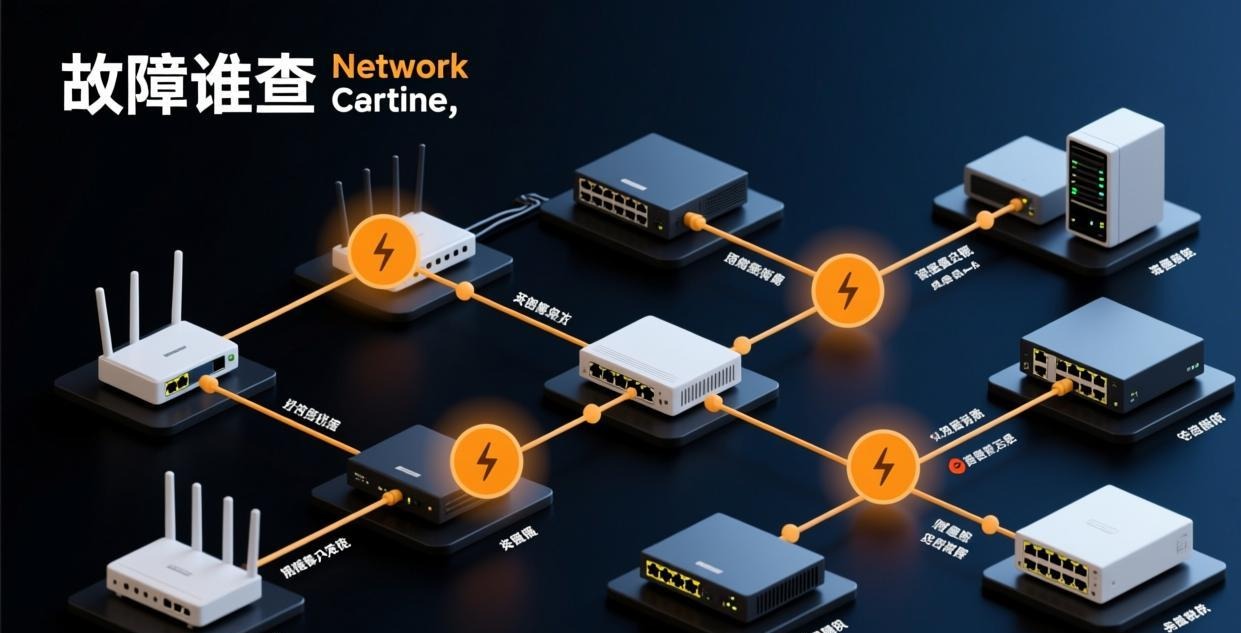
Step 1: Check Remote Device Status
The most common cause of “connection failed” is the remote device being offline or asleep.
Is the Device Powered On?
- Check the device status in your Sunflower Control device list
- Green icon = online, Red icon = offline
- If offline, someone needs to physically turn on the device
- Verify the device isn’t in sleep or hibernation mode
Is the Host Client Running?
On the remote device:
- Check the system tray (Windows) or menu bar (Mac) for the Sunflower icon
- If the icon is missing, the host client has crashed or isn’t running
- Restart the host client from the Start menu or Applications folder
- Check Windows Services (services.msc) → Sunflower Host → should be “Running”
Is Sleep Mode Disabled?
Sleep mode kills network connections and stops the host client:
- Windows: Settings → System → Power → set Sleep to “Never”
- Mac: System Settings → Displays → set “Turn display off” to “Never”
- Laptops: Also set “When I close the lid” to “Do nothing”
I once spent 30 minutes troubleshooting a “connection failed” error, trying everything from reinstalling Sunflower Control to changing DNS settings to flushing the network stack, only to discover my office PC had gone to sleep because Windows Update had silently reset my power settings after a recent update. Always check sleep mode first — it’s the most common and easiest fix, and it saves you from wasting time on complex troubleshooting when the problem is embarrassingly simple.
Step 2: Check Network Connectivity
Test Internet on Both Devices
On both your local and remote devices:
- Open a web browser and visit any website
- If the browser can’t load pages, the device has no internet connection
- Try restarting your router or switching between Wi-Fi and Ethernet
Test Sunflower Server Connectivity
- Open Command Prompt or Terminal
- Run:
ping sunflower.oray.com(or the current server address) - If the ping fails, your network is blocking Sunflower’s servers
- Try:
tracert sunflower.oray.comto see where the connection fails
Check for DNS Issues
DNS problems can prevent Sunflower Control from resolving the server addresses it needs to connect to, resulting in generic “connection failed” errors that don’t obviously point to DNS as the root cause:
- Open Command Prompt as administrator
- Run:
ipconfig /flushdnsto clear the DNS cache - Try connecting again after flushing the cache
- If still failing, change your DNS servers to Google (8.8.8.8 and 8.8.4.4) or Cloudflare (1.1.1.1 and 1.0.0.1):
- Windows: Settings → Network & Internet → Adapter → Properties → IPv4 → Preferred DNS
- Mac: System Settings → Network → Details → DNS → add the new servers
- After changing DNS, run
ipconfig /flushdnsagain and try connecting
DNS issues are more common than most people realize, especially if your ISP’s default DNS servers are slow or unreliable. Switching to Google or Cloudflare DNS often resolves not just Sunflower Control connection issues but also general browsing problems.
Step 3: Check Firewall and Security Software
Windows Firewall
- Settings → Privacy & Security → Windows Security → Firewall & network protection
- Click “Allow an app through firewall”
- Find “Sunflower” in the list and check both Private and Public
- If not listed, click “Change settings” → “Allow another app” → browse to SunflowerControl.exe
Third-Party Antivirus
Antivirus programs commonly block remote access software:
| Antivirus | How to Add Exception |
|---|---|
| Norton | Settings → Firewall → Program Rules → Add Sunflower |
| McAfee | Navigation → Firewall → Program Permissions → Add |
| Kaspersky | Settings → Additional → Threats and Exclusions → Add |
| Bitdefender | Protection → Firewall → Rules → Add exception |
| Avast | Protection → Firewall → Application settings → Add |
Frankly, the easiest way to test if antivirus is the problem is to temporarily disable it for 5 minutes, try connecting, and re-enable it immediately after — don’t leave your antivirus off for longer than necessary. If the connection works with antivirus disabled, you’ve found the culprit — add the Sunflower Control exception permanently in your antivirus settings so you don’t have to keep disabling it every time you want to connect remotely.
Corporate Firewall
If you’re on a corporate or school network:
- IT departments often block remote access software at the network level
- You may need to request an exception from your IT department
- Some networks block the specific ports that Sunflower Control uses for direct peer-to-peer connections
- Try connecting from a different network entirely (use your phone’s mobile hotspot) to test if it’s a network-level block
- If Sunflower Control works on mobile data but not on your corporate or school network, the network is blocking it and you need to request an exception from your IT department
Step 4: Check VPN Interference
VPNs can cause connection issues in several ways:
- VPN blocks Sunflower servers — Some VPNs block connections to remote access services
- VPN routing conflicts — The VPN may route Sunflower traffic through a server that blocks it
- IP address conflicts — VPN IP ranges may conflict with Sunflower’s relay servers
How to test:
- Disconnect your VPN completely
- Try connecting with Sunflower Control
- If it works without VPN, the VPN is the problem
How to fix:
- Enable split tunneling in your VPN settings
- Add Sunflower Control to the split tunneling exclusion list
- Or connect to a different VPN server that doesn’t block remote access traffic
I discovered VPN interference the hard way — my VPN client was set to “always on” and route all traffic, and I couldn’t figure out why Sunflower Control worked fine at the coffee shop and at my parents’ house but refused to connect from my own home network. Once I added Sunflower Control to the VPN’s split tunneling exclusion list, everything worked perfectly from home too. Many people don’t realize that VPNs can selectively block certain types of traffic — it’s one of the first things I check now when troubleshooting connection issues.
Step 5: Check Subscription and Account
Subscription Status
Unattended access requires a paid subscription:
- Open Sunflower Control → Account → Subscription
- Check if your subscription is active and not expired
- If expired, renew to restore full functionality
Account Sync Issues
Sometimes your account gets out of sync between devices:
- Sign out of Sunflower Control on both devices
- Sign back in on the remote device first
- Then sign in on the local device
- Try connecting again
Multiple Accounts
If you have more than one Sunflower Control account (for example, a personal account and a work account), make absolutely sure both devices are signed in with the same account email. This sounds obvious, but I’ve personally spent 20 minutes troubleshooting connection failures before realizing I was signed in with different email addresses on each device. It happens more often than you’d think, especially if you have similar email addresses (like name@gmail.com and name@work.com).
Step 6: Update Sunflower Control
Version mismatches between local and remote devices can cause connection failures:
- Check the version on both devices (Help → About or Settings → About)
- If versions differ, update both to the latest version
- On Windows: Help → Check for Updates
- On Mac: Sunflower Control → Check for Updates
- On mobile: Update from the App Store or Google Play
Older versions may not be compatible with newer server infrastructure or protocol changes. Keeping both devices updated to the latest version ensures the best compatibility and also gives you the benefit of bug fixes and performance improvements that are included in each release.
Step 7: Reinstall Sunflower Control
If none of the above steps resolved your connection problem, a clean reinstall may fix corrupted files, registry entries, or configuration settings that are causing the issue. This is the “nuclear option” but it resolves many stubborn connection problems that simpler troubleshooting steps can’t fix.
Windows Reinstall
- Uninstall Sunflower Control (Settings → Apps → Uninstall)
- Delete the Sunflower folder in
C:\Program Files\ - Delete configuration:
%APPDATA%\Sunflower\ - Download the latest version from the official website
- Install fresh and sign in with your account credentials. A clean reinstall typically takes about 5 minutes and resolves most persistent connection issues that other troubleshooting steps couldn’t fix.
Mac Reinstall
- Drag Sunflower Control from Applications to Trash
- Delete:
~/Library/Application Support/Sunflower/ - Delete:
~/Library/Preferences/com.sunflower.* - Download the latest version from the official website
- Install and sign in
Advanced Troubleshooting
Port Forwarding (Usually Not Needed)
Sunflower Control uses relay servers by default and usually doesn’t require any port forwarding configuration on your router. This is one of the advantages of Sunflower Control over traditional VNC or RDP — it works through NAT and firewalls automatically. However, if your network is very restrictive or you’re experiencing slow relay connections:
- Sunflower Control typically uses ports 49156-49158 for direct connections
- If relay connections work but direct connections fail, check your NAT type
- Most users never need to configure port forwarding
Network Reset
On Windows, if you suspect network configuration corruption, reset the entire network stack. This is a more aggressive fix that resets Winsock, IP configuration, and DNS cache — use it when simpler network troubleshooting hasn’t worked:
netsh winsock reset
netsh int ip reset
ipconfig /flushdns
Restart your computer after running these commands for the changes to take full effect. This fix resolves connection issues caused by corrupted network drivers, misconfigured TCP/IP settings, or leftover proxy configurations from VPN software that didn’t clean up properly when uninstalled.
Check for IP Conflicts
If you’re on a local network with the remote device and experiencing connection issues, an IP address conflict could be the cause — two devices on the same network accidentally assigned the same IP address:
- Open Command Prompt →
ipconfigon both your local and the remote device - Compare the IPv4 addresses — they should be different
- If they have the same IP address, that’s a conflict that will cause connection problems
- Fix by restarting one device (which will request a new IP from DHCP) or by setting static IPs on both devices
IP conflicts are rare but can happen after router restarts, when devices with manually assigned static IPs conflict with the DHCP range, or when a device rejoins the network after being offline for a while.
Check for Proxy Settings
If you’ve previously used a proxy or VPN that set system-wide proxy settings, those settings may still be active even after you uninstalled the software:
- Windows: Settings → Network & Internet → Proxy → make sure “Use a proxy server” is OFF
- Mac: System Settings → Network → Details → Proxies → make sure all proxy protocols are OFF
- Also check your browser’s proxy settings — some VPNs set browser-specific proxies
Leftover proxy settings are a surprisingly common cause of connection failures that most troubleshooting guides don’t mention. I’ve fixed more than one “mysterious” connection issue simply by turning off a forgotten proxy configuration.
Log Analysis
Enable debug logging for more detailed connection information that can help pinpoint the exact failure point:
- Sunflower Control → Settings → Advanced → Enable debug logging
- Try connecting again to reproduce the error
- Check the log file (usually in
%APPDATA%\Sunflower\logs\on Windows or~/Library/Logs/Sunflower/on Mac) - Look for error messages, connection attempt timestamps, and failure codes around the time of your connection attempt
- The log file contains much more detailed information than the user-facing error messages, including which specific step in the connection process failed and why
Debug logging is particularly useful if you need to contact official support — the log file gives them concrete diagnostic information rather than vague descriptions of the problem.
Connection Failed Error Code Reference
| Error Code | Meaning | Fix |
|---|---|---|
| 1001 | Network unreachable | Check internet connection |
| 1002 | Connection timeout | Remote device may be offline or sleeping |
| 1003 | Connection refused | Host client not running on remote |
| 1004 | Authentication failed | Check access password and account |
| 1005 | Version mismatch | Update both devices to latest version |
| 1006 | Relay server error | Sunflower server issue — try again later |
| 1007 | Subscription required | Check your subscription status |
| 1008 | Too many connections | Disconnect other sessions first |
| 2001 | Firewall blocking | Add Sunflower to firewall exceptions |
| 2002 | Certificate error | Check system date/time, reinstall if persistent |
When to Contact Support
If you’ve exhausted all the troubleshooting steps in this guide and still can’t establish a connection, it’s time to escalate the issue:
- Gather diagnostic information: Note the exact error message, both devices’ operating system versions, Sunflower Control version numbers on both devices, and your network type (home Wi-Fi, corporate network, mobile data)
- Check the service status page: Visit the official Sunflower Control website for any reported service outages or maintenance windows that might explain widespread connection failures
- Try a completely different network: Test by connecting from a mobile hotspot to rule out your home or office network as the cause — if it works on mobile data but not your regular network, the issue is network-specific
- Contact official support: Submit a support ticket through the official website’s support channel with all the diagnostic information you’ve gathered
What to Read Next
- Fix black screen issues → Black screen troubleshooting
- Fix high latency → High latency fix guide
- Fix app crashes → Crash fix guide
- Set up unattended access properly → Unattended access guide
- Download latest version → Windows | Mac
This guide was written based on Sunflower Control 2026 latest version. Software features may change with updates. This site is an independent information resource and is not affiliated with Oray or the Sunflower remote control development team.
Disclaimer: This is an independent guide and review site. We are not associated with Oray, Sunflower, or any other remote control software company. All trademarks belong to their respective owners. This site provides links to official sources only for your safety and convenience.