⚠️ This guide helps you fix the black screen problem in Sunflower Control. A black screen means the connection works but the display isn’t being captured or transmitted correctly.
What a Black Screen Means
A black screen is a completely different problem from a “connection failed” error. When you see a black screen, the connection has been established successfully — you’re genuinely connected to the remote device and the network path is working — but the display content isn’t being captured or transmitted correctly. You may still be able to interact with the remote desktop (click buttons, type text) even though you can’t see anything on your screen. This distinction is important because it tells you the network and authentication layers are working fine, and the problem is specifically in the screen capture or rendering pipeline.
| Symptom | Meaning | Chapter |
|---|---|---|
| Completely black screen | Display not being captured | Fix #1-5 |
| Black with cursor visible | Screen captured but content hidden | Fix #3, #5 |
| Black on one monitor only | Multi-monitor capture issue | Fix #6 |
| Black after idle period | Sleep/power state issue | Fix #7 |
| Brief black then normal | Connection initialization delay | Normal, wait 10 seconds |
| Black on mobile but not PC | Mobile-specific issue | Fix #8 |
Fix #1: Grant Screen Recording Permission (macOS)
This is the #1 cause of black screen on macOS. Apple requires explicit permission for any app to capture the screen.
- Open System Settings → Privacy & Security → Screen Recording
- Find Sunflower Control in the list
- Toggle it ON (enable the checkbox)
- You may need to authenticate with Touch ID or password
- Restart Sunflower Control completely (quit and reopen)
If Sunflower Control doesn’t appear in the Screen Recording list:
- Click the “+” button → browse to Applications → select Sunflower Control
- Or: open Sunflower Control first, then check the list again — it should appear after the first launch
I once spent an hour trying to fix a black screen on my mom’s iMac before remembering this permission setting. She had clicked “Deny” when the initial permission prompt appeared on first launch, and never saw the prompt again afterward. After granting Screen Recording permission in System Settings, the remote desktop appeared instantly. Honestly, this permission issue accounts for at least half of all black screen reports on macOS — always check it first before trying anything else.
Fix #2: Update Graphics Drivers (Windows)
Outdated or corrupted graphics drivers are the most common cause of black screen on Windows PCs. The display capture system relies on the GPU driver to render and capture frames, and if the driver has bugs or incompatibilities, the capture process fails silently, resulting in a black screen on the viewing end while the connection itself remains active:
NVIDIA Graphics
- Download the latest driver from nvidia.com/drivers
- Choose “Clean Installation” when prompted
- Restart your computer after installation
AMD Graphics
- Download the latest driver from amd.com/en/support
- Use the AMD Cleanup Utility first if updating from an older version
- Restart after installation
Intel Graphics
- Download from intel.com/content/www/us/en/download-center
- Or use Windows Update → Optional Updates → Driver Updates
- Restart after installation
Check Current Driver Version
- Press Win+X → Device Manager → Display adapters
- Right-click your GPU → Properties → Driver tab
- Note the driver version and date
- If the driver is more than 6 months old, update it
Fix #3: Disable Hardware Acceleration
Hardware acceleration uses your GPU to encode the screen capture stream for better performance. However, certain GPU and driver combinations can cause capture failures when hardware acceleration is enabled, resulting in a perfectly functional connection with a completely black display. Disabling it forces Sunflower Control to use CPU-based encoding, which is slower but more compatible:
In Sunflower Control
- Open Sunflower Control → Settings → Display
- Find “Hardware acceleration” or “GPU acceleration”
- Toggle it OFF
- Restart Sunflower Control
- Try connecting again
In the Remote Session
If you can connect but see a black screen:
- Try pressing Ctrl+Shift+F to open file transfer (proves the connection works)
- If file transfer works but screen is black, the issue is display capture specifically
Fix #4: Check Display Settings on Remote PC
Resolution and Scaling
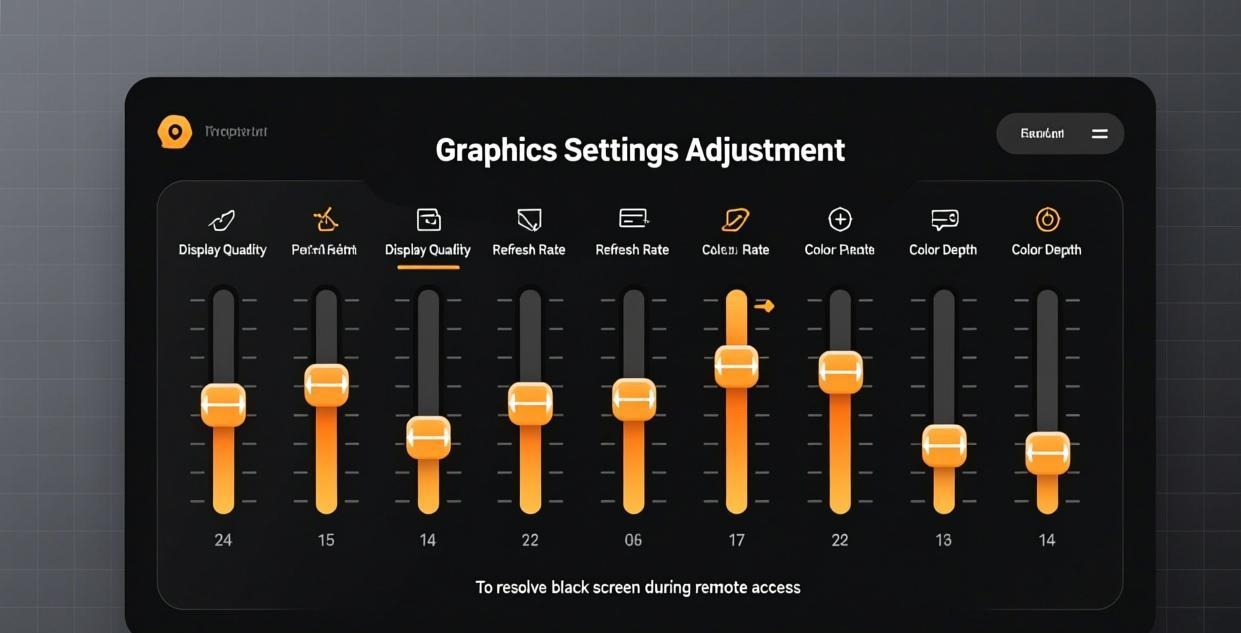
High DPI scaling (like 125% or 150%) can cause display capture issues because the operating system renders the desktop at a virtual resolution that the screen capture system may not correctly interpret:
- On the remote PC: Settings → Display → set scale to 100%
- Set resolution to a standard value (1920×1080 recommended)
- Avoid custom or fractional scaling (125%, 150%, etc.)
Multiple Displays
If the remote PC has multiple monitors:
- In Sunflower Control session settings, select a specific monitor
- Don’t use “All monitors” — this can cause black screen on some systems
- Try each monitor individually to find which one works
Fix #5: Check for Remote Desktop Conflicts
Other remote desktop software can conflict with Sunflower Control’s screen capture:
| Conflicting Software | Issue | Solution |
|---|---|---|
| Windows Remote Desktop (RDP) | RDP uses its own display driver | Close RDP sessions before using Sunflower |
| TeamViewer | Both try to capture the screen | Close TeamViewer completely |
| AnyDesk | Screen capture conflict | Close AnyDesk |
| Chrome Remote Desktop | Display driver conflict | Disable Chrome Remote Desktop |
| OBS Studio | Game capture hook conflict | Close OBS before connecting |
| Gaming overlay (GeForce Experience) | Overlay hooks display output | Disable the overlay |
If you have any of these running on the remote PC, close them completely and try Sunflower Control again. Two screen capture tools fighting over the same display output often results in a black screen for one or both. Truth be told, I’ve seen this happen most often with TeamViewer — even when TeamViewer appears to be minimized to the system tray, it can still hook the display driver and prevent Sunflower Control from capturing the screen. Always fully exit conflicting remote access tools before switching between them.
Fix #6: Fix Multi-Monitor Black Screen
If you have multiple monitors and one shows black:
- Identify the working monitor — Connect and see which one displays correctly
- Switch monitors in the session — In the session toolbar, click the monitor icon and select a different monitor to see if another display works
- Try “Primary monitor only” — Some screen capture methods only work reliably with the primary display selected
- Reconnect after changing monitor setup — Disconnect and reconnect after any display configuration changes on the remote PC
Fixing a Specific Monitor
If Monitor 1 works but Monitor 2 shows black:
- Right-click the desktop → Display settings
- Make sure both monitors are detected and active
- Try making Monitor 2 the primary display temporarily
- Reconnect with Sunflower Control and check if Monitor 2 now displays
Fix #7: Black Screen After Idle Period
If the screen goes black after the remote PC has been idle for a while, the problem is almost certainly power management — the remote PC is turning off the display or entering a low-power state that stops the screen capture from working. This is different from a black screen that happens immediately on connection, which usually indicates a permission or driver problem:
Disable Sleep and Screen Timeout
- Windows: Settings → System → Power → set Sleep to “Never”
- Windows: Settings → Personalization → Lock screen → set Screen timeout to “Never”
- Mac: System Settings → Displays → set “Turn display off” to “Never”
- Mac: System Settings → Energy → enable “Prevent sleeping when display is off”
Disable Display Power Management
- Windows: Edit power plan → Change advanced power settings
- Display → Turn off display after → Setting: 0 (never)
- PCI Express → Link State Power Management → Setting: Off
Use a “Keep Alive” Script
If power settings keep resetting (common with Windows Update):
Create a batch file that moves the cursor periodically:
:loop
powershell -command "$wsh = New-Object -ComObject WScript.Shell; $wsh.SendKeys('{F15}')"
timeout /t 60
goto loop
I discovered this keep-alive approach after my office PC kept going to sleep despite my power settings. Windows Update had silently changed my power plan during an update, and I didn’t notice until my remote sessions started showing black screens. The keepalive script is a belt-and-suspenders approach that prevents the PC from ever considering itself “idle.”
Fix #8: Mobile-Specific Black Screen
If the black screen only happens on your phone or tablet but works fine from a PC client, the issue is specific to the mobile app rather than the remote PC’s screen capture:
Android
- Check overlay permission — Settings → Apps → Sunflower → Display over other apps → enable
- Close other overlay apps — Other apps with overlay permissions can conflict
- Reduce quality — Set quality to Low or Medium in the app settings
- Clear app cache — Settings → Apps → Sunflower → Storage → Clear Cache
iOS
- Grant Local Network access — Settings → Sunflower → Local Network → enable
- Restart the app — Force close and reopen Sunflower Control
- Check screen recording permission — Settings → Privacy → Screen Recording → enable Sunflower
- Update iOS — Some older iOS versions have display capture bugs
Fix #9: Registry Fix for Windows (Advanced)
If none of the standard fixes above have resolved the black screen on your Windows PC, there’s a Windows registry setting that can force the system to use a different screen capture method that may work when the default method fails:
- Press Win+R → type
regedit→ Enter - Navigate to:
HKEY_LOCAL_MACHINE\SOFTWARE\Microsoft\Windows\DWM - Create or modify DWORD:
ForceRemoteDesktopCapture= 1 - Restart your computer
- Try connecting with Sunflower Control again
⚠️ Warning: Editing the Windows registry can cause system problems if done incorrectly. Create a backup of the registry first (File → Export in regedit) and only make the specific change described above. If you’re not comfortable editing the registry, skip this step and try the reinstall method instead.
Fix #10: Reinstall Display Capture Components
On Windows, if the display capture driver component has become corrupted or is conflicting with other software, reinstalling it may resolve persistent black screen issues that other fixes haven’t solved:
- Uninstall Sunflower Control completely
- Open Device Manager → View → Show hidden devices
- Under “Display adapters”, look for any Sunflower virtual display entries
- Right-click → Uninstall device (check “Delete driver software”)
- Restart your computer
- Download and install the latest version
- The display capture component will be reinstalled fresh during the setup process, which often resolves driver conflicts and corruption issues that were causing the black screen
Black Screen Troubleshooting Flowchart
Follow this sequence when you encounter a black screen. Each step takes 1-2 minutes:
Step 1: Is it macOS? → Grant Screen Recording permission → Restart app → Test Step 2: Is it Windows? → Update graphics driver → Restart PC → Test Step 3: Still black? → Disable hardware acceleration in Sunflower settings → Test Step 4: Still black? → Set display scale to 100% → Set resolution to 1920×1080 → Test Step 5: Still black? → Close other remote desktop apps (TeamViewer, AnyDesk, RDP) → Test Step 6: Still black? → Try a different monitor (if multi-monitor setup) → Test Step 7: Still black? → Check if remote PC went to sleep → Disable sleep → Test Step 8: Still black on mobile only? → Check overlay/network permissions on phone → Test Step 9: Still black? → Reinstall Sunflower Control completely → Test Step 10: Still black? → Contact official support with debug logs
Most black screen issues are resolved at Step 1 (macOS permission) or Step 2 (Windows driver update). If you’ve reached Step 6 and still have a black screen, the issue is likely a deeper system compatibility problem that requires official support assistance.
When to Contact Support for Black Screen Issues
If you’ve tried all 10 fixes in this guide and the black screen persists, gather this information before contacting Sunflower Control’s official support:
- Operating system and version on both devices (e.g., Windows 11 23H2, macOS Sonoma 14.3)
- Sunflower Control version on both devices
- Graphics card model and driver version on the remote PC
- Whether the black screen happens immediately on connection or after some time
- Whether file transfer works during the black screen session
- Whether audio sharing works during the black screen session
- Any error codes displayed alongside the black screen
- Debug log file from the session (enable debug logging in Settings → Advanced)
This information helps support staff diagnose the issue much faster than a generic “I see a black screen” report.
To determine whether the black screen problem is caused by screen capture (on the remote side) or by transmission (network issues), run these diagnostic tests in order:
- Try file transfer — Open file manager (Ctrl+Shift+F). If it works, the connection is fine and the issue is screen capture specifically
- Check the remote cursor — If you can see the cursor moving but the screen is black, the session is working but display capture is failing
- Listen for audio — If audio sharing is enabled and you can hear sounds from the remote PC, the connection is working
- Check from a different device — If it’s black from your phone but works from another PC, the issue is on the viewing device side
| Test | Result | Diagnosis |
|---|---|---|
| File transfer works | ✅ | Connection is fine, issue is screen capture |
| Can move cursor on remote | ✅ | Session active, display capture failing |
| Can hear remote audio | ✅ | Connection active, display capture failing |
| Black from all devices | ❌ | Issue is on the remote PC (capture side) |
| Black only on one device | ❌ | Issue is on the viewing device |
Black Screen Error Codes
Some versions of Sunflower Control show specific error codes alongside the black screen, which can help narrow down the exact cause of the display capture failure:
| Code | Meaning | Fix |
|---|---|---|
| DISP_001 | Screen capture failed | Grant Screen Recording permission (Mac) |
| DISP_002 | Display driver error | Update graphics driver (Windows) |
| DISP_003 | Hardware acceleration failed | Disable hardware acceleration |
| DISP_004 | No active display detected | Check display is connected and on |
| DISP_005 | DPI scaling error | Set display scale to 100% |
| DISP_006 | Multi-monitor capture error | Try single monitor mode |
What to Read Next
- Fix connection errors → Connection failed guide
- Fix high latency → High latency fix guide
- Fix app crashes → Crash fix guide
- Download latest version → Windows | Mac
- Set up properly → Unattended access guide
This guide was written based on Sunflower Control 2026 latest version. Software features may change with updates. This site is an independent information resource and is not affiliated with Oray or the Sunflower remote control development team.
Disclaimer: This is an independent guide and review site. We are not associated with Oray, Sunflower, or any other remote control software company. All trademarks belong to their respective owners. This site provides links to official sources only for your safety and convenience.