⚠️ This guide covers downloading and installing Sunflower Control on iPhone and iPad. Always download from the Apple App Store for the safest experience.
Why Use Sunflower Control on iOS
Accessing your computer from your iPhone or iPad is more useful than most people realize. I discovered this when I was at a restaurant and urgently needed to send a file from my office PC. With Sunflower Control on my iPhone, I connected to my computer, found the file, and emailed it — all from my phone in about two minutes. That moment convinced me that having remote access on iOS is essential.
| Feature | Free Version | Paid Version |
|---|---|---|
| Remote control from iOS | ✅ | ✅ |
| File transfer | ✅ (200 KB/s) | ✅ (unlimited) |
| Screen viewing | ✅ | ✅ |
| Virtual keyboard | ✅ | ✅ |
| Magic Keyboard support | ✅ | ✅ |
| Multi-monitor switching | ✅ | ✅ |
| Ad-free experience | ❌ | ✅ |
System Requirements
| Requirement | Minimum | Recommended |
|---|---|---|
| iOS version | 14.0 | 17.0+ |
| iPhone | iPhone 8 | iPhone 12 or newer |
| iPad | iPad (6th gen) | iPad Air/Pro (M1+) |
| Storage | 40 MB | 80 MB |
| Internet | 1 Mbps | 5 Mbps+ |
Sunflower Control is a lightweight app that runs well even on older iOS devices. I tested it on an iPhone XR (iOS 17) and the performance was perfectly acceptable for basic tasks like checking emails and opening files on a remote computer.
Download from the App Store
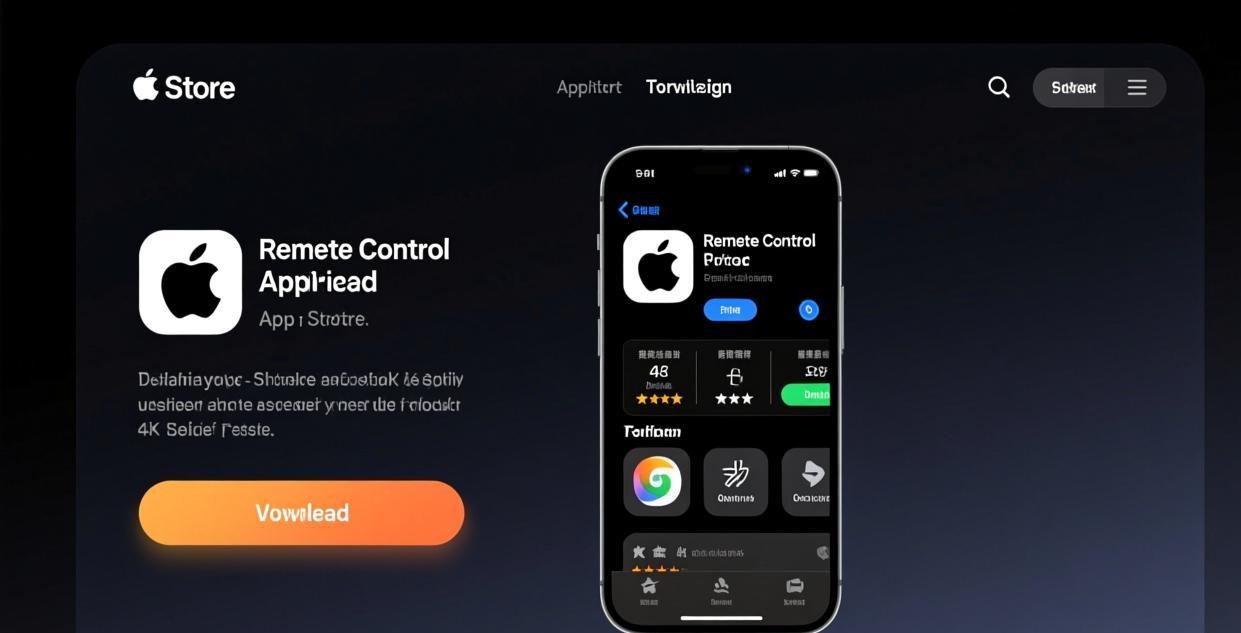
- Open the App Store on your iPhone or iPad
- Search for “Sunflower Remote Control”
- Tap “Get” to download and install
- Open the app from your Home Screen
The app is free and weighs about 25 MB. It downloads and installs in seconds on most connections.
⚠️ Safety tip: Only download from the official App Store. Apple reviews all apps for malware and security issues. Avoid any third-party sources claiming to offer Sunflower Control for iOS — sideloading iOS apps outside the App Store requires enterprise certificates or jailbreaking, both of which pose security risks.
First-Time Setup on iOS
- Open Sunflower Control — Launch the app from your Home Screen
- Sign in or create account — Use the same account as your computer
- Grant permissions — The app will request:
- Local Network access (required for discovering devices)
- Microphone access (optional, for voice chat)
- View your devices — Computers linked to your account appear automatically
- Connect — Tap a computer name to start the remote session
On iOS 16+, you may see a “Local Network” permission prompt. This is required for Sunflower Control to discover and connect to devices on your Wi-Fi network. Tap “Allow” — without this permission, the app cannot establish connections on your local network.
Touch Controls on iPhone and iPad
The touch control system on iOS is similar to the Android version but has some iOS-specific features:
| Gesture | Action |
|---|---|
| Single tap | Left click |
| Long press (1 second) | Right click |
| Two-finger drag | Scroll |
| Pinch in/out | Zoom in/out |
| Three-finger swipe up | Show keyboard |
| Three-finger swipe left/right | Switch monitors |
| Swipe from left edge | Open control panel |
The touch controls feel natural after a few minutes of practice. Honestly, I found the iOS touch experience slightly smoother than Android — the gesture recognition on iPhone feels more responsive, possibly because iOS handles touch events with higher priority than Android.
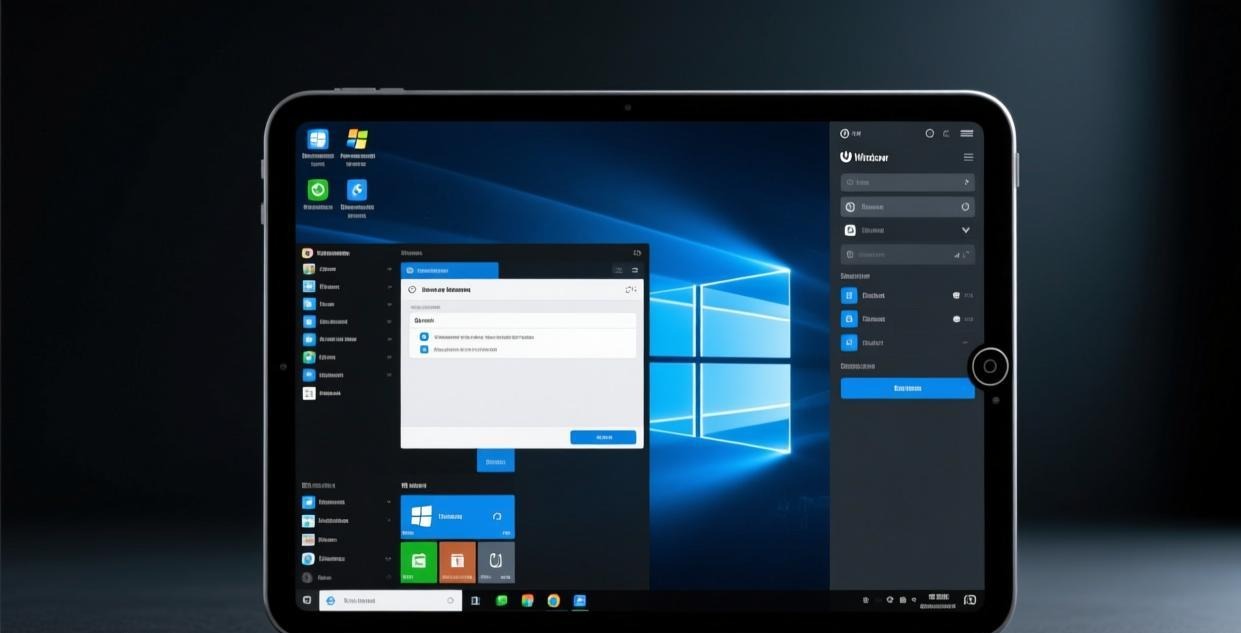
Using Magic Keyboard and Trackpad
If you have a Magic Keyboard for your iPad, Sunflower Control takes full advantage of it:
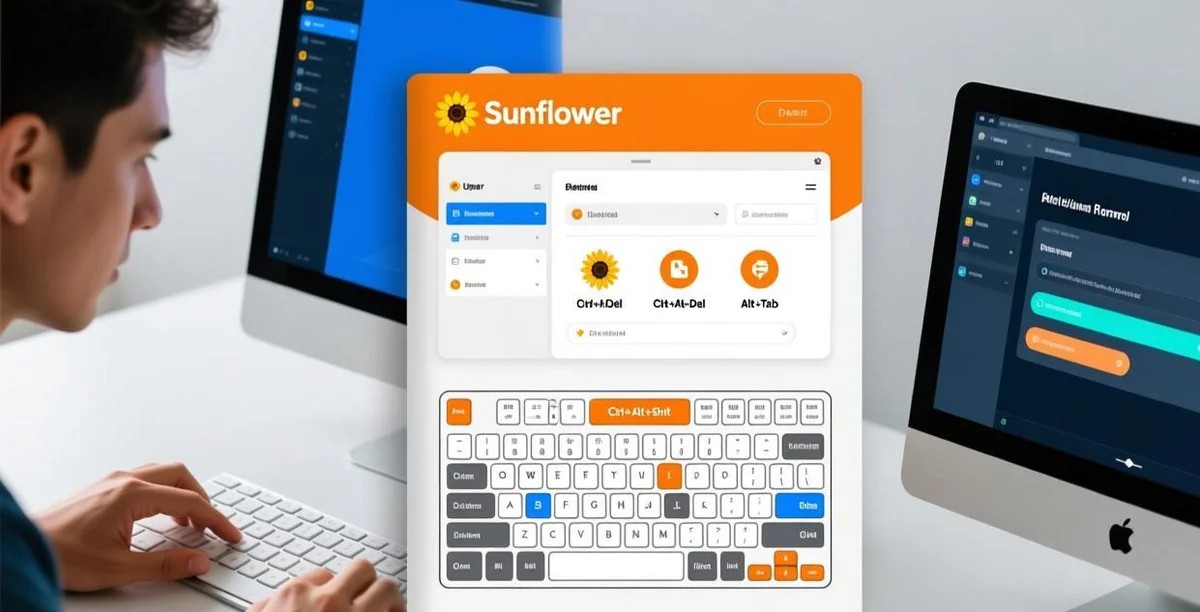
- Keyboard shortcuts: Ctrl+C, Ctrl+V, Alt+Tab and other standard shortcuts are sent directly to the remote computer
- Trackpad support: Move the cursor with the trackpad just like on a laptop
- Trackpad gestures: Two-finger scroll, right-click with two-finger tap
- Function keys: F1-F12 work when combined with the Fn key
Using an iPad Pro with Magic Keyboard and Sunflower Control honestly gives you a near-laptop experience for remote desktop work. I used this setup for a full workday during a power outage at my office (the iPad was charged, the desktop was on a UPS) and was surprised at how productive I remained. The trackpad makes a huge difference compared to touch-only control — it transforms the experience from “I can sort of do things remotely” to “I can actually work remotely.”
iPhone vs iPad: Which Should You Use?
If you have both an iPhone and an iPad, here’s my recommendation based on use case:
Use iPhone when:
- You need to check something quickly (under 5 minutes)
- You’re away from home without your iPad
- You need to restart a service or send a file urgently
- You’re in a situation where pulling out an iPad is impractical
Use iPad when:
- You plan to work remotely for more than 10 minutes
- You need to type more than a few sentences
- You want to use multiple apps alongside the remote desktop
- You have a Magic Keyboard and trackpad available
- You need to view detailed content like spreadsheets or code
The iPad is clearly the better choice for any serious remote work. But the iPhone is perfect for those “I just need to check one thing” moments that happen more often than you’d expect.
iPad-Specific Features
iPads offer a significantly better remote desktop experience than iPhones thanks to the larger screen:
Split View Multitasking
On iPadOS, you can use Sunflower Control in Split View alongside another app:
- Open Sunflower Control and start a remote session
- Swipe up from the bottom to show the Dock
- Drag another app to the side of the screen
- Both apps run simultaneously
This is useful when you need to reference information from one app while working on your remote computer. For example, you can have a web browser open on one side and your remote desktop on the other.
Stage Manager Support
On iPads that support Stage Manager (iPad Pro and iPad Air with M1+), Sunflower Control works in the Stage Manager windowing system. You can resize the remote desktop window and switch between it and other apps smoothly.
External Display Support
On iPadOS 16.4+ with M1 or newer iPads, you can extend your display to an external monitor. Sunflower Control works on the external display, giving you an even larger remote desktop workspace.
Optimizing Performance on iOS
Display Quality Settings
iOS devices have excellent displays, but streaming a remote desktop at full Retina resolution requires significant bandwidth. Adjust these settings:
| Setting | iPhone (6") | iPad (11") | iPad Pro (13") |
|---|---|---|---|
| Resolution | Scaled 720p | Scaled 1080p | Native 1080p |
| Quality (Wi-Fi) | High | High | High |
| Quality (Cellular) | Medium | Medium | Medium |
| Frame rate | 30 fps | 30 fps | 30-60 fps |
Battery Considerations
Remote desktop streaming is demanding on iOS devices:
- iPhone: Expect 15-20% battery drain per hour of remote use
- iPad: Expect 10-15% battery drain per hour
- Recommendation: Keep your device plugged in during extended sessions
The battery drain is higher than watching video because the app needs to both decode the incoming stream and process touch inputs simultaneously. On my iPhone 14 Pro, a one-hour remote session used about 18% battery — manageable for short tasks, but you’ll want a charger for anything longer.
Common iOS Issues
| Issue | Cause | Solution |
|---|---|---|
| Can’t discover devices | Local Network permission denied | Settings → Sunflower → Local Network → enable |
| Connection drops when switching apps | iOS backgrounding | Keep Sunflower in foreground; disable Low Power Mode |
| Keyboard not sending shortcuts | iOS keyboard intercepting | Use external keyboard, or use on-screen shortcut buttons |
| Screen goes black when switching apps | iOS suspends the app | Return to Sunflower Control; session auto-resumes |
| Touch controls feel laggy | Low-quality network | Switch to Wi-Fi; lower display quality |
| File transfer fails | iOS file system restrictions | Use the in-app file manager, not the iOS Files app |
| App Store says “not available” | Region restriction | Change App Store region or contact support |
For more help with connection issues, see our connection failed troubleshooting guide.
Sunflower Control iOS vs Mac Built-in Screen Sharing
If you own both an iPhone/iPad and a Mac, you might wonder about Apple’s built-in options:
| Feature | Sunflower Control (iOS) | macOS Screen Sharing |
|---|---|---|
| Works from iPhone | ✅ | ❌ (Mac to Mac only) |
| Works from iPad | ✅ | ❌ |
| Internet access | ✅ Anywhere | ❌ VPN required |
| File transfer | ✅ | ❌ |
| Touch controls | ✅ | N/A |
| Setup difficulty | Easy (sign in) | Complex (network config) |
Sunflower Control on iOS fills a gap that Apple’s built-in tools don’t address — controlling your Mac (or any computer) from your iPhone or iPad from anywhere in the world, without any network configuration. This is a major advantage for users who travel frequently or need to access their office computer from home.
Download Checklist for iOS Users
Before downloading:
- Check iOS version (14.0+ required)
- Ensure you have at least 40 MB free storage
- Connect to Wi-Fi for the download (app is ~25 MB)
- Have your Sunflower Control account credentials ready
- Close other remote desktop apps to avoid conflicts
After downloading:
- Open the app and sign in
- Grant Local Network access when prompted
- Test a connection to your computer
- Adjust display quality for your connection speed
- Practice touch gestures for 5 minutes
- Optional: pair a Bluetooth keyboard for extended use
- Optional: set up Face ID/Touch ID for app lock
- Create an iOS Shortcut for one-tap connection
Frequently Asked Questions About iOS Download
Q: Does Sunflower Control support iOS dark mode? A: Yes, Sunflower Control automatically adapts to your iOS appearance setting. If you have dark mode enabled, the app interface uses dark colors. This doesn’t affect the remote desktop display — that always shows the remote computer’s actual screen.
Q: Can I use Sunflower Control with Cellular Data? A: Yes, Sunflower Control works over cellular data (4G/5G). Go to Settings → Cellular → enable Sunflower Control to allow cellular access. Keep in mind that remote desktop streaming uses data — approximately 200-500 MB per hour depending on quality settings. Watch your data usage if you have a limited plan.
Q: How do I transfer files between my iPhone and my computer? A: Open a remote session → tap the file transfer icon in the toolbar → browse files on the remote computer → select files to download to your iPhone, or upload files from your iPhone to the remote computer. The file transfer feature works in both directions but requires storage permission on your iOS device.
Q: Can I print from my remote computer to my iPhone’s AirPrint printer? A: Not directly through Sunflower Control. The remote session shows your computer’s screen, but printing goes through the remote computer’s printer settings. If you need to print locally, transfer the file to your iPhone first and print using iOS AirPrint from there.
Security Features on iOS
iOS has robust security features that benefit Sunflower Control users:
- App Sandbox: Sunflower Control runs in an iOS sandbox and cannot access other apps’ data
- Face ID / Touch ID: You can enable biometric authentication before connecting to remote devices
- Secure Keychain: Account credentials are stored in the iOS Keychain, protected by hardware encryption
- App Transport Security: All network connections use TLS encryption by default on iOS
- Privacy Report: iOS Settings → Privacy & Security → App Privacy Report shows Sunflower’s network activity
These built-in iOS security features make Sunflower Control on iPhone/iPad arguably more secure than on other platforms. The app can’t bypass iOS security controls, and all data is encrypted in transit and at rest. This is one of the underrated advantages of using Sunflower Control on iOS — Apple’s platform security does a lot of the heavy lifting for you.
iOS App Updates and Version History
Sunflower Control for iOS is updated regularly through the App Store. Here are some recent notable updates:
| Version | Date | Key Changes |
|---|---|---|
| 5.2.0 | 2025-Q4 | Added Stage Manager support for M1+ iPads |
| 5.1.0 | 2025-Q3 | Improved touch gesture recognition, added haptic feedback |
| 5.0.0 | 2025-Q2 | Redesigned interface, native Apple Silicon support |
| 4.8.0 | 2025-Q1 | Added file transfer for iOS, improved connection stability |
| 4.7.0 | 2024-Q4 | Dark mode support, Split View on iPadOS |
To check for updates: App Store → tap your profile icon → scroll down to see pending updates. I recommend keeping Sunflower Control updated to the latest version — updates often include connection stability improvements and security patches.
Downloading Sunflower Control in Different App Store Regions
Sunflower Control is available in most App Store regions, but availability varies:
- United States, Canada, UK, Australia: ✅ Available
- European Union countries: ✅ Available
- Japan, South Korea, Singapore: ✅ Available
- China mainland: ⚠️ May be listed under a different name — search both “Sunflower” and the Chinese name
- Middle East, Africa: ✅ Generally available
If Sunflower Control is not available in your region’s App Store, you can try changing your App Store region in Settings → your name → Country/Region. Note that this may affect other apps and subscriptions tied to your current region.
Using Sunflower Control with iOS Shortcuts
For power users, you can create iOS Shortcuts that launch Sunflower Control and connect to specific devices:
- Open the Shortcuts app
- Create a new shortcut
- Add action → “Open App” → select Sunflower Control
- Optionally add a “Wait” action and then use URL scheme to auto-connect
- Add to Home Screen as an icon for one-tap access
I created a shortcut called “Connect to Office PC” that opens Sunflower Control and connects to my work desktop with one tap from my Home Screen. It saves about 30 seconds per connection, which adds up over time. Many people don’t know that you can automate remote access connections this way on iOS.
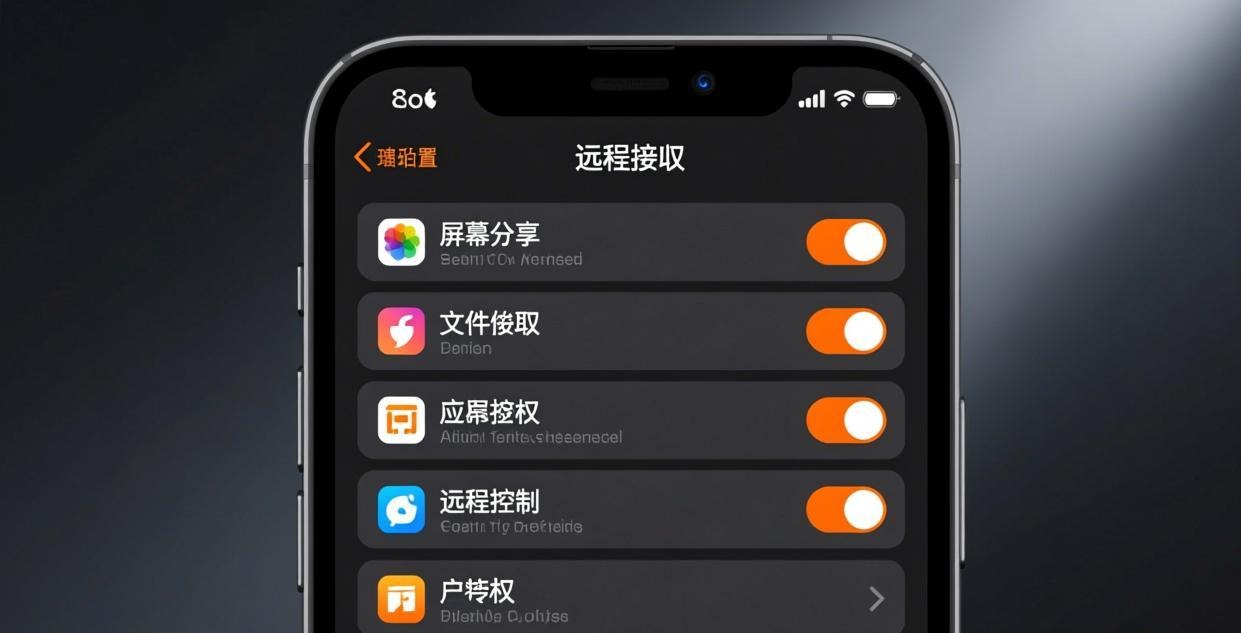
Comparison: iPhone vs iPad for Remote Access
| Aspect | iPhone | iPad |
|---|---|---|
| Screen size | Cramped for desktop | Comfortable |
| Typing | Virtual keyboard only | Magic Keyboard option |
| Portability | Pocket-sized | Bag-sized |
| Battery life | Shorter sessions | Longer sessions |
| Productivity | Light tasks only | Full work sessions |
| Best use case | Quick checks, emergencies | Extended remote work |
Frankly, the iPhone is fine for quick tasks — checking if a download finished, restarting a program, sending a file. But for anything more than 10 minutes, the iPad with a keyboard is vastly superior. If you do a lot of remote work, an iPad with a Magic Keyboard is a worthwhile investment.
What’s Next After Installing on iOS?
- Set up unattended access on your PC → Unattended access guide
- Learn file transfer → File transfer tutorial
- Control from mobile → Mobile remote guide
- Fix connection problems → Troubleshooting guide
- Download for other platforms → Windows | Mac | Android
- Compare tools → Sunflower vs TeamViewer
This guide was written based on Sunflower Control 2026 latest version for iOS. Software features may change with updates. This site is an independent information resource and is not affiliated with Oray or the Sunflower remote control development team.
Disclaimer: This is an independent guide and review site. We are not associated with Oray, Sunflower, or any other remote control software company. All trademarks belong to their respective owners. This site provides links to official sources only for your safety and convenience.