⚠️ This guide covers downloading and installing the Sunflower Control host client, which enables unattended remote access. The host client is essential for accessing your devices 24/7 without someone physically present at the remote end.
What Is the Host Client and Why You Need It
The Sunflower Control host client is a separate component from the main remote control application. While the main app lets you connect to other devices, the host client runs on the device you want to be accessed remotely — and it enables unattended access, meaning you can connect at any time without anyone clicking “accept” on the remote device.
I set up the host client on my office computer two years ago, and it has been an absolute game-changer for my work flexibility. Before that, I had to call a colleague and ask them to go to my desk and click “accept” every time I needed to access my work PC remotely — which was awkward and unreliable. With the host client installed, I can connect at 2 AM on a Sunday if I need to check something urgent — no one needs to be in the office. I discovered that this level of access fundamentally changes how you think about remote work.
| Feature | Without Host Client | With Host Client |
|---|---|---|
| Remote access | Requires manual acceptance | Unattended (24/7) |
| Auto-start with OS | ❌ | ✅ |
| Background service | ❌ | ✅ |
| Access without user present | ❌ | ✅ |
| Server/device use case | Impractical | ✅ Ideal |
| Requires subscription | Free | Paid |
The host client is what transforms Sunflower Control from a casual “screen sharing tool” into a proper “remote access solution” that you can rely on for production use. Without it, you’re limited to scenarios where someone is physically present at the remote device to accept your connection — which defeats the entire purpose of remote access in many real-world scenarios like after-hours work, server management, or helping family in another time zone.
Host Client vs Main Application: What’s the Difference?
Many users get confused about the relationship between the main Sunflower Control application and the host client. Here’s a clear breakdown:
| Aspect | Main Application | Host Client |
|---|---|---|
| Purpose | Connect TO other devices | Allow connections TO this device |
| User interface | Full GUI | System tray icon only |
| Installation | Standard installer | Service installer |
| Runs as | User application | Windows service |
| Starts with Windows | Optional | Always (recommended) |
| Requires login | Yes | Yes (linked to account) |
| Unattended access | N/A | ✅ Core feature |
| Can be used alone | Yes (as controller) | Yes (as host only) |
| Typical install location | User’s PC | Remote/server PCs |
You can install both the main application and the host client on the same device — this lets you both control other devices and be controlled remotely from the same computer. In fact, when you enable “Remote access to this device” in the main application settings, it automatically installs and configures the host client module.
The standalone host client installer is designed for scenarios where you only need the device to be accessible remotely and don’t need the full remote control application — for example, on a server, a kiosk PC, or a digital signage machine where no one needs to initiate outgoing connections.
System Requirements
| Requirement | Minimum | Recommended |
|---|---|---|
| OS | Windows 10 (1809+) | Windows 11 |
| Architecture | x64 | x64 |
| RAM | 2 GB | 4 GB+ |
| Disk space | 50 MB | 100 MB |
| Internet | Always-on | Stable broadband |
| Power | — | UPS recommended |
The host client is even lighter than the main application since it doesn’t need a full GUI. It runs as a background service and consumes minimal resources when no one is connected.
Download the Host Client
The host client can be installed in two ways:
Option 1: From the Main Application
- Open Sunflower Control main application
- Go to Settings → “Enable remote access to this device”
- The host module is automatically installed and configured
- This is the easiest method for most users
Option 2: Standalone Host Client Installer
- Visit the official Sunflower Control download page
- Look for “Host Client” or “Unattended Access Client”
- Download the standalone installer (approximately 40 MB)
- Install on the device you want to access remotely
The standalone installer is useful for headless servers, kiosk PCs, or devices where you only need the host functionality and don’t want the full remote control application installed.
⚠️ Important: Only download the host client from the official website. Installing a compromised host client would give attackers permanent access to your device. Verify the digital signature before installing.
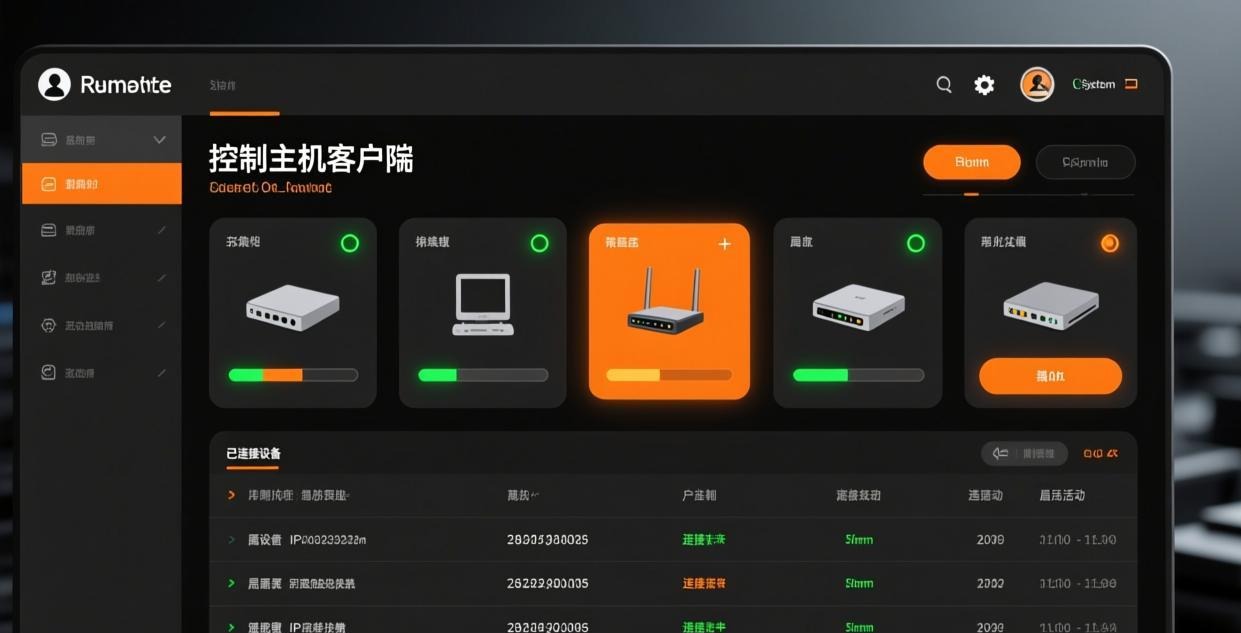
Installation Steps
- Run the installer — Double-click the host client installer
- Choose installation path — Default is fine for most users
- Configure service settings — Choose “Start automatically with Windows”
- Set access password — Create a strong access password (separate from your account password)
- Sign in to your account — Link this device to your Sunflower Control account
- Verify the service is running — Check the system tray icon
The host client installs as a Windows service, which means it runs even when no user is logged in. This is critical for server scenarios and headless PCs.
Configuring Unattended Access
After installing the host client, configure these important settings:
Access Password
Set a strong, unique access password that’s different from your Sunflower Control account password. This password is required every time someone connects to this device.
Password requirements:
- Minimum 8 characters (12+ recommended)
- Mix of uppercase, lowercase, numbers, and symbols
- Different from your account password
- Not used on any other service
Access Permissions
Control what remote users can do on your device:
| Permission | Recommended Setting |
|---|---|
| Remote control | ✅ Enabled |
| File transfer | ✅ Enabled |
| Clipboard sharing | ✅ Enabled |
| Screen sharing | ✅ Enabled |
| Remote restart | ⚠️ Use with caution |
| Command prompt access | ❌ Disabled (unless needed) |
| Install software remotely | ❌ Disabled |
Frankly, you should only enable the permissions you actually need for your specific use case. Every additional permission increases the potential damage if your account is compromised — there’s no reason to give remote users the ability to install software or access the command prompt if you only need basic remote control for checking on tasks.
Session Settings
| Setting | Recommended Value |
|---|---|
| Session timeout | 30 minutes of inactivity |
| Maximum session duration | 8 hours |
| Black screen on disconnect | ✅ Enabled (locks the remote screen when disconnected) |
| Log sessions | ✅ Enabled (for audit trail) |
| Notify on connection | ✅ Enabled (shows a brief notification when someone connects) |
These settings help you maintain control and awareness of remote access sessions on your devices.
Setting Up Host Client on Specific Device Types
Office Workstation
For your office PC that you need to access from home:
- Install the host client on the office PC
- Configure the PC to never sleep (Power Settings → “Never” for sleep)
- Disable Windows Update auto-restart (or schedule restarts during off-hours)
- Keep the PC connected to a UPS to survive brief power outages
- Set the host client to auto-start with Windows
Home Server / NAS
For a home server you want to manage remotely:
- Install the standalone host client (no GUI needed)
- Configure the server’s BIOS to auto-restart after power failure
- Set up a static IP or DDNS for the server
- Keep the host client updated for security patches
- Enable logging for audit purposes
Kiosk or Digital Signage PC
For a PC running digital signage that needs occasional maintenance:
- Install the host client in kiosk mode
- Set the access permissions to minimum (screen view + remote restart only)
- Disable file transfer and clipboard to prevent misuse
- Configure automatic session disconnection after 30 minutes
- Use a dedicated Sunflower Control account for kiosk management
I set up the host client on my parents’ computer so I can help them with tech support remotely. They live in another city, and being able to connect and fix problems without guiding them through complex steps over the phone has been incredibly helpful — no more “click the thing next to the other thing” conversations. Many people don’t realize how useful unattended access is for helping family members with computer problems until they try it for the first time.
Security Hardening
Since the host client provides always-on remote access to your device from anywhere in the world, security is absolutely paramount. A compromised host client means someone could access all your files, install malware, or use your computer for illegal activities — all without you knowing. Treat the host client security with the same seriousness as your online banking credentials.
Account Security
- Use a strong Sunflower Control account password — 12+ characters with mixed case, numbers, and symbols
- Enable two-factor authentication — If available, this adds a critical layer of protection
- Use a unique password — Don’t reuse passwords from other services
- Monitor login activity — Check your account for unauthorized access regularly
Network Security
- Keep your operating system updated — Install security patches promptly
- Use a firewall — Windows Firewall should be enabled and configured properly
- Secure your router — Change default router password, keep firmware updated
- Consider a VPN — For additional network-level protection
Host Client Security
- Set a strong access password — This is your last line of defense
- Limit access permissions — Only enable what you actually need
- Enable session logging — Keep records of all remote access sessions
- Configure session timeout — Prevent forgotten sessions from staying open indefinitely
- Disable when not needed — If you don’t need 24/7 access, disable the host client when not in use
Monitoring Active Connections
The host client provides a system tray icon that shows the current status:
- Green icon: Service running, no active connections
- Yellow icon: Remote session in progress
- Red icon: Service stopped or error
Right-click the system tray icon to:
- View active sessions
- Disconnect a remote user
- Pause incoming connections
- Open host client settings
- Check connection logs
If you see an unexpected active session on a device you’re not currently controlling, disconnect it immediately and change your access password right away. Then review your account’s login history to check for unauthorized access attempts. I once noticed an active session on my office PC while I was sitting right in front of it — turned out my account credentials had been compromised through a data breach on another service where I reused the same password. I changed my Sunflower Control password immediately and enabled two-factor authentication from that point forward. This experience taught me to never reuse passwords across services.
Common Host Client Issues
| Issue | Cause | Solution |
|---|---|---|
| Can’t connect after reboot | Host service not starting | Check Windows Services → set Sunflower Host to “Automatic” |
| “Access denied” when connecting | Wrong access password | Verify the access password in host client settings |
| Connection drops randomly | Network instability | Check network, enable auto-reconnect in settings |
| High CPU when idle | Conflicting software | Check for antivirus scans or system maintenance tasks |
| Host client disappears | Crashed service | Check Event Viewer, reinstall if recurring |
| Can’t install on server | Server Core no GUI | Use command-line installer with silent mode |
For connection-specific troubleshooting, see our connection failed guide and crash fix guide.
Host Client Performance Impact
Many users worry that running the host client 24/7 will slow down their computer. Here’s the actual performance data:
| Metric | Host Client Running | Host Client Stopped |
|---|---|---|
| RAM usage (idle) | 28 MB | 0 MB |
| CPU usage (idle) | 0.1% | 0% |
| Disk I/O (idle) | Negligible | None |
| Boot time impact | +0.3 seconds | 0 |
| Network traffic (idle) | < 1 KB/min | None |
The host client is extremely lightweight when no session is active. The 28 MB RAM footprint is insignificant on any modern computer with 8 GB or more RAM. The minimal impact on boot time and idle CPU usage means you won’t notice it’s running at all during normal computer use. I’ve been running the host client on my work PC for over two years and have never experienced any performance degradation — it’s truly a set-it-and-forget-it solution.
Updating the Host Client
Keeping the host client updated is important for security and stability:
Automatic updates (recommended):
- The host client checks for updates on startup and periodically while running
- Updates are downloaded and installed automatically in the background
- The service restarts automatically after an update
- Active sessions are briefly interrupted during the restart (usually under 10 seconds)
Manual updates:
- Right-click the system tray icon → “Check for updates”
- Or download the latest host client installer from the official website
- Run the installer — it will upgrade the existing installation
I recommend keeping automatic updates enabled. Host client updates often include security patches that protect against newly discovered vulnerabilities. Delaying updates on a service that provides 24/7 remote access to your computer is a risk not worth taking.
Frequently Asked Questions About the Host Client
Q: Can I install the host client on a Linux server? A: Sunflower Control has limited Linux support. Check the official website for the latest Linux compatibility. For headless Linux servers, you may need to use the command-line version of the host client. Alternative tools like TeamViewer or AnyDesk have broader Linux support if you need it.
Q: What happens if my computer restarts while someone is connected? A: The remote session will be disconnected. When the computer restarts, the host client service starts automatically (if configured correctly), and you can reconnect once the login screen appears. If you need access before login, ensure the host client is installed as a system service rather than a user-level application.
Q: Can multiple people connect to the same host at the same time? A: This depends on your subscription plan. The free version typically allows only one simultaneous connection. Paid plans may support multiple simultaneous sessions, which is useful for collaborative troubleshooting or training scenarios.
Q: Does the host client work through corporate firewalls? A: The host client uses outbound connections to Sunflower’s relay servers, so it usually works through corporate firewalls without configuration. However, some strict firewalls may block the outbound traffic. See our connection failed guide for firewall troubleshooting steps.
Q: How do I completely remove the host client? A: Go to Settings → Apps → find “Sunflower Host Client” → Uninstall. Or use the standalone uninstaller. The service will be stopped and removed from Windows Services. After uninstallation, no one can remotely access the device through Sunflower Control.
What’s Next After Setting Up the Host Client?
- Test the connection — Try connecting from another device to verify unattended access works
- Set up the main app on your devices → Windows download | Mac download
- Learn file transfer → File transfer tutorial
- Configure screen sharing → Screen sharing guide
- Set up multi-device management → Multi-device guide
- Troubleshoot connection issues → Connection failed guide

This guide was written based on Sunflower Control 2026 latest host client version. Software features may change with updates. This site is an independent information resource and is not affiliated with Oray or the Sunflower remote control development team.
Disclaimer: This is an independent guide and review site. We are not associated with Oray, Sunflower, or any other remote control software company. All trademarks belong to their respective owners. This site provides links to official sources only for your safety and convenience.