⚠️ This guide covers downloading and installing Sunflower Control on Android phones and tablets. Always download from the Google Play Store or official sources to ensure safety.
Why Use Sunflower Control on Android
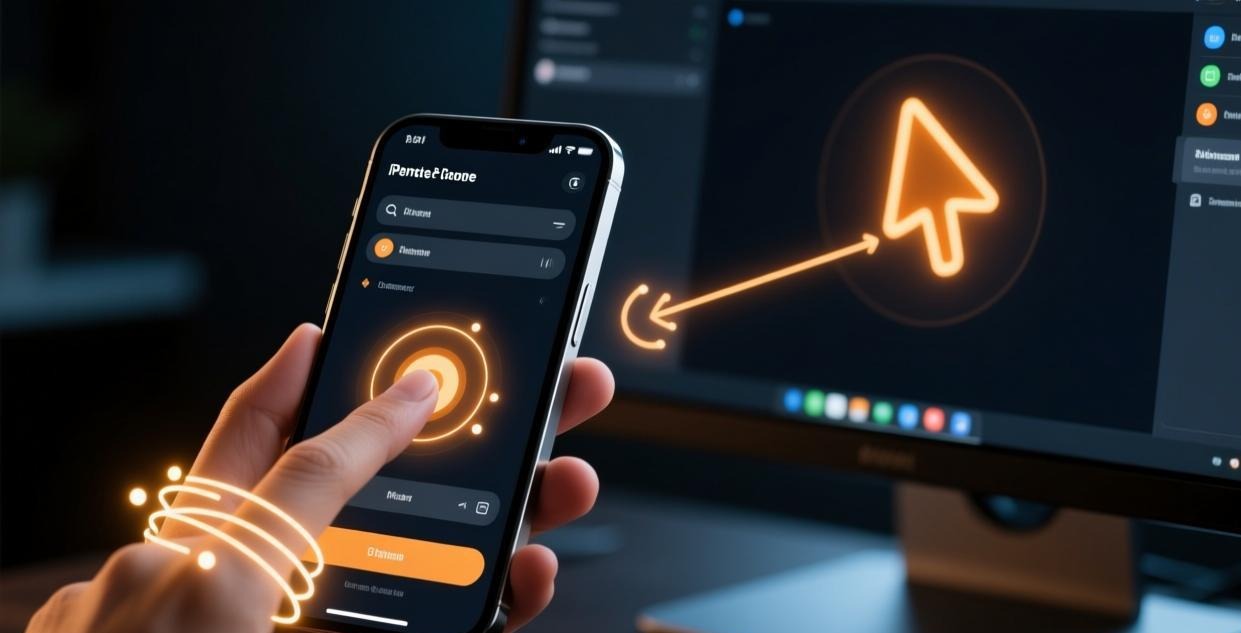
Controlling your computer from your phone is incredibly useful. Whether you’re away from your desk and need to check something on your PC, or you want to help a family member troubleshoot their computer while you’re out — Sunflower Control for Android makes it possible.
I first tried remote desktop on Android three years ago with several different apps. Honestly, Sunflower Control stood out because the touch controls actually made sense — the virtual mouse cursor moves naturally, and the gesture system for scrolling and right-clicking felt intuitive after about five minutes of practice. Some other remote desktop apps have clunky, frustrating touch interfaces that make you want to give up and just find a computer instead.
| Feature | Free Version | Paid Version |
|---|---|---|
| Remote control from Android | ✅ | ✅ |
| File transfer | ✅ (200 KB/s) | ✅ (unlimited) |
| Screen sharing | ✅ | ✅ |
| Virtual mouse & keyboard | ✅ | ✅ |
| Bluetooth keyboard support | ✅ | ✅ |
| Multi-monitor switching | ✅ | ✅ |
| Ad-free experience | ❌ | ✅ |
System Requirements
| Requirement | Minimum | Recommended |
|---|---|---|
| Android version | 7.0 (Nougat) | 10.0+ |
| RAM | 2 GB | 4 GB+ |
| Storage | 50 MB | 100 MB |
| Screen size | 4.5" | 6"+ |
| Internet | 1 Mbps | 5 Mbps+ |
| CPU | Quad-core 1.5 GHz | Octa-core 2.0 GHz+ |
Sunflower Control runs on most modern Android devices without problems. I tested it on a budget Samsung Galaxy A14 (Android 13, 3GB RAM) and it worked fine for basic remote control tasks, though the smaller screen made detailed work challenging. On a tablet with a larger screen, the experience is much more comfortable — you can actually see what you’re doing without squinting.
Download Sunflower Control for Android
Two ways to get the Android app:
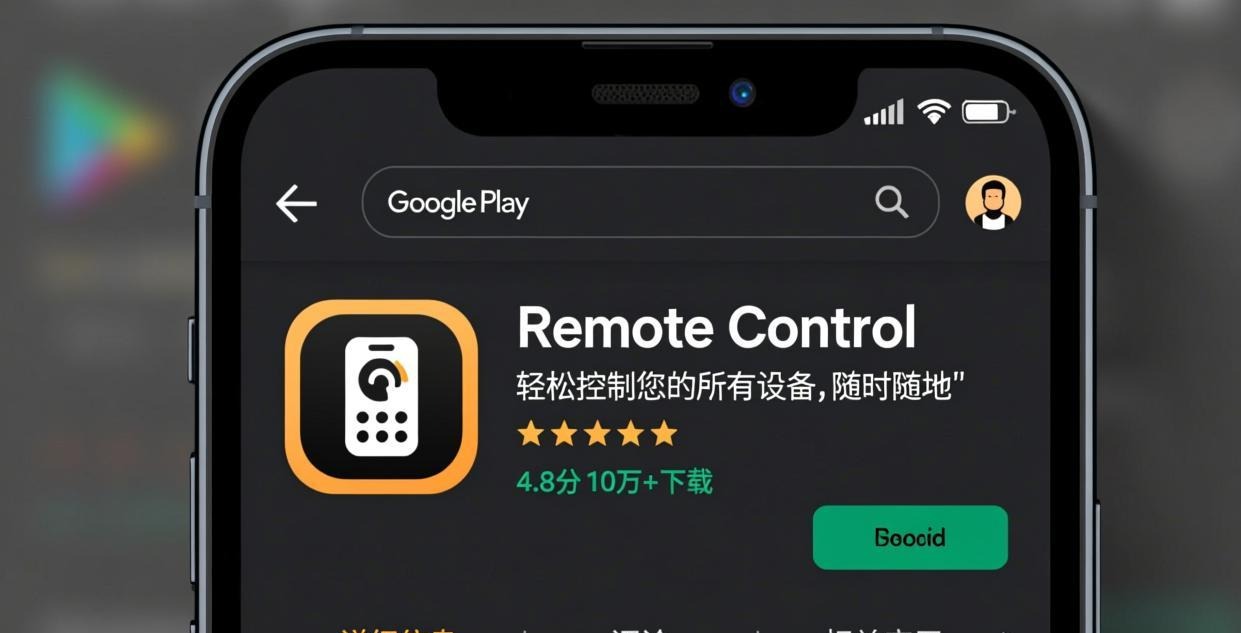
Google Play Store (Recommended) — Search “Sunflower Remote Control” in the Play Store, or use the direct link from the official website. This is the safest option as Google scans apps for malware.
APK direct download — Available from the official website for users who can’t access the Play Store (e.g., in regions where it’s not listed, or on devices without Play Store like Amazon Fire tablets). ⚠️ Only download APKs from the official Sunflower website to avoid malware.
Alternative app stores — Available on some third-party Android app stores, but I’d avoid these unless you trust the store. Unofficial sources may distribute modified versions with adware.
Installation Steps
From Google Play Store:
- Open the Play Store → search “Sunflower Remote Control”
- Tap “Install”
- Wait for download and installation (approximately 30 MB)
- Tap “Open” or find the app in your app drawer
From APK download:
- Download the APK file from the official website
- Open the APK file — Android may ask for permission to install from unknown sources
- Enable “Allow from this source” in Settings
- Install the app
- Open from your app drawer
The installation process is straightforward and typically takes under a minute. No special configuration is needed during setup.
First-Time Setup on Android
- Open the app — Launch Sunflower Control
- Sign in or create account — Use the same account as on your computer
- Grant permissions — The app will request:
- Network access (required for remote connections)
- Storage access (required for file transfer)
- Overlay permission (for floating control toolbar)
- View your devices — Your linked computers appear in the device list
- Connect to a device — Tap on a computer name to start the remote session
Touch Controls Guide
The touch control system is the most important part of the Android remote experience. Here’s how each gesture works:
| Gesture | Action |
|---|---|
| Single tap | Left click |
| Long press | Right click |
| Two-finger drag | Scroll |
| Pinch in/out | Zoom in/out |
| Two-finger tap | Middle click |
| Three-finger swipe up | Show keyboard |
| Three-finger swipe down | Hide keyboard |
| Swipe from left edge | Open sidebar menu |
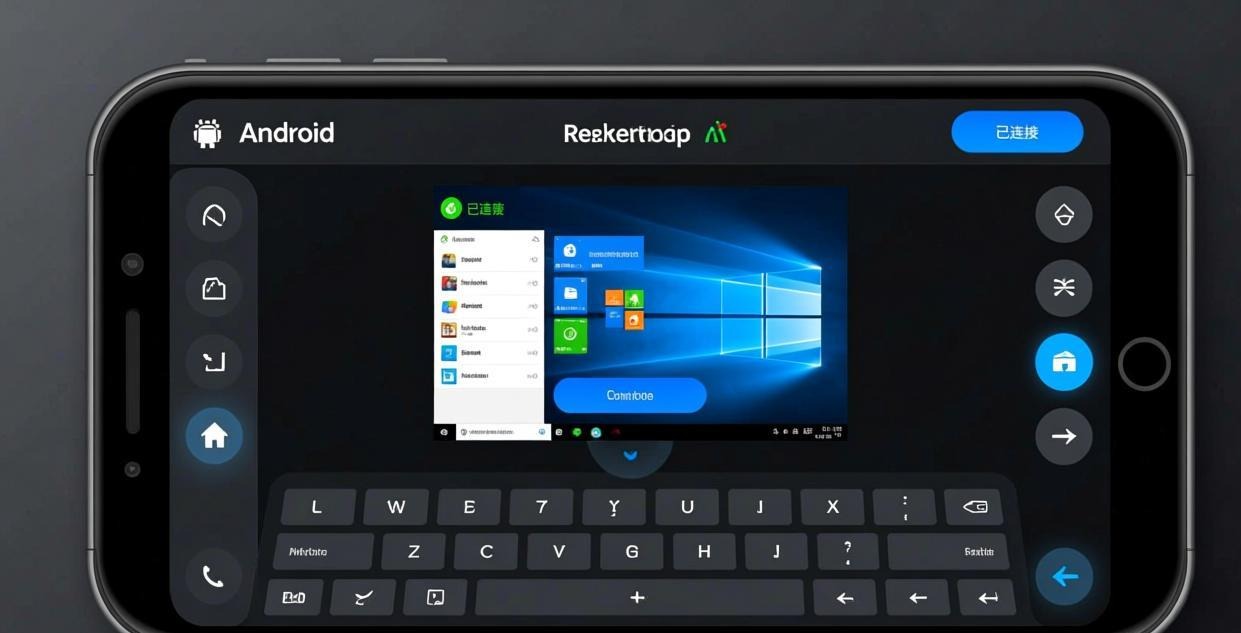
Frankly, it took me about 10 minutes to get comfortable with the touch controls. The key insight is that you’re not directly touching the screen elements — you’re moving a virtual cursor. Tap where you want the cursor to click, not directly on the button you want to press. Once you understand this distinction, everything clicks into place.
Optimizing the Android Experience
Screen Resolution Settings
On a phone screen, viewing a full desktop at native resolution makes everything tiny. Adjust these settings:
- Resolution: Set to “Scaled (720p)” for phones, “Scaled (1080p)” for tablets
- Quality: Use “Medium” for mobile data, “High” for Wi-Fi
- Display mode: Toggle between “Full screen” and “Scaled” in the toolbar
Using a Bluetooth Keyboard and Mouse
For extended remote sessions on Android, connect a Bluetooth keyboard and mouse:
- Pair your Bluetooth keyboard and mouse in Android Settings → Bluetooth
- Sunflower Control automatically detects and uses them
- Keyboard shortcuts (Ctrl+C, Ctrl+V, etc.) are sent directly to the remote computer
- The Bluetooth mouse cursor replaces the virtual touch cursor
I prefer using a Bluetooth keyboard when I need to do any real work on a remote computer from my phone. Typing on a virtual keyboard while looking at a remote desktop is honestly a frustrating experience — a physical keyboard makes it ten times better. Many people don’t know that Sunflower Control fully supports Bluetooth input devices, and the experience is surprisingly close to using a laptop once you have the right peripherals connected.
Mobile Data vs Wi-Fi Performance
Remote desktop over mobile data works, but with limitations:
| Network Type | Typical Speed | Recommended Quality | Experience |
|---|---|---|---|
| 5G | 50-300 Mbps | High | Smooth, near-LAN quality |
| 4G LTE | 5-50 Mbps | Medium | Good for most tasks |
| 3G | 1-5 Mbps | Low | Usable but laggy |
| Wi-Fi (home) | 20-1000 Mbps | High | Best experience |
| Public Wi-Fi | 2-20 Mbps | Low-Medium | Variable, may disconnect |
A few tips for mobile data usage:
- One hour of remote access at Medium quality uses approximately 200-500 MB of data
- If you have a limited data plan, set quality to Low to reduce consumption
- 5G connections provide an experience nearly indistinguishable from home Wi-Fi
- Avoid important remote sessions on unreliable public Wi-Fi — use mobile data instead if your signal is strong
Battery Optimization
Remote desktop apps drain battery quickly. To minimize battery usage:
- Lower display quality to “Medium” or “Low”
- Reduce resolution to 720p
- Close other apps running in the background
- Keep your phone plugged in during long sessions
- Disable background refresh for other apps in Android Settings
Common Android Issues
| Issue | Cause | Solution |
|---|---|---|
| Connection keeps dropping | Wi-Fi instability | Switch to 5GHz Wi-Fi or use mobile data |
| Screen is too small to read | High resolution scaling | Set resolution to 720p in app settings |
| Touch controls not responding | Overlay permission not granted | Enable overlay in Android Settings → Apps |
| Can’t transfer files | Storage permission denied | Grant storage access in Settings → Apps → Sunflower |
| App crashes frequently | Low RAM | Close other apps, restart phone |
| Keyboard not appearing | Android keyboard conflict | Use three-finger swipe up to force keyboard |
| High data usage | Streaming at high quality | Lower quality setting when on mobile data |
For connection-specific issues, check our connection failed troubleshooting guide and high latency fix guide.
Android Permission Details
Sunflower Control needs several Android permissions to function properly. Here’s what each one does and why it’s needed:
| Permission | Why Needed | Can I Deny It? |
|---|---|---|
| Internet | Connect to remote devices | No — app won’t work |
| Storage | File transfer between devices | Yes — file transfer won’t work |
| Overlay | Floating control toolbar | Yes — use in-app controls instead |
| Foreground Service | Keep connection alive in background | No — connections will drop |
| Camera (optional) | Share phone camera with remote | Yes — optional feature |
| Microphone (optional) | Voice chat during remote session | Yes — optional feature |
Android 13+ shows permission prompts more frequently than older versions. If you accidentally deny a permission, go to Android Settings → Apps → Sunflower Control → Permissions to re-grant it. Some users report that the overlay permission prompt doesn’t appear on certain Samsung devices — in that case, manually enable it in Settings.
Using Sunflower Control for Android as a Host (Being Controlled)
Most people use the Android app to control their computer, but Sunflower Control also allows your Android device to be controlled from a computer. This is useful for:
- Tech support: Let someone remotely troubleshoot your Android phone
- Screen sharing: Show your phone screen during presentations
- Device management: IT departments managing employee devices
To enable your Android device as a host:
- Open Sunflower Control → tap the menu → “Enable remote access to this device”
- Grant Screen Capture permission when prompted
- Your device appears in the device list and can be connected to from any computer
The host functionality on Android is more limited than on desktop — you can view the screen and tap, but advanced features like file transfer from the Android device require additional permissions.
Sunflower Control on Popular Android Devices
Different Android devices have slightly different experiences with Sunflower Control. Here are notes from testing on common devices:
| Device | Experience | Notes |
|---|---|---|
| Samsung Galaxy S24 | ✅ Excellent | Smooth, One UI doesn’t interfere |
| Samsung Galaxy A14 | ✅ Good | Budget phone, minor lag on Medium quality |
| Google Pixel 8 | ✅ Excellent | Clean Android, best touch response |
| Xiaomi Redmi Note 13 | ✅ Good | MIUI battery saver may kill the app |
| OnePlus 12 | ✅ Excellent | Fast, no issues |
| Samsung Galaxy Tab S9 | ✅ Excellent | Best tablet experience |
| Lenovo Tab M10 | ⚠️ Fair | Low-end tablet, use Low quality only |
Xiaomi/MIUI users: MIUI’s aggressive battery management may kill Sunflower Control in the background. Go to Settings → Apps → Sunflower → Battery saver → select “No restrictions” to prevent disconnections.
Samsung users: Some Samsung devices have an “Auto-optimize” feature that disables background apps. Add Sunflower Control to the “Never sleeping apps” list in Settings → Battery and device care.
Download Checklist for Android
Before downloading:
- Check Android version (7.0+ required)
- Ensure sufficient storage (50 MB minimum)
- Connect to Wi-Fi for initial download (smaller than 30 MB)
- Close other remote desktop apps to avoid conflicts
After downloading:
- Sign in with your Sunflower Control account
- Grant all requested permissions (Network, Storage, Overlay)
- Test a connection to your computer
- Adjust display quality based on your connection speed
- Practice touch controls for 5 minutes
- Configure battery optimization settings to prevent disconnections
- Optional: pair a Bluetooth keyboard and mouse for extended use
Frequently Asked Questions About Android Download
Q: Can I install Sunflower Control on an Amazon Fire tablet? A: Amazon Fire tablets run a modified version of Android without the Google Play Store. You can sideload the Sunflower Control APK, but you’ll need to enable “Apps from Unknown Sources” in Settings. The app works on Fire tablets, though the experience is not officially optimized for Fire OS.
Q: Does Sunflower Control support split-screen on Android? A: Yes, on Android 7.0+ you can use Sunflower Control in split-screen mode alongside another app. This is useful if you need to reference information from one app while working on your remote computer. However, the reduced screen space makes the remote desktop harder to use.
Q: How do I disconnect a remote session on Android? A: Tap the “X” button in the floating toolbar, or swipe down from the top of the screen and tap the Sunflower Control notification → “Disconnect.” You can also simply close the app to end the session.
Sunflower Control Android vs Other Remote Desktop Apps
| Feature | Sunflower Control | TeamViewer | AnyDesk | Chrome Remote Desktop |
|---|---|---|---|---|
| Free personal use | ✅ | ✅ (limited) | ✅ | ✅ |
| Touch controls | Good | Good | Good | Basic |
| File transfer | ✅ | ✅ (limited) | ✅ | ❌ |
| Bluetooth keyboard | ✅ | ✅ | ✅ | ✅ |
| App size | ~30 MB | ~60 MB | ~25 MB | ~15 MB |
| Ad-free (free) | ❌ | ✅ | ❌ | ✅ |
| Connection speed | Good | Good | Fast | Average |
Each app has its own strengths and trade-offs. Sunflower Control offers a good balance of features, ease of use, and performance for a free tool. TeamViewer has more polished features but restricts free usage. AnyDesk is fast but also has free version limitations. Chrome Remote Desktop is simple but lacks file transfer. See our detailed Sunflower vs TeamViewer comparison and Sunflower vs AnyDesk comparison for a deeper feature-by-feature breakdown.
Using Sunflower Control on Android Tablet
Tablets offer a much better remote desktop experience than phones thanks to the larger screen:
- 10-inch tablets: Comfortable for most remote tasks, text is readable at 1080p
- 8-inch tablets: Usable but tight — use 720p for better readability
- 12+ inch tablets: Excellent — close to laptop experience with Bluetooth keyboard
I used Sunflower Control on a Samsung Galaxy Tab S9 for a week of remote work while traveling, and it was surprisingly productive with a Bluetooth keyboard and mouse. The 11-inch screen gave me enough space to work comfortably, and the connection was stable enough for email, documents, and light development work. Truth be told, I was skeptical about doing real work on a tablet remotely, but it turned out to be perfectly viable for tasks that don’t require heavy multitasking.
For the best tablet experience:
- Use a stand to prop up the tablet at a comfortable angle
- Connect a Bluetooth keyboard and mouse
- Set resolution to 1080p
- Use “Adaptive quality” for smooth performance over Wi-Fi
Security on Android
When using remote access on Android, consider these security tips:
- Lock your phone — Set up fingerprint, face unlock, or a strong PIN. Anyone with your phone could access your computers.
- Don’t save passwords in the app — If your phone is lost or stolen, saved credentials give access to your remote devices.
- Use a VPN on public Wi-Fi — When connecting from coffee shops or airports, use a VPN to encrypt your traffic.
- Review active sessions — Check your Sunflower Control account for unexpected connections.
- Enable app lock — Use Android’s app lock feature or a third-party app locker to require authentication before opening Sunflower Control.
What’s Next After Installing on Android?
- Set up unattended access on your PC → Unattended access guide
- Learn file transfer between devices → File transfer tutorial
- Configure screen sharing → Screen sharing setup
- Fix connection problems → Connection troubleshooting
- Compare with TeamViewer → Sunflower vs TeamViewer
- Download for other platforms → Windows download | Mac download
This guide was written based on Sunflower Control 2026 latest version for Android. Software features may change with updates. This site is an independent information resource and is not affiliated with Oray or the Sunflower remote control development team.
Disclaimer: This is an independent guide and review site. We are not associated with Oray, Sunflower, or any other remote control software company. All trademarks belong to their respective owners. This site provides links to official sources only for your safety and convenience.